
Known Participant
September 9, 2025
Question

How to fix incorrect keyword number

  • September 9, 2025
  • 3 replies
  • 126 views

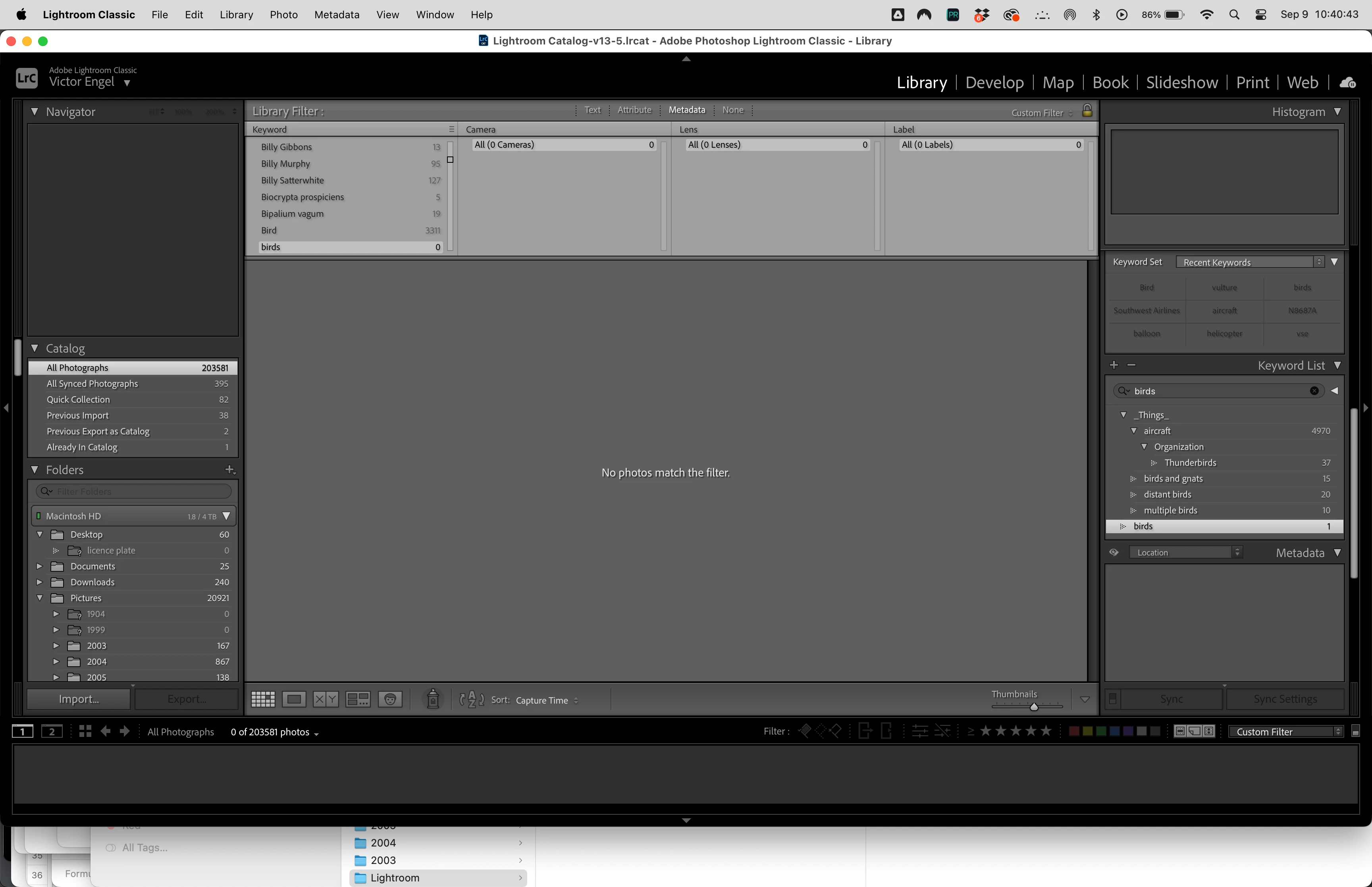
I use a hierarchical style of managing keywords. Today I noticed I had two redundant keywords, Bird and birds. I selected all photos in the catalog, clicked the arrow next to the number by birds to select all photos containing that keyword. Next I clicked on the left side of Bird to add the Bird keyword to those images. Then I unchecked on the left next to birds. Now no images have the birds keyword. But wait. It shows a 1. I selected Metadata, Purge unused keywords, and that didn't fix it. Next I exited LR and deleted the Helper.lrdata file since I read that can fix cache issues. Opening LR Classic again (Mac version), the keyword is still there. Is there any other way to fix this?
3 replies

Community Manager
September 9, 2025

Hi @victore2045391, thanks for reaching out!

Have you tried resetting your Lightroom preferences? It often helps clear up any odd errors or glitches.

Here’s a quick guide on how to do that: https://adobe.ly/4n5LeWP

Let me know how it goes!

Alek

*(If you mention me with an @, like @Aleke, I’ll get a notification and can respond faster.)*
Ged_Traynor
Community Expert
Community Expert
September 9, 2025

@victore2045391 this is the Photoshop forum, try the Lightroom Classic forum instead

Known Participant
September 9, 2025

Oops! I didn't even notice. I rarely use Photoshop and just navigated from a previous post of mine, which actually was a Photoshop issue. I'd delete the thread, but I don't see a way to do that.

Known Participant
September 9, 2025

I just noticed that if I right-click the keyword, I can delete it. I was warned that if I delete it, it will be removed from one photo that contains it. That fixed the issue. I've never deleted keywords like this before. I've always just removed them from photos and then purged unused keywords.