Known Participant
July 9, 2026
Answered

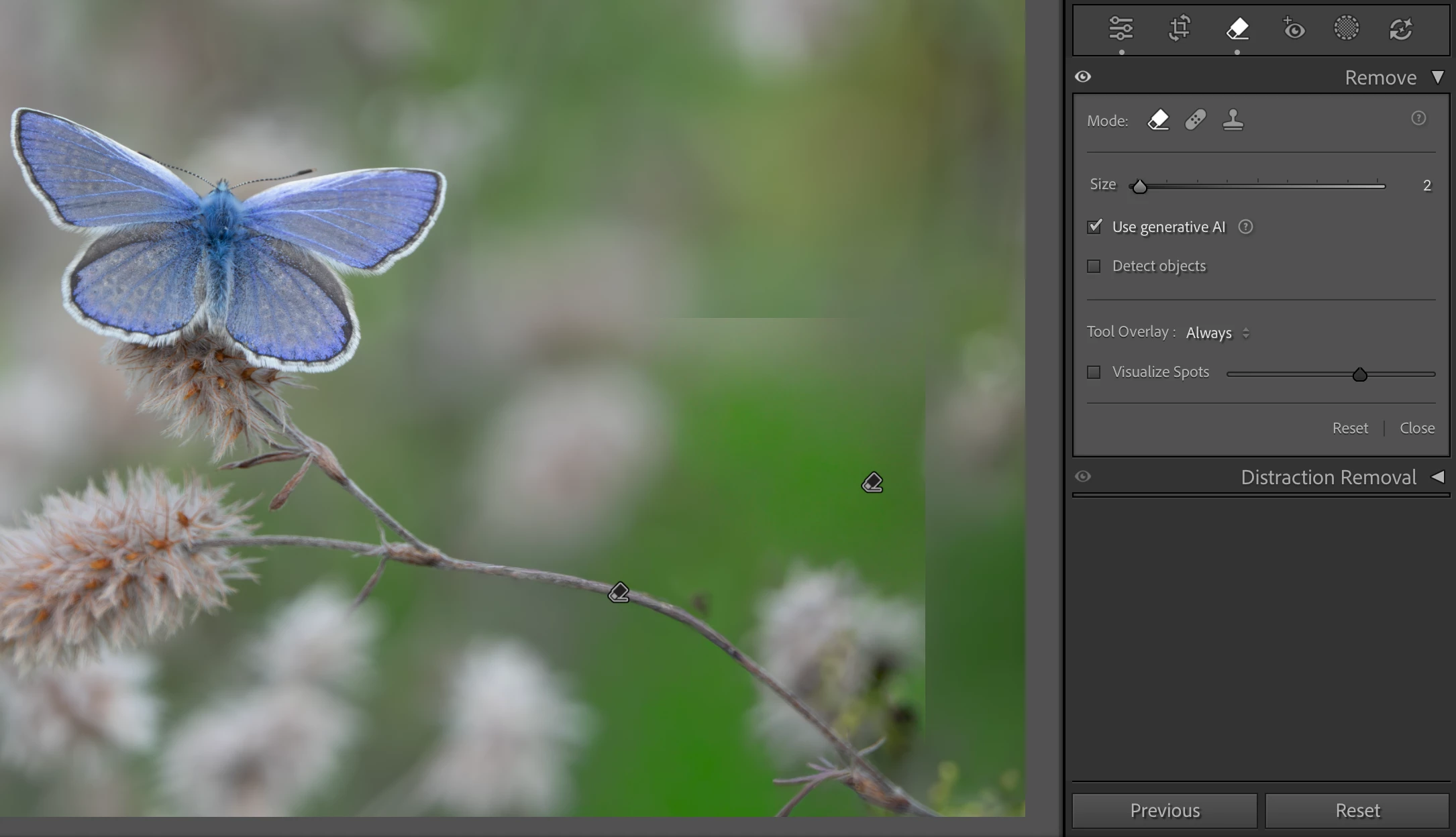
Huge block visible (horizontal + vertical line) : after using Denoise AI and Remove (AI) tools
  • July 9, 2026
  • 2 replies
  • 32 views
See horizontal and vertical line on right. half of the picture

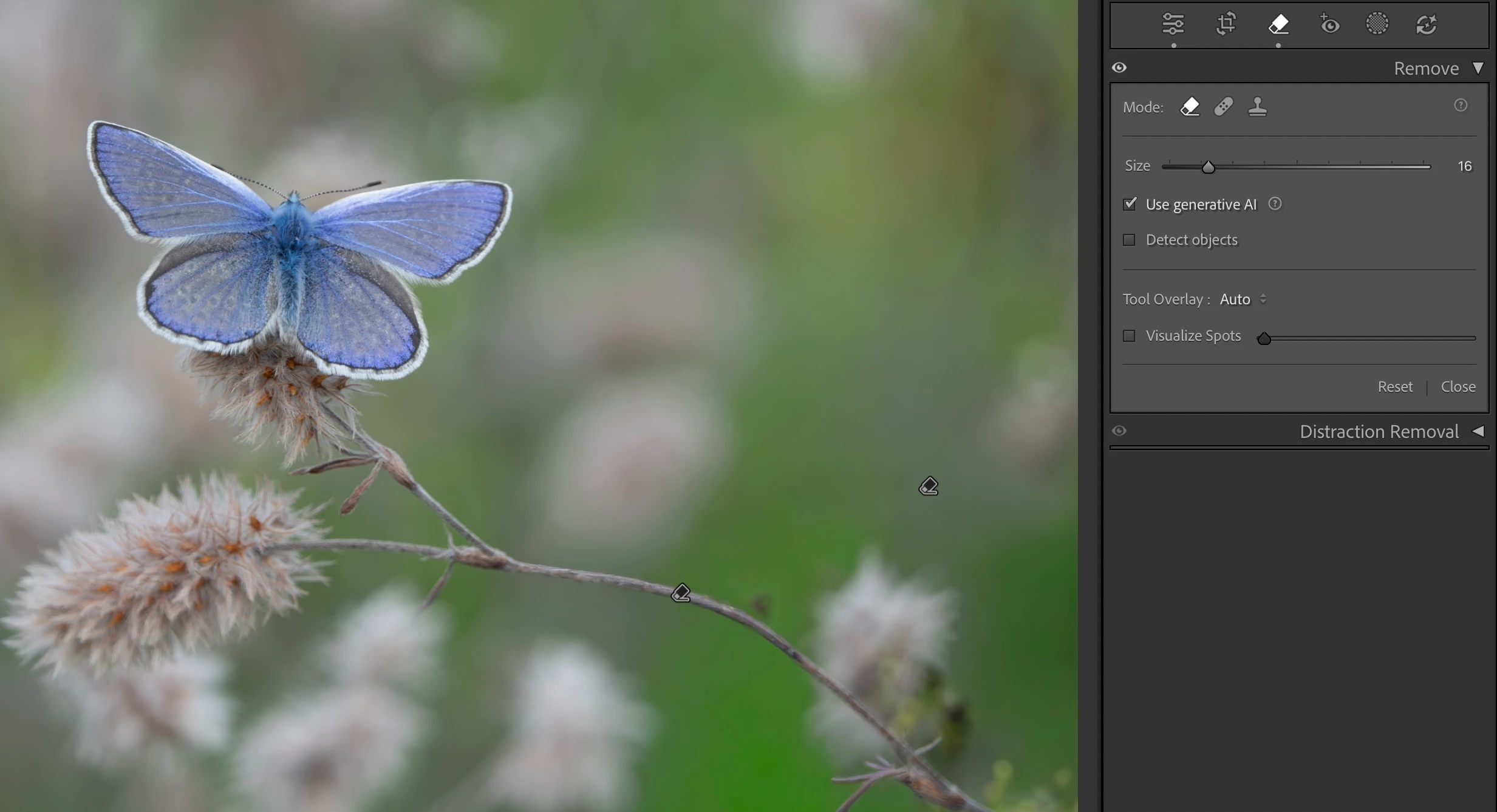
The artifacts (lines) became visible in a part of the pictured that I repaired with the Remove - Generative AI tool. The artefact only appears if Denoise AI is applied as well. 
Disabling one of them, makes the artefact dissapear. 
No other edits applied. 
Camera is Sony RX10iii, cRAW (.ARW file).
Lightroom version 15.4.1
macOS Tahoe 26.5.2

    Correct answer johnrellis

    [View this post in your web browser. It contains formatting and images that don't appear in email.]


    Opening the catalog you shared, I don’t see the artifacts in my LR 15.4.1 / Mac OS 26.4.1. (See screenshot below.) 


    I tried deleting the .lrcat-data file that stores the result of the AI commands, forcing them to be re-evaluated, and the artifacts didn’t appear.


    If in the test catalog you reset settings and then try to apply just Denoise and Remove, without the other steps shown in the History panel, does the problem reoccur?  I’m wondering if it’s related to the particular sequence of commands shown in the History panel.


    Unfortunately, if we can’t identify a way to reproduce this or share a catalog/photo showing the problem, Adobe isn’t likely to pay much attention.


    2 replies

    johnrellis
    johnrellisCorrect answer
    Legend
    July 10, 2026

    [View this post in your web browser. It contains formatting and images that don't appear in email.]


    Opening the catalog you shared, I don’t see the artifacts in my LR 15.4.1 / Mac OS 26.4.1. (See screenshot below.) 


    I tried deleting the .lrcat-data file that stores the result of the AI commands, forcing them to be re-evaluated, and the artifacts didn’t appear.


    If in the test catalog you reset settings and then try to apply just Denoise and Remove, without the other steps shown in the History panel, does the problem reoccur?  I’m wondering if it’s related to the particular sequence of commands shown in the History panel.


    Unfortunately, if we can’t identify a way to reproduce this or share a catalog/photo showing the problem, Adobe isn’t likely to pay much attention.


    Known Participant
    July 10, 2026

    Hi John, thank you for verifying and giving suggestions.

    Right after I opened the catalog file I shared, I saw the effect. 
    However - when I changed to the edit mode the artefact disappeared → Set me thinking has it anything to do with the previews/cache only?

    I opened my original catalog and saw the effect again. 
    I build a 1:1 preview, and it gone. 
    Can’t reproduce it anymore, so I assume it was a quirk in the preview. 
    Thanks for getting this sorted.

    johnrellis
    Legend
    July 10, 2026

    Glad you got it resolved. Though it’s mildly disconcerting the artifacts ever appeared.

    johnrellis
    Legend
    July 9, 2026

    Are you on an Intel Mac? If so, please do the LR menu command Help > System Info, click the Copy button in the upper right corner, and paste into your reply here, so we can see exactly which versions of hardware and software LR thinks you're running and important LR options that are set.


    If you’re not on an Intel Mac, please attach the original raw here and we can see if the issue occurs on other installations, narrowing down whether this is a problem with LR’s handling of the image or a problem specific to your installation.

    Known Participant
    July 10, 2026

    Hi John,

    I should have mentioned my computer type. 
    MacStudio M4 max, 16/40 cores, 64GB 2TB 

    RAW file + edits exported as catalog and attached as zip. 
    Thank you for looking into this.