Participant
September 8, 2022
Answered

I cannot update to v11.5, pop up suggests I need to close LR, I have in Task manager but no joy

  • September 8, 2022
  • 4 replies
  • 600 views

title says it all any suggestions welcomed please

 

This topic has been closed for replies.
Correct answer Michael J. Hoffman

To summarize and echo what others have suggested:
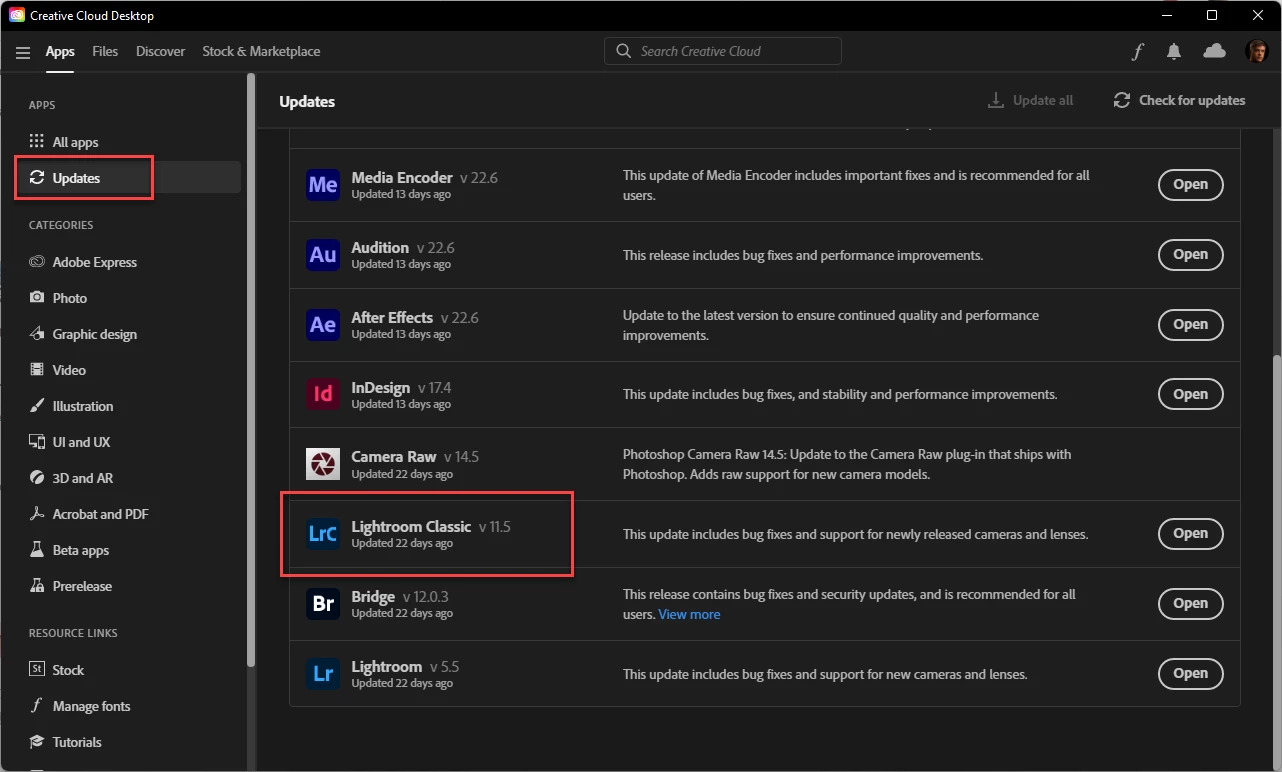
 

  1. Restart your system.
  2. Open the Creative Cloud Desktop App (without starting Lightroom)
  3. Go to "Updates" on the left.
  4. Get a screen shot showing LrC with the version number (like the one shown below - yours should show a lower version, and instead of "Open" you should see "Update")
  5. Click on "Update" and get a screen shot showing the error message.
  6. Post both screen shots here.


4 replies

dj_paige
Legend
September 9, 2022

@davidb13316886 wrote:

title says it all any suggestions welcomed please


Title does not say it all. Please quote the exact complete unedited word-for-word message that you are seeing.

Inspiring
September 9, 2022

Procedure
Download and unpack the Db2 package.
Check that you have the correct prerequisites by running the command:
./db2prereqcheck -v 11.5.4.0

Navigate to the unpacked directory and:
select New Install and then Db2 Version 11.5.4.0 Server Editions. If Db2 V10.5 was installed in the directory /opt/ibm/db2/V10.5, then you can install the new version in /opt/ibm/db2/V11.5
Select the Typical installation.
De-select the Create an instance checkbox.
Review the terms and when ready, select the I agree to the IBM terms check box and click Next.
Change the response file name so it doesn't overwrite the V10.5 response file.
Click Finish to begin the installation.
When the Installation successfully completes, click Finish.
If scadmin installed the Predictive Insights Database component, but db2inst1 owns the Db2 instance, then as scadmin:
db2 connect to SCAPIDB.
db2 grant dataaccess on database to user db2inst1.
db2 terminate.
db2stop.

db2 "ALTER TABLESPACE SYSCATSPACE MAXSIZE NONE"

and ensure there is sufficient free disk space
Stop Db2 by running the command db2stop[force].
Run the command
/opt/ibm/db2/V11.5/instance/db2iupgrade db2inst1

Check the current license with db2licm -l. For example:
Product name: "Db2 Community Edition"
License type: "Community"
Expiry date: "Permanent"
Product identifier: "db2dec"
Version information: "11.5"
Max amount of memory (GB): "16"
Max number of cores: "4"

Apply the downloaded license by running the command:
db2licm -a /path/to/license_std_vpc/db2/license/db2std_vpc.lic

and remove the "Db2 Community Edition" license by running the command:
db2licm -r "db2dec"

So that the license shows:
Product name: "Db2 Standard Edition"
License type: "Virtual Processor Core"
Expiry date: "Permanent"
Product identifier: "db2std"
Version information: "11.5"
Max amount of memory (GB): "128"
Max number of cores: "16"
Enforcement policy: "Hard Stop"
Features:
IBM Db2 Performance Management Offering: "Not licensed"

Start Db2 as db2inst1 by running the command db2start.
Confirm the Db2 version by running the command:
db2level

That outputs:
shows "Db2 v11.5.4.0", "s2006161200", "DYN2006161200AMD64", and Fix Pack "0"

Upgrade the database by running the command:
db2 UPGRADE DATABASE SCAPIDB USER db2inst1 USING <password>


Regards,

Rachel Gomez

Michael J. Hoffman
Community Expert
Community Expert
September 9, 2022

How are you trying to update LR? Are you using the Creative Cloud Desktop App?

Participant
September 9, 2022

Hi Michael, 


I have tried in LR and slso in the Creative cloud app, same result in both

Michael J. Hoffman
Community Expert
Michael J. HoffmanCommunity ExpertCorrect answer
Community Expert
September 9, 2022

To summarize and echo what others have suggested:


  1. Restart your system.
  2. Open the Creative Cloud Desktop App (without starting Lightroom)
  3. Go to "Updates" on the left.
  4. Get a screen shot showing LrC with the version number (like the one shown below - yours should show a lower version, and instead of "Open" you should see "Update")
  5. Click on "Update" and get a screen shot showing the error message.
  6. Post both screen shots here.


Per Berntsen
Community Expert
Community Expert
September 8, 2022

Try restarting your computer, and then try to update.

Participant
September 8, 2022

Hi, thanks for that, tried this and no success, same error message.


DdeGannes
Community Expert
Community Expert
September 9, 2022

Post a screen capture of the error message.


Regards, Denis: iMac 27” mid-2015, macOS 11.7.10 Big Sur; 2TB SSD, 24 GB Ram, GPU 2 GB; LrC 12.5,; Lr 6.5, PS 24.7,; ACR 15.5,; (also Laptop Win 11, ver 24H2, LrC 15.0.1, PS 27.0; ) Camera Oly OM-D E-M1.