I just do not understand how the file system in Lightroom works. On the left panel is what I can work on in Lightroom. The right panel has things I want to work on but I cannot access them. Can anyone help?
I just do not understand how the file system in Lightroom works. On the left panel is what I can work on in Lightroom. The right panel has things I want to work on but I cannot access them. Can anyone help?
I usually create a folder for my images on the hard drive by dragging and dropping from the SD card. Then I open Lightroom and point to that particular folder.
The confusion might be that your picture does not show the normal editing workspace. It shows the Import dialog box, which probably opened automatically. The Import dialog box can open automatically when:
It detects that a camera card is mounted on the computer desktop.
It detects that photos have been dropped onto the Lightroom Classic application window or icon.
So the Import dialog box may have opened itself immediately after you inserted the SD card.
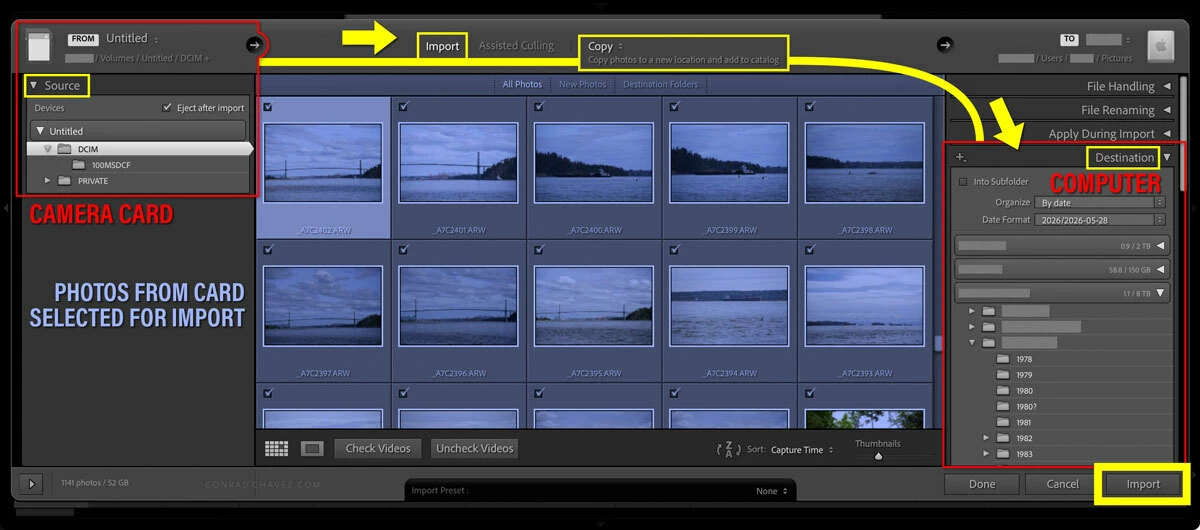
Because you’re showing the Import dialog box, you can’t edit until you confirm the import that’s in progress. What it’s showing you is the proposed import Source and Destination. The proposed Source is based on where you dragged from. You should confirm the proposed Destination. The picture below shows the Destination panel heading that’s scrolled up out of view in your picture. My picture below should help clear up what you’re actually seeing.
Also pay attention to the top where it says Copy. That means it will make a copy of the images being imported, which is normal if the source is an SD card. But if you wanted one of the other options, select that.
After you confirm that Lightroom Classic is going to copy the images to the folder you want, and if all the other import options are what you want (such as preview generation, import preset, any metadata you want to add…), then click Import to finish that and return to the normal editing workspace.
In the normal editing workspace, your images are organized in the Folders panel, and you can edit in the Develop module as you expect.
The confusion might be that your picture does not show the normal editing workspace. It shows the Import dialog box, which probably opened automatically. The Import dialog box can open automatically when:
It detects that a camera card is mounted on the computer desktop.
It detects that photos have been dropped onto the Lightroom Classic application window or icon.
So the Import dialog box may have opened itself immediately after you inserted the SD card.
Because you’re showing the Import dialog box, you can’t edit until you confirm the import that’s in progress. What it’s showing you is the proposed import Source and Destination. The proposed Source is based on where you dragged from. You should confirm the proposed Destination. The picture below shows the Destination panel heading that’s scrolled up out of view in your picture. My picture below should help clear up what you’re actually seeing.
Also pay attention to the top where it says Copy. That means it will make a copy of the images being imported, which is normal if the source is an SD card. But if you wanted one of the other options, select that.
After you confirm that Lightroom Classic is going to copy the images to the folder you want, and if all the other import options are what you want (such as preview generation, import preset, any metadata you want to add…), then click Import to finish that and return to the normal editing workspace.
In the normal editing workspace, your images are organized in the Folders panel, and you can edit in the Develop module as you expect.
You cannot access things on the right panel because that’s not where you access the files. You are looking in the Import dialog box … this only lets you select where to store the photos, it does not let you access the photos from this window.
Once you click on Import, after the Import completes, you will be taken to the Library Module in Lightroom Classic. Then the folders of interest will be on the left.
Also, a minor point, but speaking/typing clearly benefits everyone. You are using “Lightroom Classic” and not “Lightroom”, which is different software.





 AdChoices