alroy257
Participant
May 5, 2018
Question

Image edits are not appearing the same as in older LR

  • May 5, 2018
  • 4 replies
  • 438 views

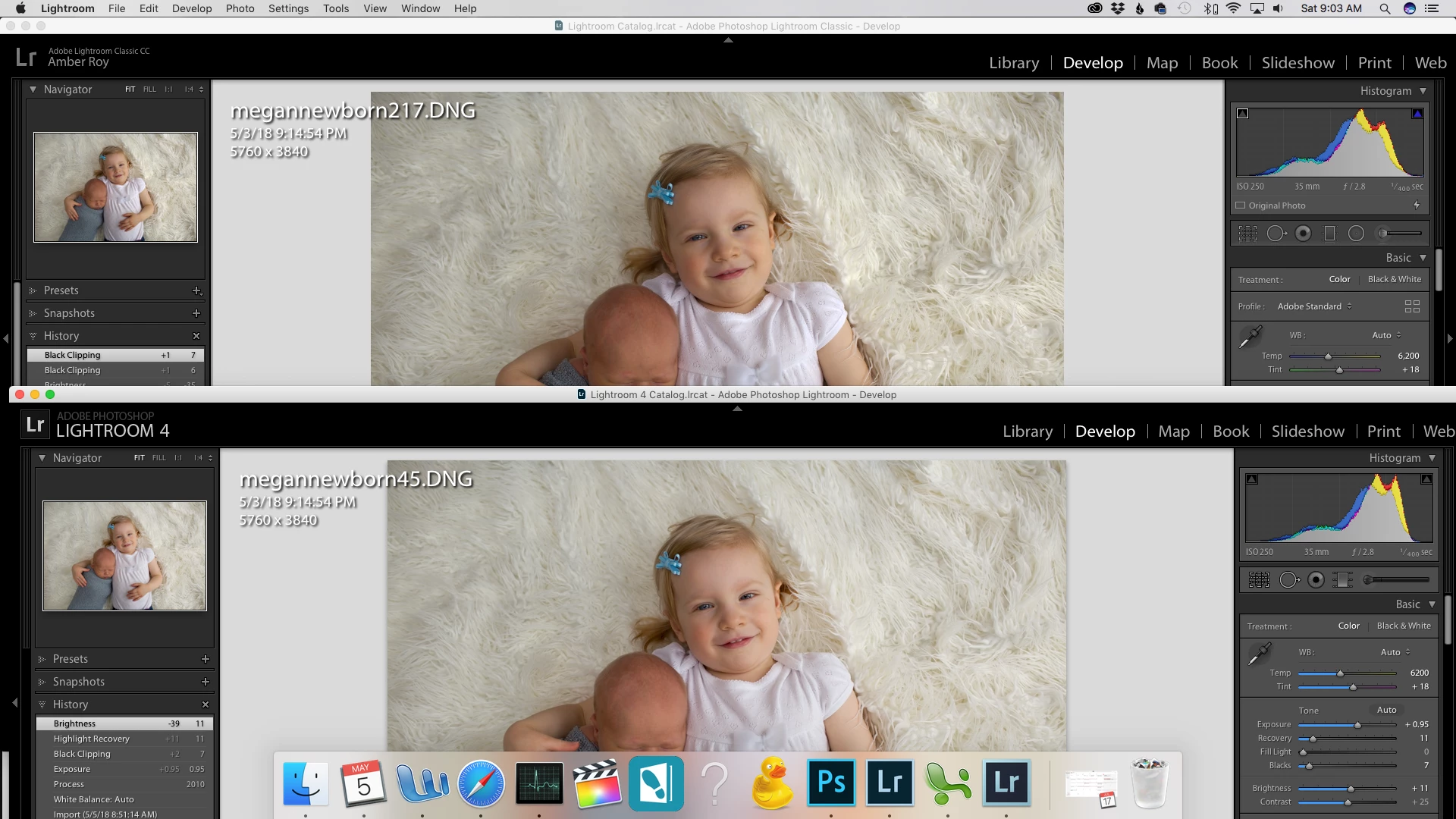
I just updated from an older version of LR to LR Classic CC and I can see a significant difference in my image edits vs the old version - despite making the same changes to the images.  Why are my adjustments not the same?  They look flatter and I can't get the same contrast.  It also visually appears that my images are clipping in blacks well before the histogram shows clipping warnings.  What is wrong?!
    This topic has been closed for replies.

    4 replies

    Todd Shaner
    Legend
    May 7, 2018

    mattr97931751  wrote

    I just updated from an older version of LR to LR Classic CC and I can see a significant difference in my image edits vs the old version - despite making the same changes to the images.  Why are my adjustments not the same?  They look flatter and I can't get the same contrast.  It also visually appears that my images are clipping in blacks well before the histogram shows clipping warnings.  What is wrong?!

    Lots of information and suggestions have been provided, but let's go back to basics. You're images edited in LR 4 (or any other previous version) should look identical when viewed inside LR Classic 7.3.1. Your image files are NOT automatically updated to the new process version unless you've done so manually. There's also no need to uninstall LR 4 until you are totally comfortable with LR 7 and sure everything in your catalog has been correctly imported into it. First we need to determine what's causing the differences between LR 4 & 7.

    LR 7 has added graphics processor support, which can cause screen rendering issues on some systems and when using older graphics drivers. To check for this open LR Classic 7.3.1 and go menu Edit> Preferences> Performance and uncheck 'Use Graphics Processor.' Compare an image file that has been edited in LR 4, but NOT edited in LR7. Do they now look the same, but are different if you go back and check 'Use Graphics Processor?'

    Bob Somrak
    Legend
    May 5, 2018

    Your screen shots show that in Lightroom 4 you are using either process version (PV)   PV1(2003) or PV2(2010) because your are using the Fill Light and Recovery sliders. Lightroom 4 is capable of using PV3(1012) which is closer to using PV4(2018) which you are using in CC 7.3.1 on your top photo.   The corrections from the NEW sliders (Highlight, shadows, whites and blacks etc) is way different that you get with the OLD sliders (Fill Light and Recovery).  From my experience, the new sliders are way better.  I don't think you will ever match the new and old renditions.

    Between the new sliders/process versions and Profiles as said above your chance of matching is nil.  You should actually uninstall Lightroom 4 and if you want to use to old sliders just set the process version to PV2 (2010) in Lightroom CC

    M4 Pro Mac Mini. 48GB
    JP Hess
    Inspiring
    May 5, 2018

    Did you allow Lightroom to update the process version to the current version? If you did, that could account for the change. Just a thought.

    Community Expert
    May 5, 2018

    The LR Classic screenshot shows a "lightning bolt" icon below the histogram, which indicates that this image has not (yet) been brought up to latest process version. Clicking this icon will do so; whereupon the icon disappears for this image.

    Moving to the new PV would then require some re-processing to get to the desired appearance. The available adjustments, and even the effective meanings of those adjustments which appear under the same name, are rather different.

    Just in case the OP is unaware: these two Catalogs are independent now, even so far as edits which are being applied to the same Raw file on disk.

    So far as what's seen, perhaps the display preview is a little differently handled, or the way the software talks to the computer's colour management. But I would expect under the same PV, if all of the Develop adjustments are identical, to see the same sampler numbers under the histogram for the same point in the picture. That's sort of the point, of a Process Version.

    Still once adapted to it, the newer PV does offer some very nice processing options which may be worth the trouble of re-processing (some) images. As needed, individually - since it's no problem to have different process versions coexisting within the same Catalog: given that the Basic panel alters itself to suit, as you work.

    JohanElzenga
    Community Expert
    Community Expert
    May 5, 2018

    richardplondon  wrote

    The LR Classic screenshot shows a "lightning bolt" icon below the histogram, which indicates that this image has not (yet) been brought up to latest process version. Clicking this icon will do so; whereupon the icon disappears for this image.

    True, but the process versions are different nevertheless. The Lightroom 4 screenshot shows the old ‘Fill Light’ and ‘Recovery‘ sliders. The Lightroom Classic screenshot shows the current sliders.

    -- Johan W. Elzenga
    JohanElzenga
    Community Expert
    Community Expert
    May 5, 2018

    Try using a different profile at the top of the Basic Panel (use the profile browser to see all of them). Adobe Color is now the default, not Adobe Standard, so that might be a reason.

    The other reason is that Lightroom Classic has a different 'Process Version', with different sliders. That means that you can never have the exact same result, there will always be some small differences.

    -- Johan W. Elzenga