Participant
December 2, 2021
Answered

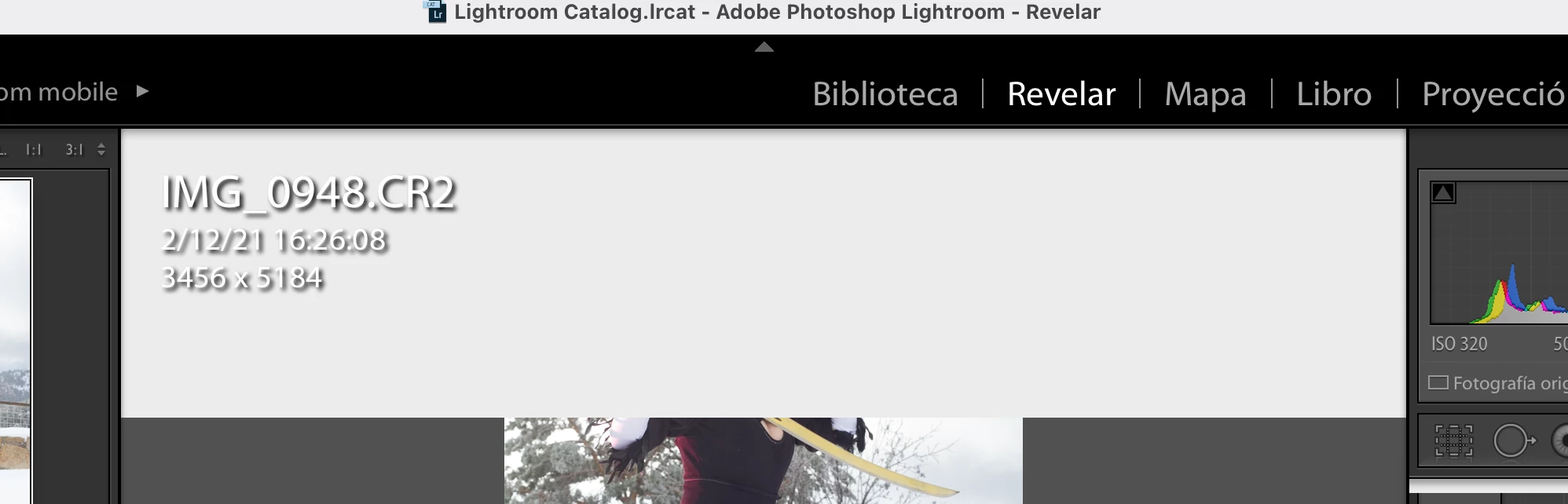
Image information appear when trying to edit

  • December 2, 2021
  • 4 replies
  • 424 views

Hello,


I've been trying to edit a photoshoot and suddenly the camera/image details appear and there's no way I can remove them. I've tried everything and seems like a bug. I would like to see the full image withouth the information in the top part. Anyone can help? Would love to remove it, I use the CC 2015 mobile Lightroom in Mac. 


Thanks so much

This topic has been closed for replies.
Correct answer John Waller

@PPRN3000 Press the "I" key (for Info) on the keyboard to turn that overlay on and off.


I use the CC 2015 mobile Lightroom in Mac. 


Assume you mean Lightroom Classic CC 2015 for macOS desktop. That version is 6 years old.


Do you have an active Cloud subscription?


If so, I suggest you follow the steps mentioned by @GoldingD  to verify your version number. Then update Lightroom Classic to the latest version that is compatible with your operating system..

4 replies

John Waller
Community Expert
John WallerCommunity ExpertCorrect answer
Community Expert
December 2, 2021

@PPRN3000 Press the "I" key (for Info) on the keyboard to turn that overlay on and off.


I use the CC 2015 mobile Lightroom in Mac. 


Assume you mean Lightroom Classic CC 2015 for macOS desktop. That version is 6 years old.


Do you have an active Cloud subscription?


If so, I suggest you follow the steps mentioned by @GoldingD  to verify your version number. Then update Lightroom Classic to the latest version that is compatible with your operating system..

PPRN3000Author
Participant
December 2, 2021

Thanks so much everyone! Seems I pressed the I somehow and couldn't figure out how to remove that overlay. Now it stays in the right corner, do you know if there's any way to remove the overlay at all? Also, considering upgrading since I'm monthly subscribed to Adobe, I just felt more comfortable with that version. 


John Waller
Community Expert
Community Expert
December 2, 2021

Now it stays in the right corner, do you know if there's any way to remove the overlay at all?


Cycling through the various states of the I key should just switch the Info overlay on and off in the top LHS. Not move it.


quote

Also, considering upgrading since I'm monthly subscribed to Adobe,


Well worth it if you're running Catalina or later. Earlier operating systems are not supported.


You'll have 6 years worth of new features to catch up on, including the new masking just released last month

. https://helpx.adobe.com/lightroom-classic/help/whats-new.html

Rikk Flohr_Photography
Community Manager
December 2, 2021

Press [ I ] to cycle through the 3 information screen states until you get to an empty state. 

You inadvertantly hit the [ I ] key at some point. 

This is not a bug. 

Rikk Flohr: Adobe Photography Org
KR Seals
Community Expert
Community Expert
December 2, 2021

Press the letter "I" (for Info) until that goes away. The screen shot you posted is from Lightroom Classic.

Ken Seals - Nikon Z 9, Z 8, 14mm-800mm. Computer Win 11 Pro, I7-14700K, 64GB, RTX3070TI. Travel machine: 2021 MacBook Pro M1 MAX 64GB. All Adobe apps.
GoldingD
Legend
December 2, 2021

Please post your System Information as Lightroom Classic (LrC) reports it. In LrC click on Help, then System Info, then Copy. Paste that information into a reply. Please present all information from first line down to and including Plug-in Info. Info after Plug-in info can be cut as that is just so much dead space to us non-Techs.