melking_1978
Participant
January 25, 2017
Answered

Image quality poor when saving from Lightroom

  • January 25, 2017
  • 3 replies
  • 4494 views

Hi all

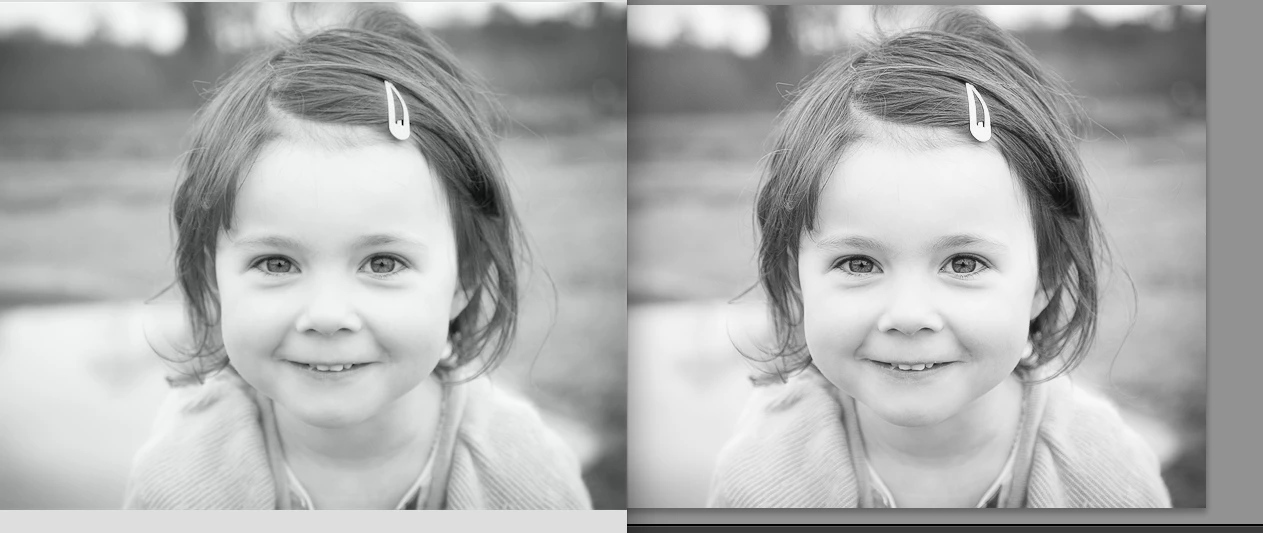
I'm a novice in both photography and the Adobe products but am fast becoming addicted.  Anyway, I have noticed that when I save my crisp, edited images from Lightroom, the quality of the image drops dramatically.  I'm attaching a screen shot of both the Lightroom image as I would like it to appear and the saved version plus my save settings.  Many thanks for your help with this newbie.  - Melissa
    This topic has been closed for replies.
    Correct answer Jao vdL

    melking_1978 wrote:

    Yes correct. I'm not using any software to open the image, just double clicking on the jpeg image I've saved to my Mac desktop.

    You are using software in that case. You are using Apple's preview. It is fully color managed but uses a different scaling algorithm to scale down large images to the much lower resolution of your display than Lightroom does. This will make images appear much softer than they looked in Lightroom. If you export in 16 bit tiff, your images will be very close to identical to what you have  inside Lightroom. What you should try is to actually scale down to a much lower resolution sRGB jpeg (say 800 pixels on the long side) and to use output sharpening. You'll see it will look very crisp.

    3 replies

    Per Berntsen
    Community Expert
    Community Expert
    January 25, 2017

    To do a valid comparison you have view both images at 1:1 (100%) view, where on image pixel is represented by one screen pixel.

    Different applications use different smoothing and sharpening algtorithms when scaling the image, resulting in an apparent difference in sharpness.

    Per Berntsen
    Community Expert
    Community Expert
    January 25, 2017

    When exporting the way you did, with no image resizing and no output sharpening, the images should be equally sharp when viewed at 1:1.

    But there is a slight tonal difference between the images, which could be due to the Adobe RGB profile.

    As others have suggested, try using the sRGB profile instead.

    ManiacJoe
    Inspiring
    January 25, 2017

    Mac or Windows? What version?

    Which exact version of Lightroom?

    What image viewer are you using? Is it color managed?

    Saving the color space as sRGB might be better depending on your usage.

    Turning on the output sharpening is usually required for good results.

    melking_1978
    Participant
    January 25, 2017

    It's version Lightroom 5, on a MacBook Air.  Not sure what you mean by image viewer...  I'm literally just double clicking in my image which is saved on my desktop.  Is this where I'm going wrong??  Thanks, appreciate the help

    dj_paige
    Legend
    January 25, 2017

    Export with color space set to sRGB

    dj_paige
    Legend
    January 25, 2017

    I assume the right hand image is in Lightroom, and the left hand image is after you do an Export from Lightroom. Is that correct?

    Please tell me what software you are using to view the photo outside of Lightroom.

    melking_1978
    Participant
    January 25, 2017

    Yes correct.  I'm  not using any software to open the image, just double clicking on the jpeg image I've saved to my Mac desktop. 

    Jao vdLCommunity ExpertCorrect answer
    Community Expert
    January 25, 2017

    melking_1978 wrote:

    Yes correct. I'm not using any software to open the image, just double clicking on the jpeg image I've saved to my Mac desktop.

    You are using software in that case. You are using Apple's preview. It is fully color managed but uses a different scaling algorithm to scale down large images to the much lower resolution of your display than Lightroom does. This will make images appear much softer than they looked in Lightroom. If you export in 16 bit tiff, your images will be very close to identical to what you have  inside Lightroom. What you should try is to actually scale down to a much lower resolution sRGB jpeg (say 800 pixels on the long side) and to use output sharpening. You'll see it will look very crisp.