skybluenova
Participating Frequently
February 22, 2017
Answered

Images in Library and Development module look different

  • February 22, 2017
  • 1 reply
  • 1185 views

Hello all,

I know a kinda similar question has been asked a while ago. Still, I think that I do have quite different issues.

First of all, I have a brand new installation of Lightroom, version 2015.8

I imported a PNG file into Lr (camera: Pentax K-S1) and enhanced the image a bit. What I got is this:
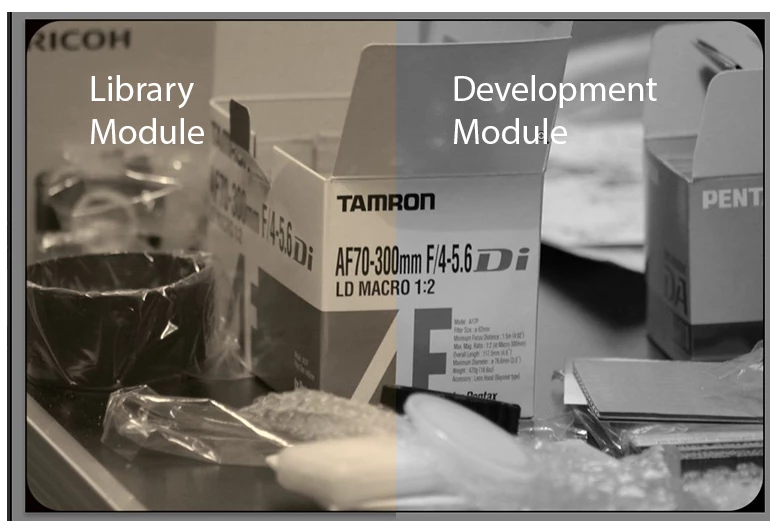
That's quite a huge difference, isn't it? I have a feeling that some of the development settings are taken over to the library module, and some are not.

Contrary to this thread: Lightroom Library / Develop Modules Look Different , when I export the image it looks as it should, namely like it looks like in the Development Module.

To make things more confusing: If I use the "second window" button, depending on which monitor I drag the window onto, it suddenly changes its look between Library Module image and Development Module image, as you can see here:
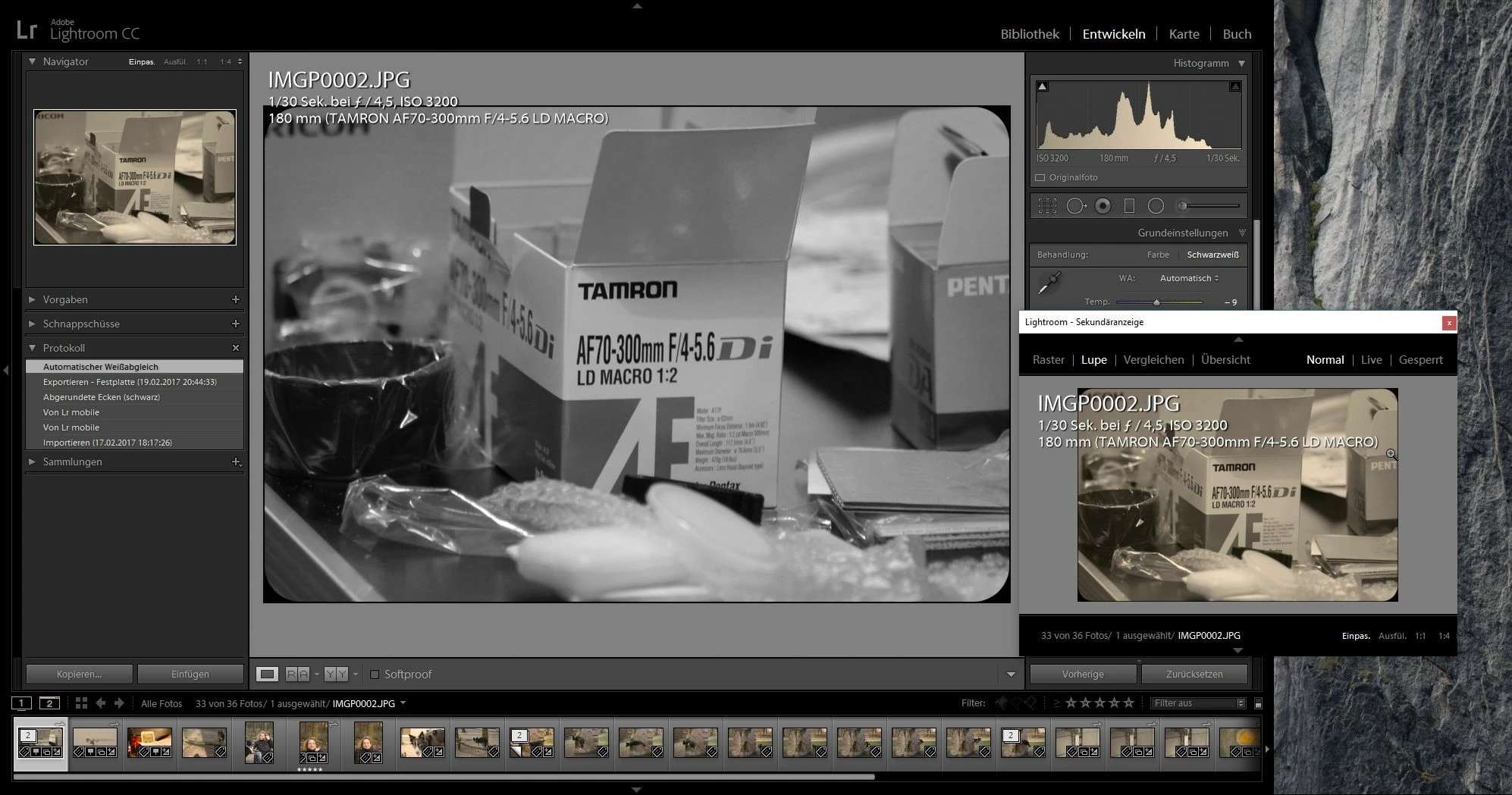
The second window is placed a little bit more on the left screen. When I drag the second window a few pixels to the right screen,

it changes its look suddenly to this:
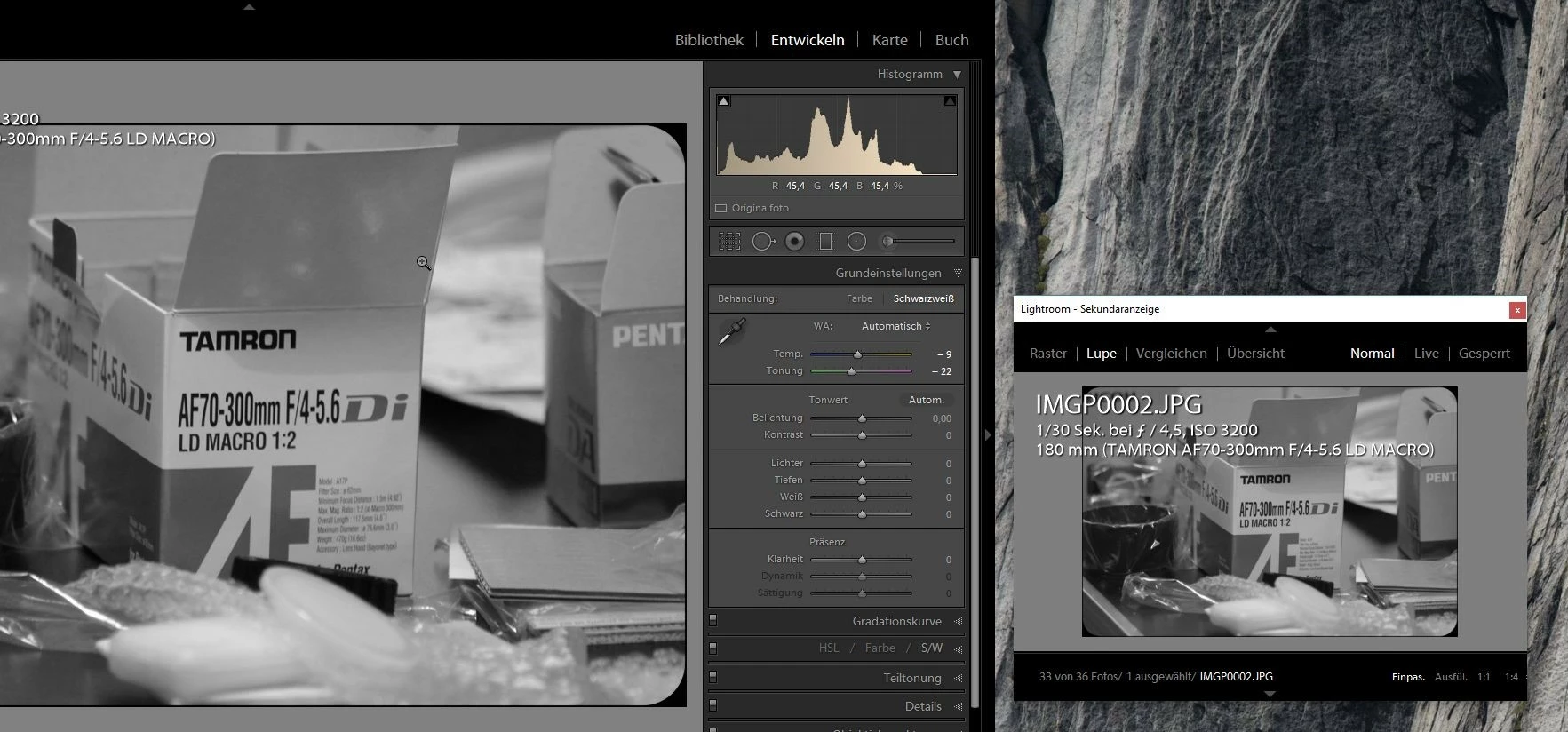
Just to make this clear beforehand, both monitors are exactly the same type, colorspace etc. And any differences still would not explain the obvious differences between Library and Development Module.

Can anybody tell how I could remedy those issues?
If you need more information, I will gladly provide any help.

Best,

Dennis
This topic has been closed for replies.
Correct answer Per Berntsen

You have a defective monitor profile, probably for both monitors. Although the right monitor may display the image correctly, the yellow histogram is a clear indication of a bad profile. The histogram should be a neutral gray.

The monitor profile is served to Lightroom by the OS, so this is a Windows problem.

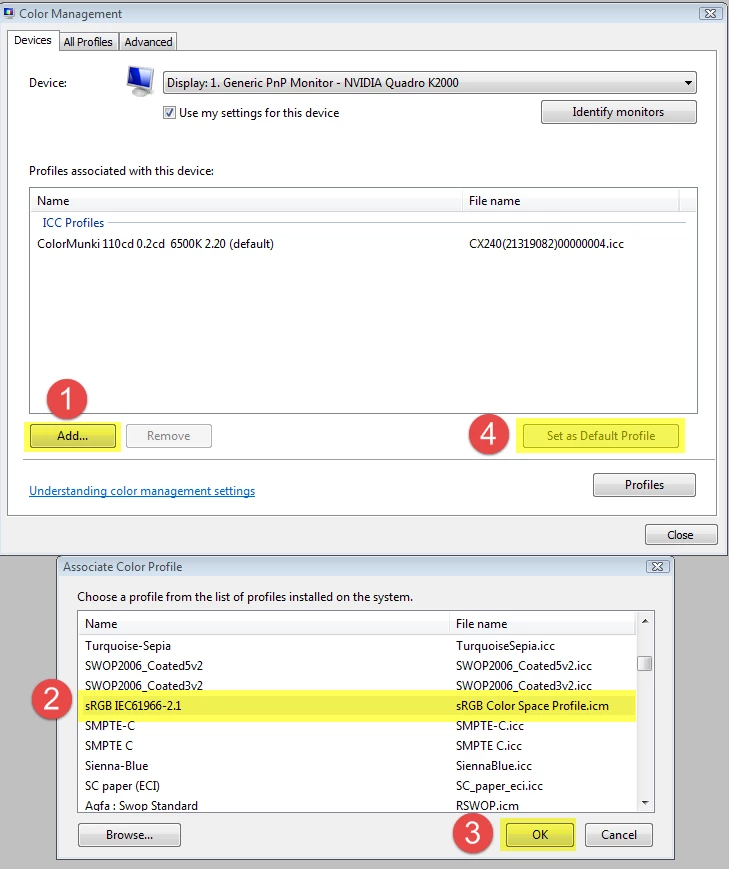
As a (temporary) fix, you can set the monitor profile to sRGB (Adobe RGB for wide gamut monitors).

Press the Windows key + R, type colorcpl in the box and press Enter.

Set the profile to sRGB (or Adobe RGB, it the monitor is wide gamut) as shown in the screenshots below. Make sure to check Use my settings for this device.

Then repeat for the other monitor.

You should now ideally calibrate both monitors with a hardware calibrator, although sRGB/Adobe RGB may be good enough, depending on your requirements.

1 reply

skybluenova
Participating Frequently
February 22, 2017

I have just discovered that, if I use Lr completely on the right monitor, all Modules look the same as they should.

That's interesting, but how can this be? I would understand if the modules would look different on different monitors, I don't have a professional setup here. But if using the left monitor the behavior is as described above, if using the right monitor all is as it should be.

Left monitor:

Right monitor:

Is it possible that Lightroom is assuming different color spaces for it's Modules? The Library module has the color space of the left monitor, and the Development module has the color space of the right monitor? Very strange, indeed.

Any ideas?

skybluenova
Participating Frequently
February 22, 2017

After some fiddling, I figured out that the color profile of the right monitor has been reset to its default setting.

As soon as I did set both monitors to the same color profile (sRGB), Lr works as expected.

So the solution is: If using a multi-monitor setup, make sure to check your color profile settings twice

(I still do not understand why, on the same monitor with the other one deactiveted, Library and Development Module looked different. Seems more like a bug to me than any feature I could imagine)