Participant
August 22, 2018
Answered

Images much more saturated when opened in PS from LR

  • August 22, 2018
  • 1 reply
  • 1041 views

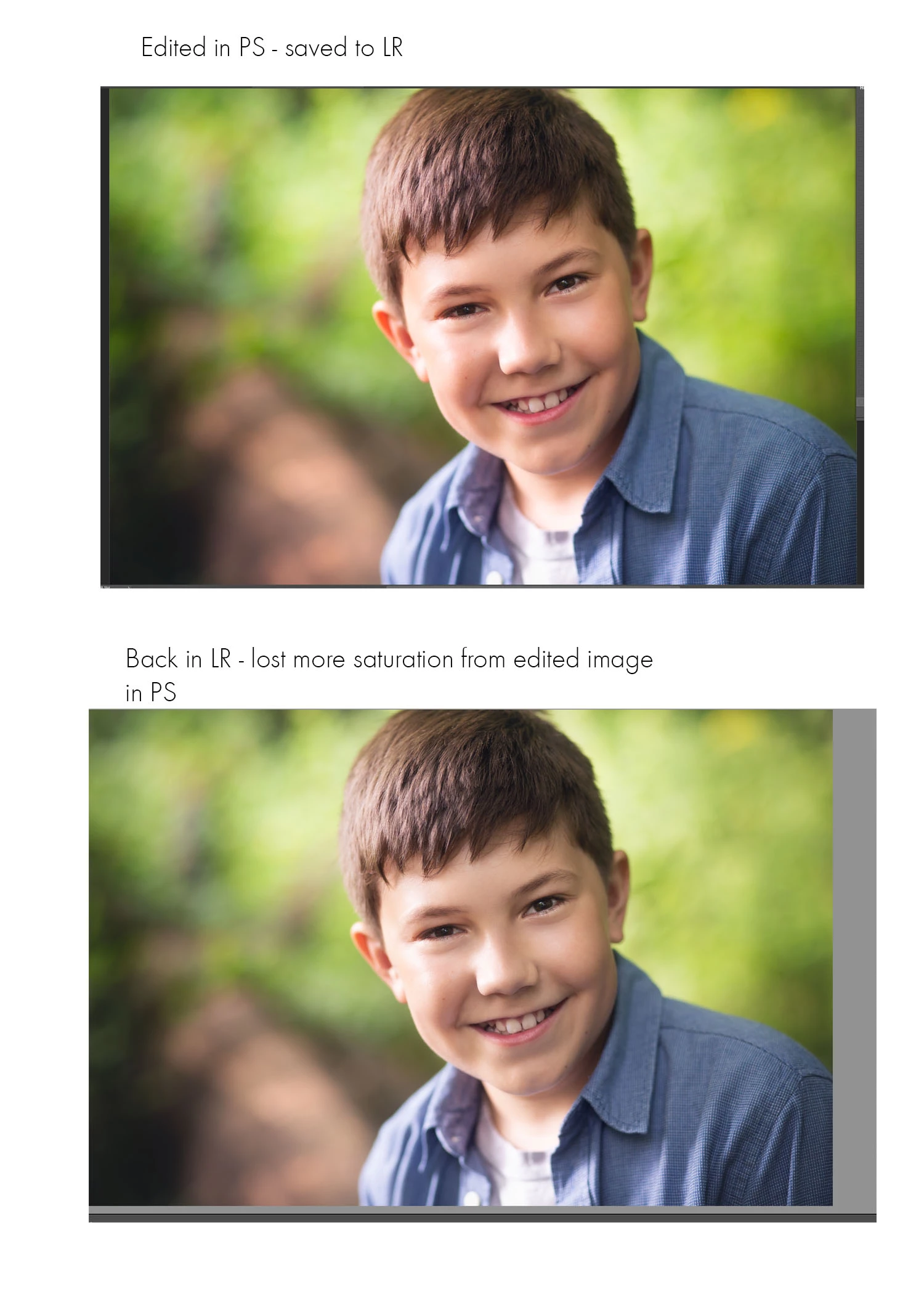
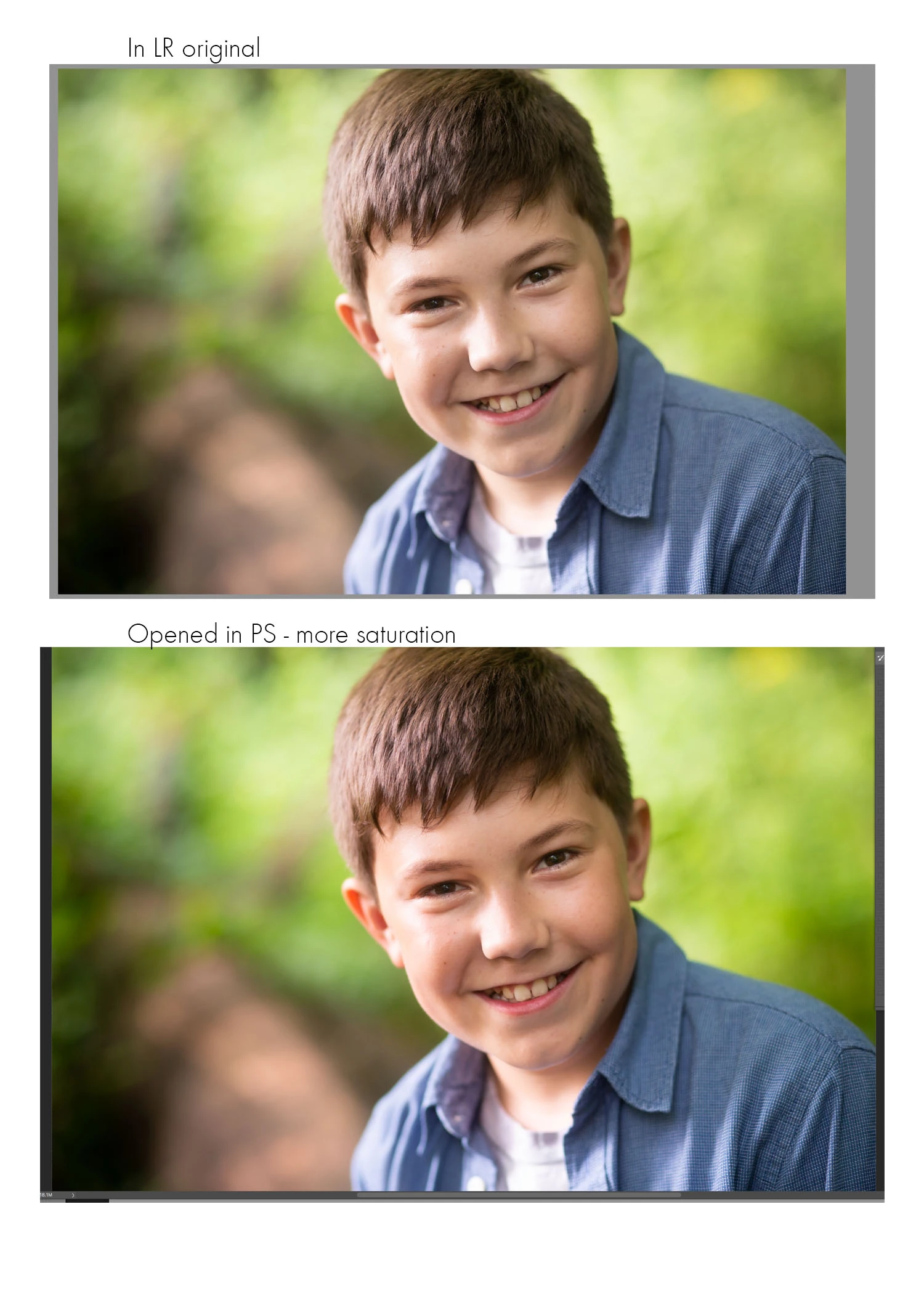
Not sure what has changed but when I open an image into PS from LR, the PS image is much more saturated than what it was in LR.  I haven't changed any of the color settings.  I just got a new computer and got my CC up on it.  Edited the other day and had no trouble between the two.  Now today, they look completely different.  I am very confused on what each should be at (LR and PS - Prophoto, Srgb, etc??).  Without making any changes, LR is set up as Prophoto but PS is Srgb.  Should I have them exactly the same?  Again, I didn't change anything and wasn't having these color issues the other day when I edited between LR and PS.  I know I sound like an idiot and feel like one too right now!!!  Help!!
    This topic has been closed for replies.
    Correct answer Sahil.Chawla

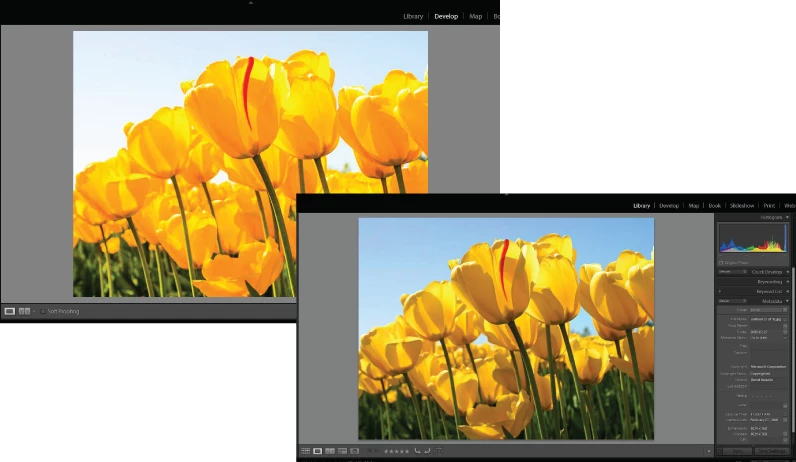
    The Library module and the second window use different color spaces and methods of rendering image previews than the Develop module. To speed up the curation process inside the Library module, pre-rendered image previews are displayed. These previews are lossy compressed 8-bit JPEGs in Adobe RGB. Depending on the photo, some loss of image details and color differences might happen. Previews in the Library module and the second window are displayed using the Adobe RGB color space. In the Develop module, by default, Lightroom displays previews using the ProPhoto RGB color space. These differences, sometimes, make images look different.

    1 reply

    Sahil.Chawla
    Adobe Employee
    Adobe Employee
    August 22, 2018

    Hi Amygo,

    As the image is changing saturation between Photoshop and Lightroom, could you please let us know in which module are you view the image in Lightroom?

    Do you see any difference when you view the image in Develop module and Library module in Lightroom?

    Also, which image format are you working on?

    Regards,
    Sahil

    amygo1Author
    Participant
    August 22, 2018

    I was viewing/editing in the Develop module, but when I switched it to Library, the colors look normal again!  I'm confused!  I am working with raw files, saving as tifs.  I want to be able to see the true colors as I edit, so any idea what I need to do while in Develop?

    Sahil.Chawla
    Adobe Employee
    Sahil.ChawlaCorrect answer
    Adobe Employee
    August 22, 2018

    The Library module and the second window use different color spaces and methods of rendering image previews than the Develop module. To speed up the curation process inside the Library module, pre-rendered image previews are displayed. These previews are lossy compressed 8-bit JPEGs in Adobe RGB. Depending on the photo, some loss of image details and color differences might happen. Previews in the Library module and the second window are displayed using the Adobe RGB color space. In the Develop module, by default, Lightroom displays previews using the ProPhoto RGB color space. These differences, sometimes, make images look different.