
JAG44314
Known Participant
April 11, 2020
Beantwortet

Import Folders are out of order

  • April 11, 2020
  • 5 Antworten
  • 2209 Ansichten

For the past few months, folders holding images from 2020 are vbeing positioned with folders holding images from 2019. I have attached a screenshot.
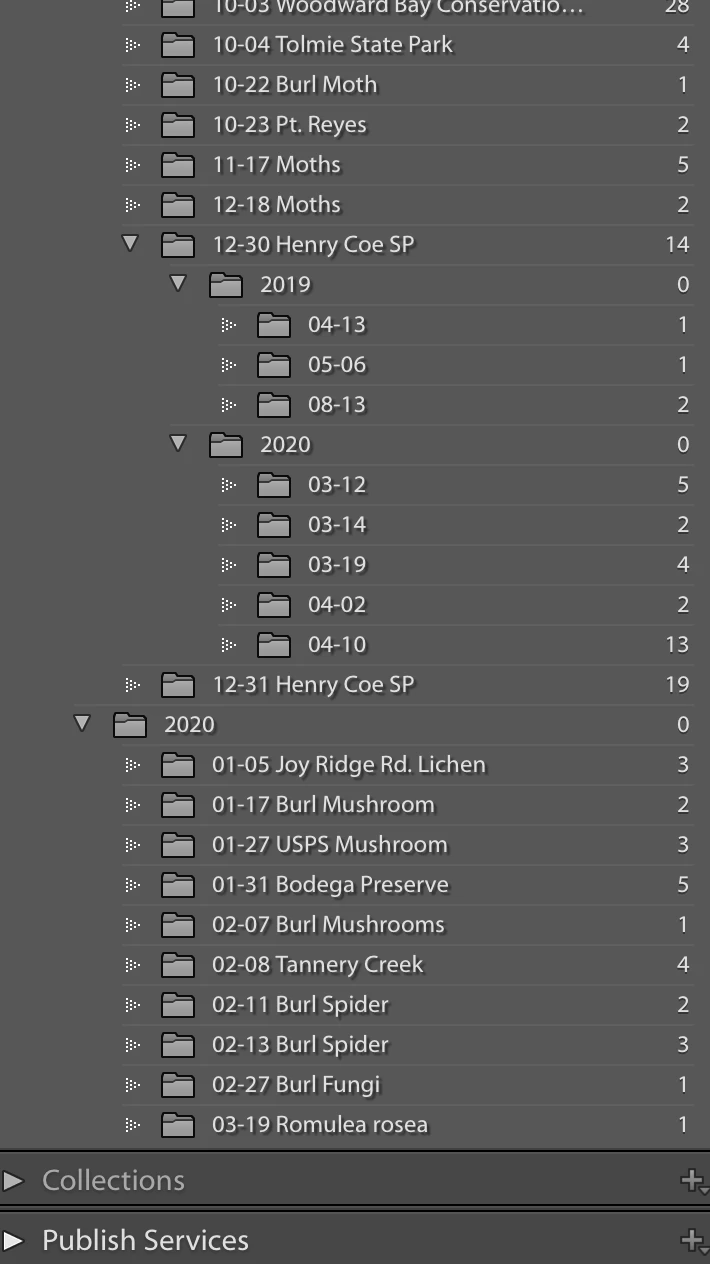


(Attachment Deleted and placed in line with the text, Moderator)

Dieses Thema wurde für Antworten geschlossen.
Beste Antwort von F. McLion

Check your settings in the import dialog. You probably did set a base folder. The preview shows you exactly where the new folders and images will be copied to - look for the + overlay.

5 Antworten

F. McLion
Community Expert
Community Expert
April 17, 2020

No offense, but it seems that you lack some basic knowledge about the working principles of LR.

To best support you it would be very helpful if you give us a quick description of the workflow (from camera to LR) you are following or tying to achieve.

--- Got your issue resolved? Please label the response as 'Correct Answer' to help your fellow community members find a solution to similar problems. ---
JAG44314
Known Participant
April 17, 2020
You are generally right about my knowledge of the principles of LR but my main problem is the loss of short-term memory. Exchanging messages is difficult particularly when there are delays between messages and several people chiming in. I have been using LR for 18 years and have 5,275 images mostly plants and animals. I am fairly well known by people at CalFlora and BugGuide and, more recently, iNaturalist.

I think that I have resolved the problem with the duplicate folders but now I am having trouble importing images.

My process is as follows:
1. My exposures are made with an iPhone 7 camera.
2. After the exposure, I open the iPhone Photos module.
3. I scroll and select the image(s) that I want and then upload to AirDrop.
4. I tap on AirDrop and that takes me to my devices. iMac is the only device I use.
4. I tap on the Device and that takes the images to the iMac Downloads folder.
5. I open Lightroom and the Library Module.
6. I click on the Import Button on the left side panel at the bottom.
7. That opens a Lightroom panel showing the iMac folders left side at top.
8. I select the downloads folder on the left side panel and that displays the images at the center panel.
9. I select the images that I want and click on the Import button on the bottom right corner of the screen.
10. That creates a folder for these images and populates the folder.

Thanks for your help.

Jim
F. McLion
Community Expert
Community Expert
April 29, 2020

Sorry for the extraordinary long delay in responding.

Since I have absolutely no clue of everything 'i' and use Windows and Android only, it's best someone else can chime in here.

However, as far as to the LR part of your description above, that sounds as it should. 

What exactly is the issue that you still face?

--- Got your issue resolved? Please label the response as 'Correct Answer' to help your fellow community members find a solution to similar problems. ---
F. McLion
Community Expert
Community Expert
April 16, 2020

Please post a screen capture of your import settings, similar to what I posted.

--- Got your issue resolved? Please label the response as 'Correct Answer' to help your fellow community members find a solution to similar problems. ---
JAG44314
Known Participant
April 16, 2020

I appologize for being so dense, but could you give me the steps to "import settings" so that I could provide the screenshot tht you requested.


In the mean time, I have another screenshot (below) that shows folders on both side panels.  I believe that the two folders that are highlighted (one on each side) are the problem.  Is it possible to delete them and everything under them.  Everything under them are duplicates in folders above and below.


Rob_Cullen
Community Expert
Community Expert
April 16, 2020

(Coming to this 'party' late!)

Your screen-clip indicates your problems.

Your photos are already in a folder on your hard-drive.

You MUST use the 'ADD' option at the top of the central window if you want the files to stay in the same folder shown in the left side panel..

Only ever use 'COPY' when you are importing new photos from your camera.

Your settings in this screen-clip are making a copy of photos- You do not want duplicates of all your photos filling up your HD.

Regards. My System: Windows-11, Lightroom-Classic 15.3, Photoshop 27.5, ACR 18.3, Lightroom 9.3, Lr-iOS 10.4.0, Bridge 16.0.3 .
Community Expert
April 12, 2020

As an overview, there are several alternative approaches to filing new images into folders within the computer. It is IMO best to decide on just one of these, and then stick to it consistently. Mixing these can lead to confusion. I've ranked them in increasing order of efficiency and ease of use, according to my personal opinion and judgement.

  • To do so yourself first, outside of Lightroom, manually (using for example the Mac Finder / windows Explorer). And only then, as a separate operation, import these into Lightroom Classic using the "Add" (keep in place) option.
  • With Lightroom's help, to Copy images straight into their final folder - which therefore needs to already exist - selecting "into one folder" in the Organise option within the Destination panel. That last setting prevents LR from introducing any further automatic subfolders, as seen in the screenshot.
  • The same as above, except creating that final destination folder as part of the single operation. Hence you'd choose the parent folder as the destination: perhaps, "2020" could then be left the same all year. Then you check the "into subfolder" option, and for each new import, type in what folder name you want to happen, inside the "2020" parent (or whatever). Again, you would choose Organize "into one folder" since you have again defined the final target yourself.
  • Use Lightroom to take care of the final subfolder(s) itself, in a more hands-off way. This means different images within a given batch can file themselves according to a consistent scheme, inside one consistent parent location.


This last option has two Organize variants: following folders from the source, e.g. those made within the camera - or else, following each individual image's capture date according to the camera's date and time clock.


There are various capture-date schemes provided, or else you can customise one.


I use YYYY/MM/DD inside a fixed import destination (and have done so across many years). Year folders have accumulated inside, all by themselves. Then inside each, month and day folders have appeared (some people might combine month and day together, giving fewer levels of hierarchy).


Because that main "Organize" destination is constant, imports combine properly alongside each other within a single overarching scheme. Rather than, having separate  year / month / day arrangements arise in separate places.


After a given final date based folder has been auto-created, named and populated by LR, it is possible to edit its folder name further (doing so within LR) - appending something descriptive, for example, as to the event or the client. You've had the maximum help from LR in getting to that point, with the minimum effort / risk of pilot error. I don't do this though: I add suitable keywords within the Import dialog, to characterise a given import batch's content and purpose - leaving the folder filing scheme as a pure storage technicality, which I regard as entirely for LR to implement.

JAG44314
Known Participant
April 13, 2020

I had the same experience this evening while importing 2 images.  I appreciate the replys but none of them resolved this issue and I would also appreciate someone telling me how to find the "settings in the import dialog."

Community Expert
April 13, 2020

"I would also appreciate someone telling me how to find the settings in the import dialog."


If you look at F_McLion's screenshot there is a menu labelled "Organize", just underneath the yellow highlighted "into subfolder" entry. This is part of the Destination panel at top right of the import screen.


This is shown set to "By Date", which means: "create a date based arrangement automatically, inside the chosen destination". This date-based scheme is shown just below. 


When you don't want any such subfolders auto-created, change Organize from "By date" to "Into one folder".


F. McLion
Community Expert
Community Expert
April 12, 2020

While in Library, you can drag-and-drop the folders to the correct location in the folder tree (left panel, Folders section). This fixes you mess.

For future imports make sure to have the correct settings in the import dialog:


--- Got your issue resolved? Please label the response as 'Correct Answer' to help your fellow community members find a solution to similar problems. ---
F. McLion
Community Expert
F. McLionCommunity ExpertAntwort
Community Expert
April 11, 2020

Check your settings in the import dialog. You probably did set a base folder. The preview shows you exactly where the new folders and images will be copied to - look for the + overlay.

--- Got your issue resolved? Please label the response as 'Correct Answer' to help your fellow community members find a solution to similar problems. ---
JAG44314
Known Participant
April 11, 2020
Thanks for the reply. Although I have been using Lightroom for several years, I am not versed in many of it’s intricacies and, at 76 years, my mind does not work as well as it did. I think I have opened the import dialog (see screenshot) but I don’t see the settings that you referred to. In the bottom right corner, the folders following "12-30 Henry Coe SP" are clearly a mess but I am not sure what to do with it. Your further assistance will be appreciated.

Jim Gonsman