
Import from another catalog-do not get all import settings in dialog
I am attempting to “Import from another catalog” in the current version of LR Classic v11.3.1. I have my Travel catalog created on my laptop (same version) and also backed up to an external HD. I am attempting to import from the external HD Travel.lrcat Travel folder/images to my “Travel” folder in my master LR catalog on my desktop. My LR catalog resides in my C drive:\Users\cjs84\Lightroom and my travel images on D:\Pictures\Travel. When attempting to import, I see the following dialog:
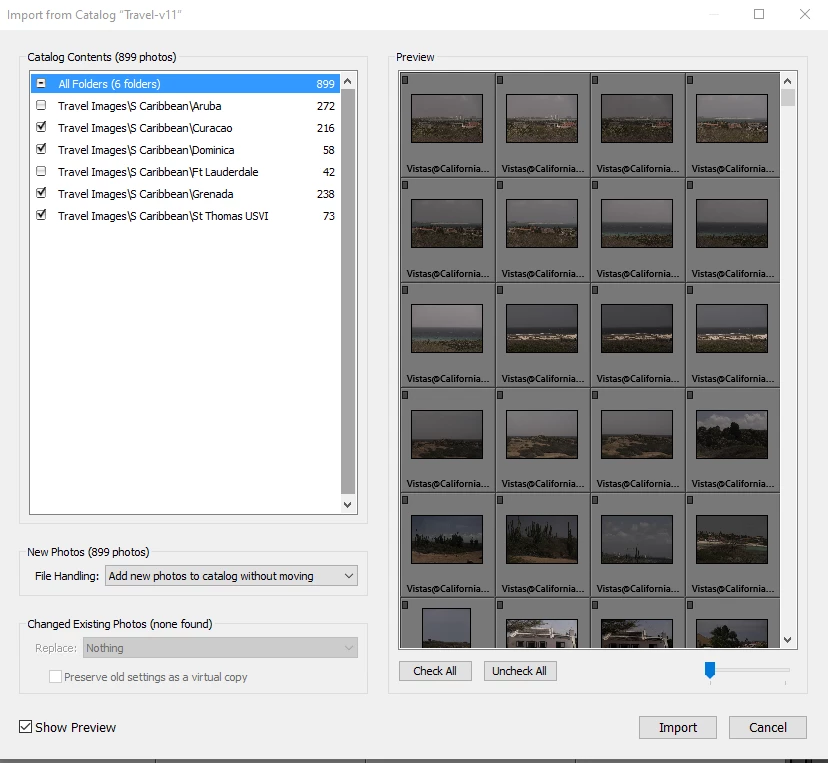
I am attempting to import from another catalog and this is an incorrect dialog that I see for this. I do not see the following: (I copied this from the web)
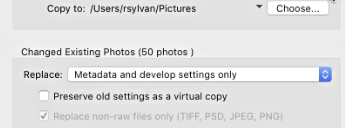
I cannot select where to send the images nor can I change and replace metadata and develop settings. When I import using these settings, the images get copied to the ether…I cannot find them. LR says that they are at:
C:\Users\cjs84\Pictures\S Caribbean BUT THEY ARE NOT ON MY C DRIVE. And of course, LR wants me to find the parent folder which cannot be found. Then I have to remove all the images to clean up the mess.
What is going on here? I have imported before with this setup without these issues.
 AdChoices