
Participant
September 26, 2022
Question

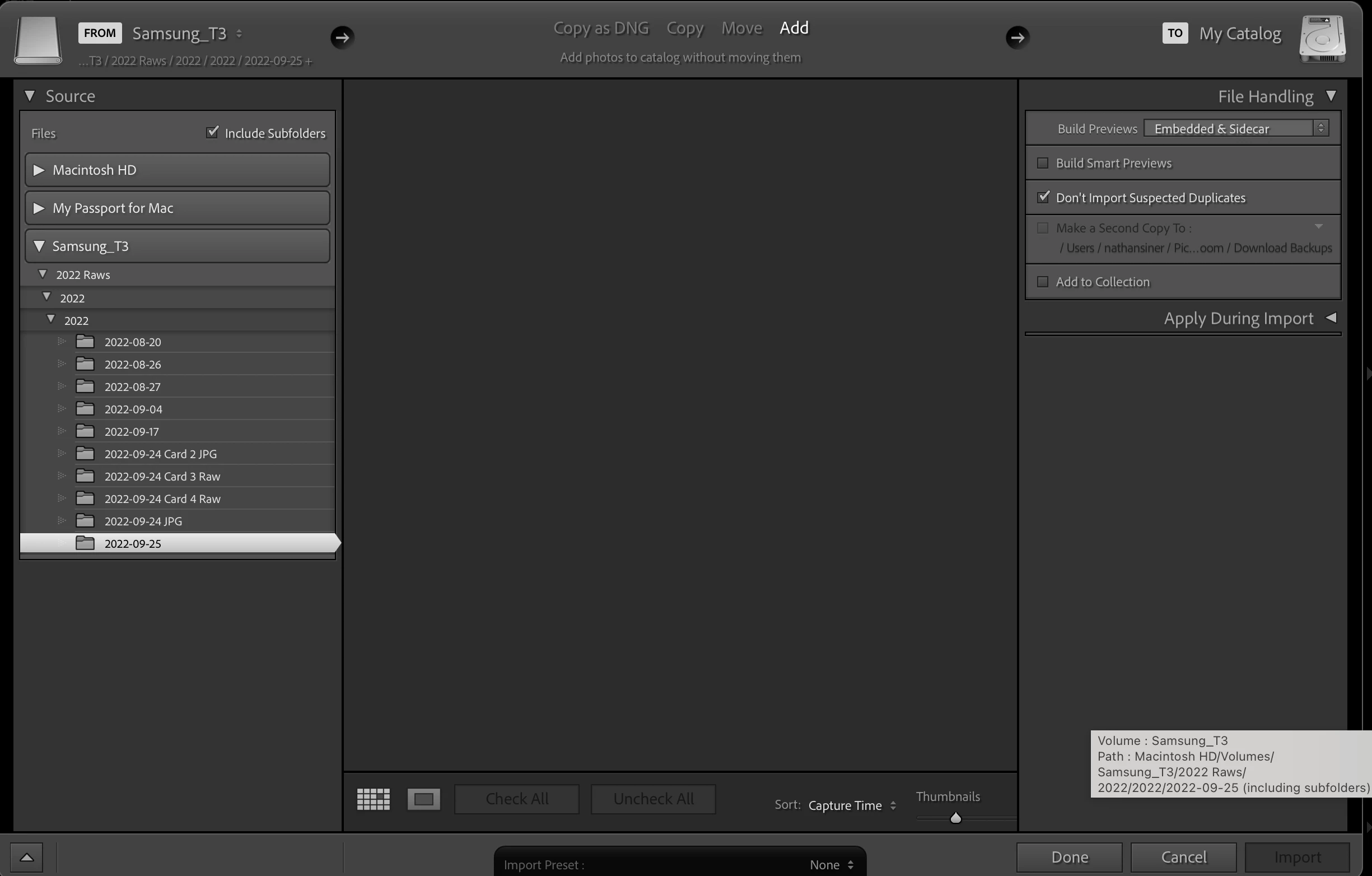
Import Issue* Source Folder Appears Grey and No Images Shown To Import

  • September 26, 2022
  • 3 replies
  • 151 views

When I use the import feature in LR Classic the folders containing the .nef files is not appearing.  I have tried multiople drives and no folder that contains images (both jpg or nef files) will not appear in the import window.  Any ideas why the folders are greyed out and not showing the images in LR?? 


This topic has been closed for replies.

3 replies

JohanElzenga
Community Expert
Community Expert
September 26, 2022

Apple changed the security requirements in MacOS Monterey. Go to MacOS 'System Settings - Security & Privacy' and add Lightroom Classic and Photoshop to "Full Disk Access". Click on the lock icon to unlock the settings, then click on the plus icon to add Lightroom Classic and/or Photoshop if it isn't already listed. If it is listed, then just enable the checkbox. See also  Quick Tips: How to give Full Disk Access to Lightroom Classic on macOS


-- Johan W. Elzenga
dj_paige
Legend
September 26, 2022

This is somewhat different than what was suggested by @TheDigitalDog even though the first step is the same.


Click on Copy (yes I know you want to do an Add, but click on Copy anyway). Then make sure the Destination panel on the right is present, expanded and points to a folder that actually exists. If it is not present, right-click on the File Handling and select Destination from the dropdown folder, then expand the panel and make sure it points to a folder that actually exists. Then click on Add.

TheDigitalDog
Inspiring
September 26, 2022

Instead of Add, try Copy. Better?  

Author “Color Management for Photographers" & "Photoshop CC Color Management/pluralsight"
Participant
September 26, 2022

Same issue under all 4 import options (copy as dng, copy, move and add)