

rrr_hhh
Inspiring
July 5, 2020
Answered

Import photo : organizing by date
  • July 5, 2020
  • 2 replies
  • 5161 views


Hello !

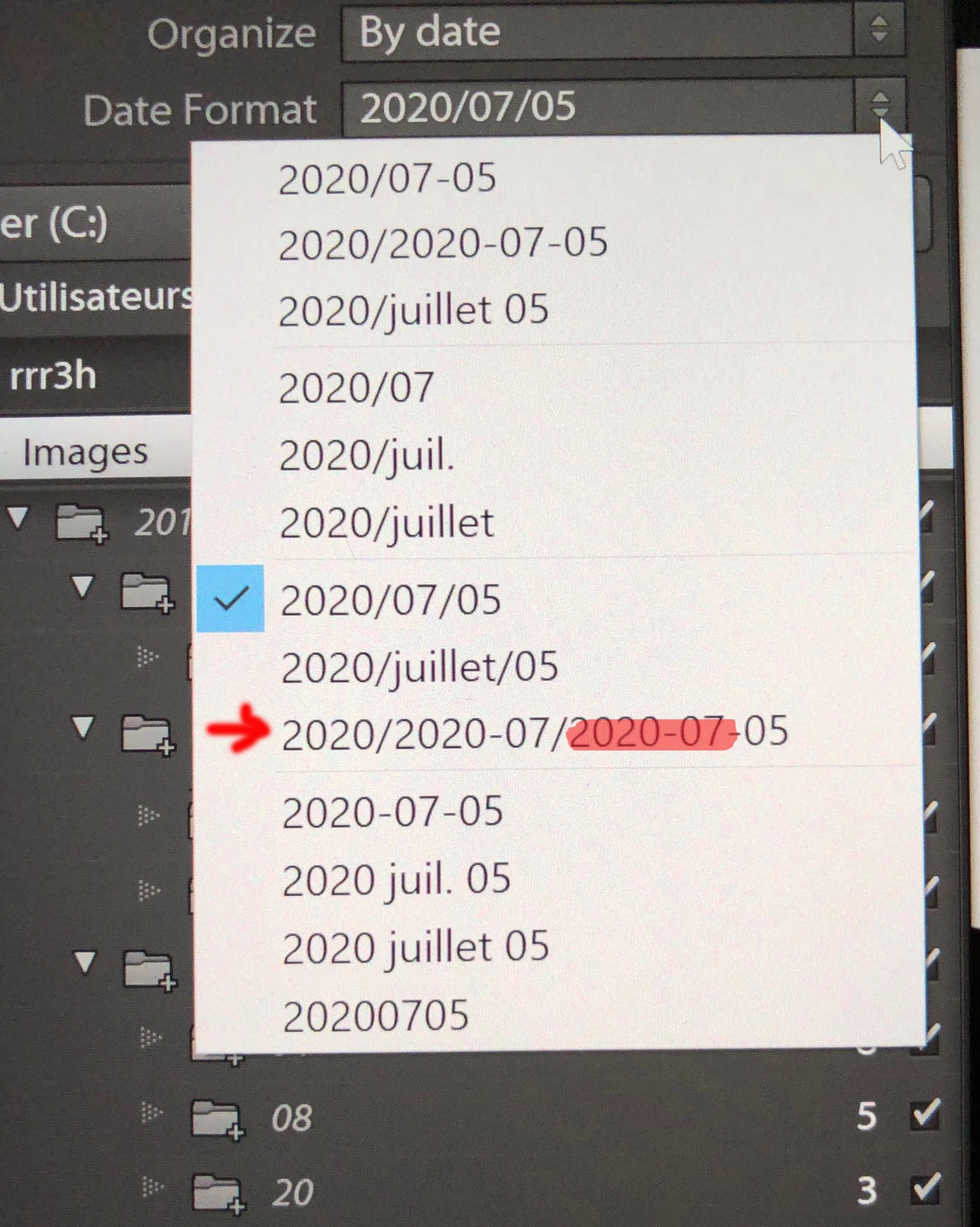
I would like to organize my pictures by date while importing. As of now they are organized this way :

2020/07/05 This create one folder for the year, inside it 12 folders for the months and then in each monthly folder one folder for each day. My problem is that it is too easy to confuse days and months folders.

So I would like to get that instead : 2020/2020_07/05. But I'm not able to choose such an option from the drop down menu. I don't want that : 2020/July/05 because then the sorting in Window Explorer would nomore be chronological. Nor that 2020/2020-07_2020/2020_07/2020_07_05 : this create directories pathes that are too long.

Is there anyway to customize something like that : 2020/2020_07/05 ?

Tank you in advance for any suggestions.
Correct answer Just Shoot Me

Yes you are correct. I have been complaining about that big box since this new system came on line in September of 2019.

Thank for moving the attachment.


All of the date formats are listed in the Import dialog.


There is a way to edit them into something you else if you would rather have it look different.

I use a Custom Date format.

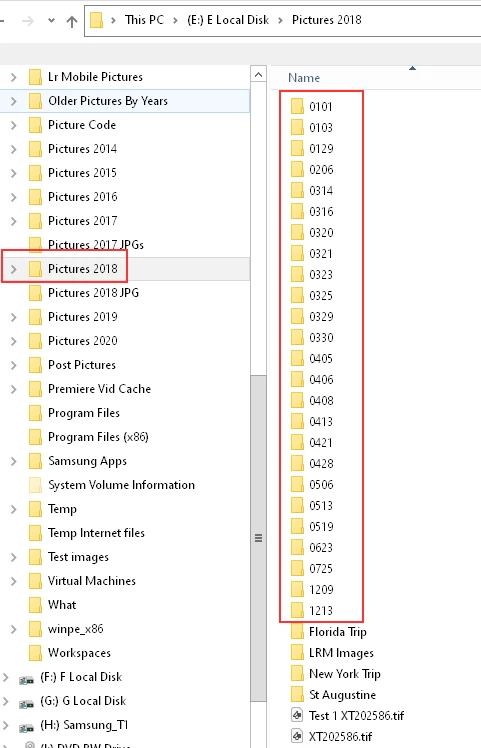
I start a New Folder on my drive I save all my images to and name it Pictures 20xx for the year then my custom date format creates a folder for each month and day the images were shot on like this 0705 and they are placed under that top Year folder.


I followed the instruction on this webpage to create that custom date preset.


https://blog.pardner.com/2014/12/create-a-lightroom-5-custom-import-preset-to-organize-photos-into-year-month-yyyy-mm/


Although it is for LR5 it still works in LrC and can still be created the same way.


2 replies

Just Shoot Me
Legend
July 5, 2020

Please Edit your post to remove the Attached screen shot and Include it in the body of the text of your post.

You do that by Clicking the "More..." link at the bottom of your post, Selecting "Edit Message" and then use the "Insert Photos" icon in the tool bar at the top of the Post/Reply/Edit dialog box like this.

rrr_hhh
rrr_hhhAuthor
Inspiring
July 5, 2020

Sorry I hadn't noticed .. the box at the bottom was so big it focalized my attention.

Just Shoot Me
Just Shoot MeCorrect answer
Legend
July 5, 2020

Yes you are correct. I have been complaining about that big box since this new system came on line in September of 2019.

Thank for moving the attachment.


All of the date formats are listed in the Import dialog.


There is a way to edit them into something you else if you would rather have it look different.

I use a Custom Date format.

I start a New Folder on my drive I save all my images to and name it Pictures 20xx for the year then my custom date format creates a folder for each month and day the images were shot on like this 0705 and they are placed under that top Year folder.


I followed the instruction on this webpage to create that custom date preset.


https://blog.pardner.com/2014/12/create-a-lightroom-5-custom-import-preset-to-organize-photos-into-year-month-yyyy-mm/


Although it is for LR5 it still works in LrC and can still be created the same way.


Ian Lyons
Community Expert
Community Expert
July 5, 2020

You can choose 2020/2020-07-05 from the list of folder date options. This format also sorts chronologically in Finder/Explorer. I've shown an example below


rrr_hhh
rrr_hhhAuthor
Inspiring
July 5, 2020

Wow ! Thank you for your fast answer. I didn't expect an answer so early.

But I'm not sure that can solve my problem : I want hierarchical folders :

Year

  Month 1

    Days

 Month 2

   Days

etc..

My actual hierarchy suits me. It's just that I would want the month folder to include the year, but the day folders to remain as just two digits.


I think that with your suggestion, all the 365 days of the year would be together in the year folder, if I'm not mistaken ?