
Participating Frequently
July 20, 2024
Answered

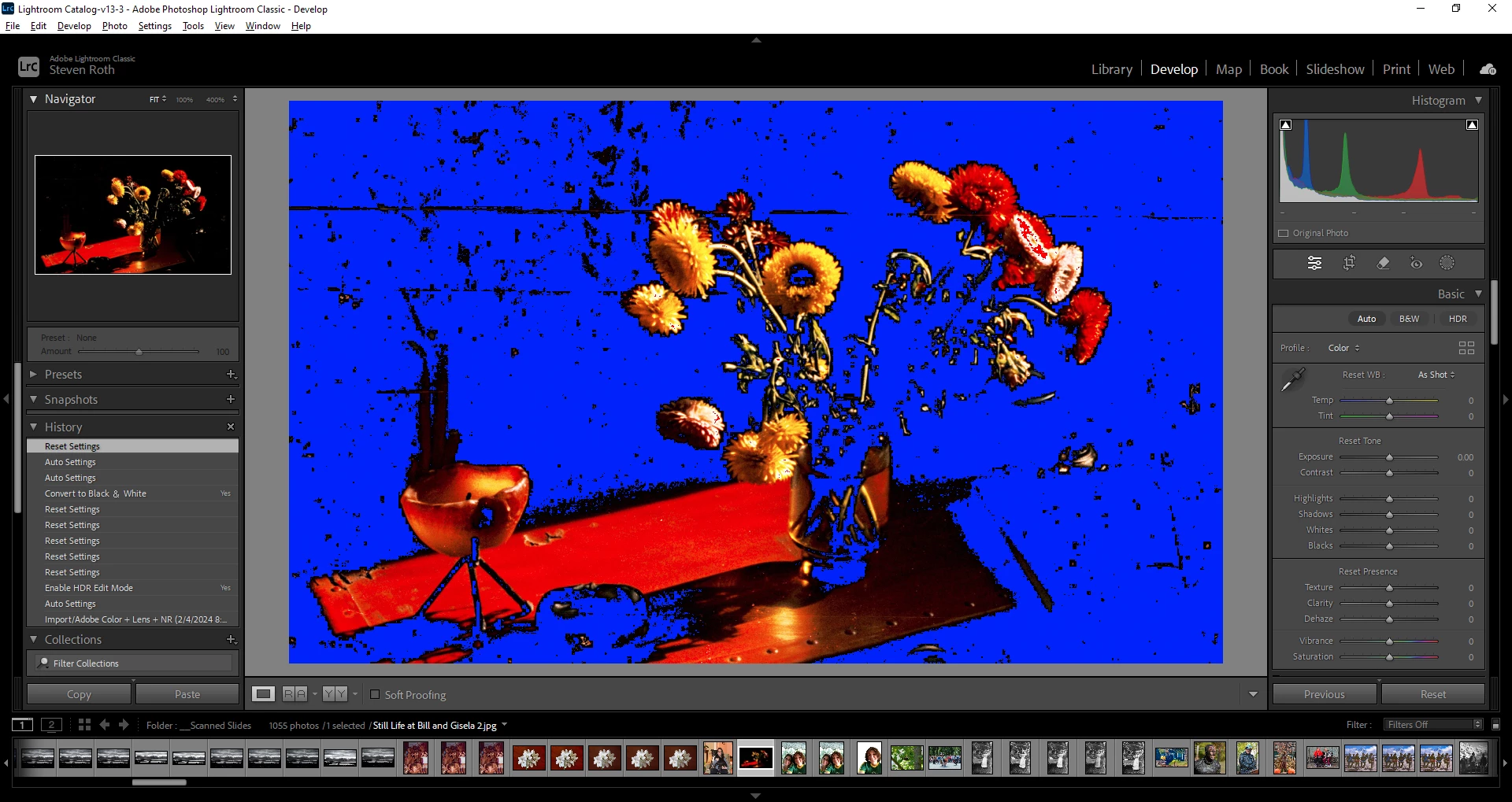
Imported image looks nothing like the original (screen dump is self-explanatory), LrC 13.4, Win10

  • July 20, 2024
  • 2 replies
  • 421 views

All I did was open the image in Develop after importing it.  The image is JPG, scanned from an Ektachrome slide.  Aside from needing some cleaning up, the image appears normal in every other photo viewer.


No, I didn't click on "Auto" or "HDR".


Outside of LrC, the original image appears as in the "Navigator" thumbnail (upper left of LrC window) but the image for editing is totally mangled, as shown below.

Totally weird.


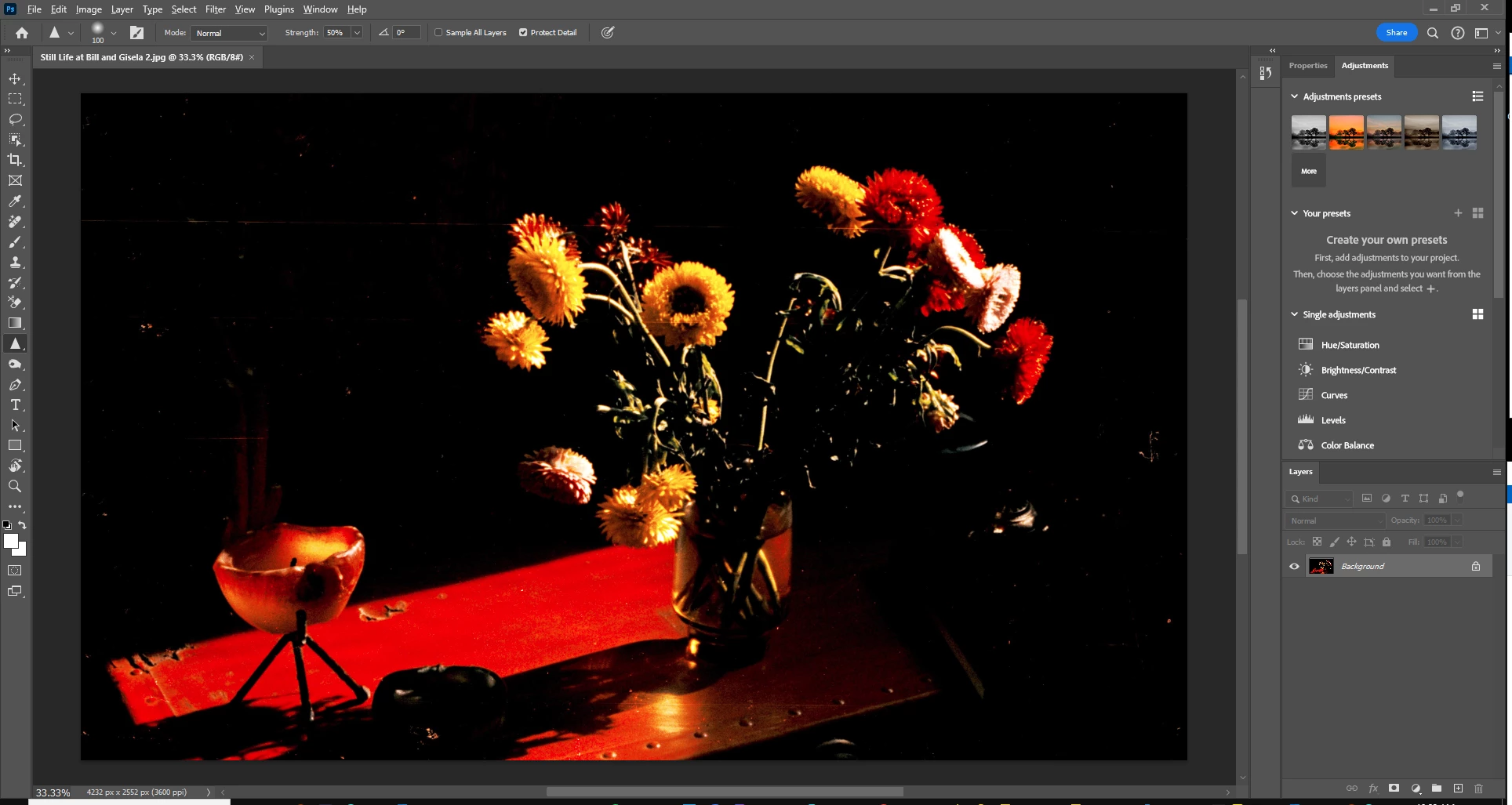
For comparison, here's how the image appears in Photoshop...


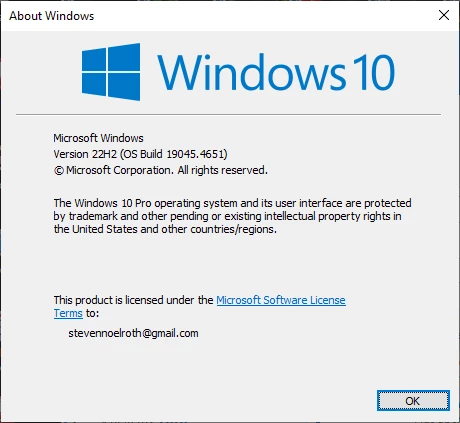
LrC 13.4, Windows 10 (version window also pasted below)...


Thank you for your attention and guidance.


Regards,

Steve


This topic has been closed for replies.
Correct answer JohanElzenga

You have the clipping warning for clipped black pixels (and also for clipped white pixels) turned on. That will show clipped black pixels in blue (and clipped white pixels will be red). Click on the small white triangle in the upper left corner of the histogram.


2 replies

Participating Frequently
July 20, 2024

I figured out how this happened but not why...


For reasons I don't understand, when I opened this image, a second instance of LrC was spawned.  I discovered this when I went to close LrC and found that there was an instance of LrC open "below" it on my screen.  In that instance, the image appeared the way it should.


I have no clue as to why a second instance was spawned.  I guess that should be the question needing an answer.


Per Berntsen
Community Expert
Community Expert
July 20, 2024
quote

I figured out how this happened but not why...


By @East End Steve


You probably pressed J, which is the shortcut for View > Show clipping. Press J again to turn it off.

I have no explanation for the second instance of LrC.

JohanElzenga
Community Expert
JohanElzengaCommunity ExpertCorrect answer
Community Expert
July 20, 2024

You have the clipping warning for clipped black pixels (and also for clipped white pixels) turned on. That will show clipped black pixels in blue (and clipped white pixels will be red). Click on the small white triangle in the upper left corner of the histogram.


-- Johan W. Elzenga