Known Participant
June 25, 2025
Answered

Importing in LRC from camera need filters or folders

  • June 25, 2025
  • 1 reply
  • 273 views

LRC import from camera works great.  I understand the frustration if I want to add just one picture.  However there is no real filtering.


I would like sections that can be grouped by

  Date - only display a shoot from a certain day ( as opposed to all shoots on the camera card)

  Folder  - multiple shoots are stored on the camera in named folders

  type- filter by file type within each section


This would help me search may camera card for different shoots.  I cant then import directly into folders/albums instead of moving them later 


Currently I work this process through the OS filesystem. I can veiw and edit the folders in the camera  in the OS filesystem.  I have to copy each folder to it's album location and resync the folder in LRC.


Correct answer Rob_Cullen

Then  your options are a little more limited. Have you considered a card reader?

So i am thinking this workaround-

Consider using the Folder Date method when setting the Import Destination panel options.

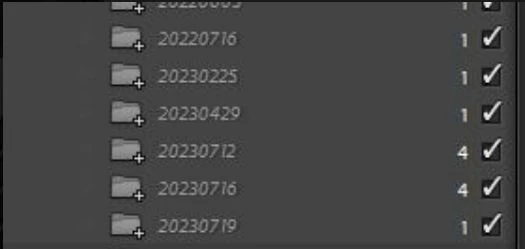
Then the Import [Destination Folder] interface should be useful (see my screen-clip above),


Also you have the opportunity to make selective 'date' imports in the Destination panel.

Note the ticks against the dated folders in my screen-clip: You can uncheck these ticks. Only photos in folders that are ticked will be imported. 

The destination panel uses the greyed-out folder names (icons show+)  to indicate new folders that will be created, and the number of photos that will be imported to each folder.


1 reply

Rob_Cullen
Community Expert
Community Expert
June 25, 2025

I am fairly certain that the import dialog of Lightroom-Classic can do everything you ask-


"Date - only display a shoot from a certain day ( as opposed to all shoots on the camera card)"

You can sort the import screen several ways-  one is 'Capture Time', but see the next answer also


Or if you have set Import Destination toOrganize by Date-

you will see the destination for files in a preview of the destination Folders panel-

Also: The Import dialog can also be set to [COPY] and [Destination Folders] to give you a preview in the Import dialog where you can [Un-check All]  and [Check]  only those in a Dated section- (Note the 'Date' dividers- "20210306", etc)

Use standard selection methods eg. [Click] > [Shift+Click] then [Tick] one photo for a contiguous series selection.


"type- filter by file type within each section"  is also available in this 'Sort' dialog with 'File Type'.  Maybe not easy to see, but files will be sorted in alphabetic grouping - DNG, JPG, NEF, PSD, TIF Needs you to look at the file names on the previews.

"Folder - multiple shoots are stored on the camera in named folders"

In the source panel of Import you can select Folders on the Camera Card. Just expand the "Files" section and your camera folders should appear.

OTOH The 'Devices' panel will show all photos on the card (and grey-out those that have already been imported)


Regards. My System: Windows-11, Lightroom-Classic 15.1.1, Photoshop 27.3.1, ACR 18.1.1, Lightroom 9.0, Lr-iOS 10.4.0, Bridge 16.0.2 .
Known Participant
June 25, 2025

Apologies, but I think there is a misunderstanding.  I'm talking about the import (source), not the destination.

Yes, I see the sort you mention, that's not the real problem, or the solution.


I see you have the card removed from the camera and mapped to a drive letter - that works.  However, I still have my card in my camera (as I don't have an adapter)  - windows and LR only recongnizes the camera name, and will not map it to a drive letter nor display the files structure.  LR simply lists it as "Z8" and gives me all the images on the card at once in one view.  Only when I leave LR does the file structure show in wxplorer.


Rob_Cullen
Community Expert
Rob_CullenCommunity ExpertCorrect answer
Community Expert
June 25, 2025

Then  your options are a little more limited. Have you considered a card reader?

So i am thinking this workaround-

Consider using the Folder Date method when setting the Import Destination panel options.

Then the Import [Destination Folder] interface should be useful (see my screen-clip above),


Also you have the opportunity to make selective 'date' imports in the Destination panel.

Note the ticks against the dated folders in my screen-clip: You can uncheck these ticks. Only photos in folders that are ticked will be imported. 

The destination panel uses the greyed-out folder names (icons show+)  to indicate new folders that will be created, and the number of photos that will be imported to each folder.


Regards. My System: Windows-11, Lightroom-Classic 15.1.1, Photoshop 27.3.1, ACR 18.1.1, Lightroom 9.0, Lr-iOS 10.4.0, Bridge 16.0.2 .