Participant
November 5, 2016
Answered

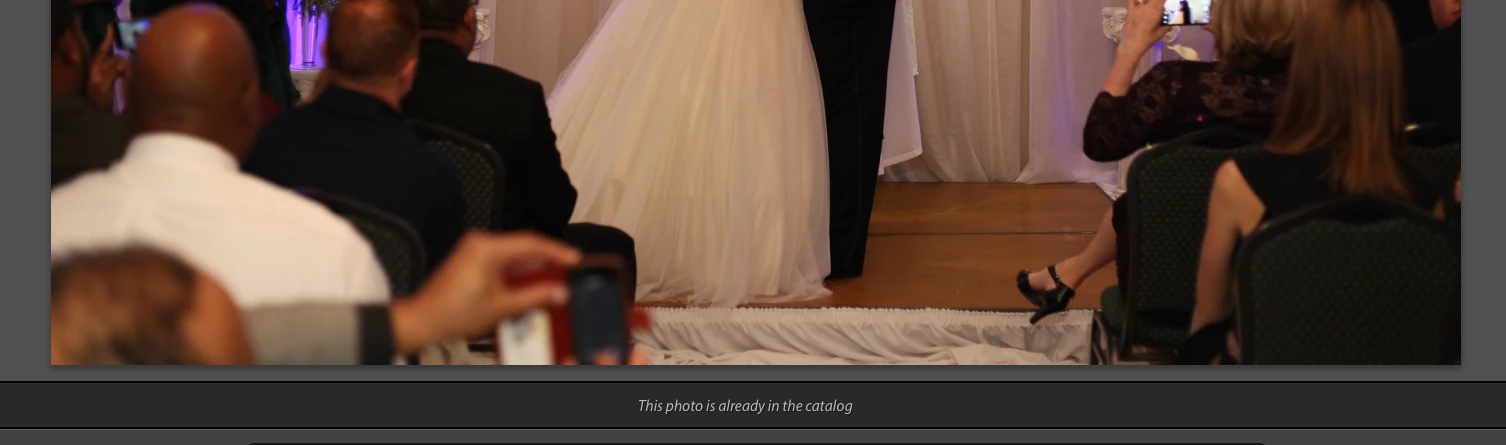
Importing new photos that Lightroom says I already imported

  • November 5, 2016
  • 5 replies
  • 19128 views

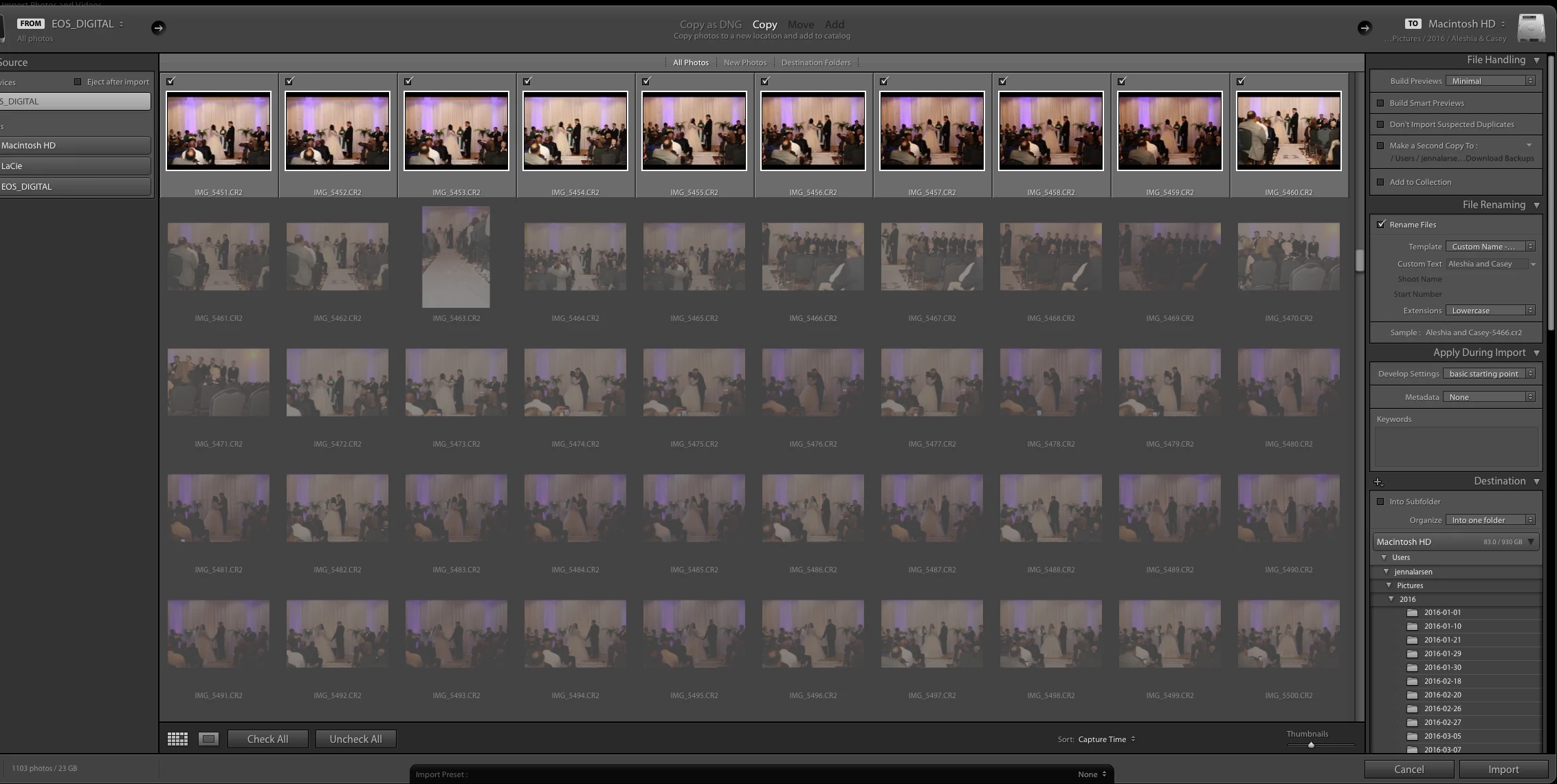
After taking photos and importing them for the first time Lightroom will sometimes decide that a portion of the photos are already in the catalog. I need these photos in Lightroom, but it refuses to let me import them. I have tried unclicking the duplicate box and force ejecting the card, different cards, new cards, importing straight from the card, either by selecting it in lightroom or dragging from the card, no luck. PLEASE HELP ME!!! 
Correct answer dj_paige

Occasionally bugs of this type are reported, the suggestiosn I have for you are;

  1. Delete your preference file then restart Lightroom, see if the import works now
  2. rename the original files somehow, for example, put the letter A after the file name, such as IMG_5461A.CR2

5 replies

Participant
July 1, 2023

Just recently incounter this problem for me not sure will it work for you all but here's my solution 

Step 1: Go to Recently Added 
Step 2: Check if there's any existing photo that inside you've might import into (Even if we delete it from the album side lightroom might still save into it's system)
Step 3: Select your desired photo to delete it 
Step 4: Import your photo that you wanted 

This works for me quite well hope it helps some of you all!

dj_paige
Legend
July 1, 2023

Deleting already imported photos is rarely a good solution, unless you have determined that the photo is no longer wanted (which you have not done).

Participant
November 27, 2022

I recently had this problem and after a lot of searching around, this is what worked for me. 

I went to the "By Date" section and found the files which had the same filenames of the ones I was trying to add and right clicked and selected Delete.

After this I was able to add the new ones.


Participant
November 27, 2022

Forgot to add this: the takeaway for me is to always delete from album instead of remove from album

Participant
April 16, 2022

I just encountered and overcame this bug. Here is exactly what I did to fix it, and I can confirm it worked. What follows are instructions for the Apple environment... 

1. I opened the original files in Finder, and confirmed their location

2. I batch renamed the files using Adobe Bridge (open Bridge; in the Folders section, locate the folder with your pictures; ensure the pictures are shown in the Content section, then click Workflow, create a new Batch Rename workflow, add a sequence number).

3. The copied files are then found in a new subfolder of the original locations, called Workflow. 

4. Inside Lightroom Library, click import, and reimport the files in the Workflow folder into your Library. 

5. Finally, I located the partial folder in my Library and removed it using Control+click > Remove.

Participant
April 10, 2020

4 years later.. bug still there..

dj_paige
Legend
April 10, 2020

You should tell Adobe, not via this forum, which is almost entirely Lightroom users.


On the main page of this forum is a link which says "Submit product feedback"

dj_paige
dj_paigeCorrect answer
Legend
November 5, 2016

Occasionally bugs of this type are reported, the suggestiosn I have for you are;

  1. Delete your preference file then restart Lightroom, see if the import works now
  2. rename the original files somehow, for example, put the letter A after the file name, such as IMG_5461A.CR2