silsurf@me.com
Inspiring
March 30, 2022
Question

Importing wants "Maximize Compatibility" but cannot find?

  • March 30, 2022
  • 2 replies
  • 547 views

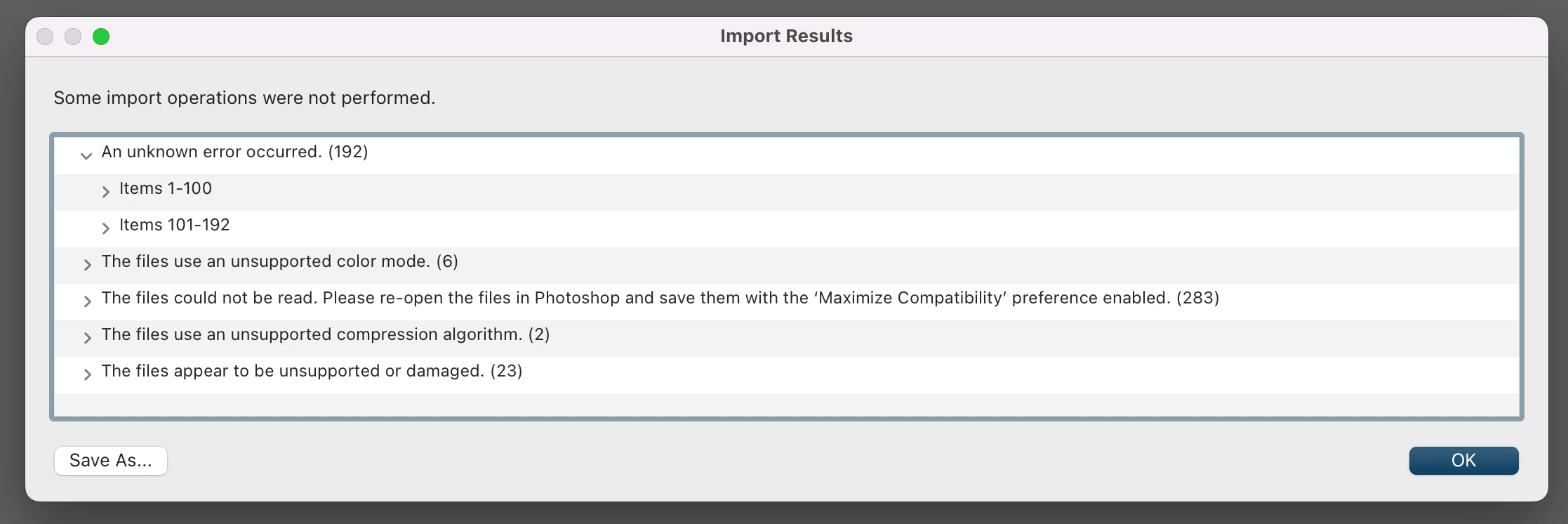
I am attempting to import several images files into LR Classic (up to date) and keep getting a error message:

"The files could not be read. Please re-open the files in Photoshop and save them with the 'Maximize Compatibility' preference enabled."

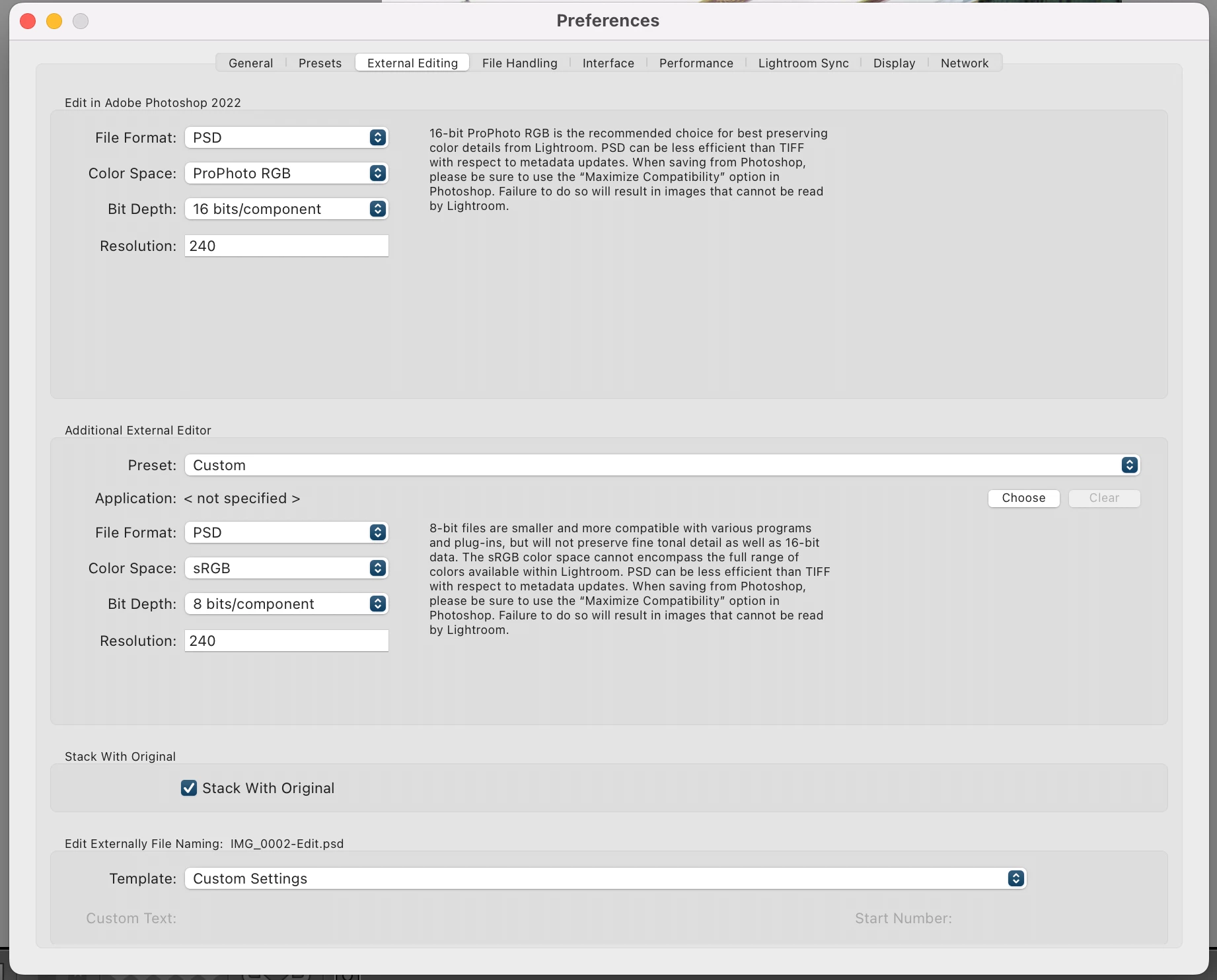
I cannot find this option to enable in LR Classic prefs->file Handling or anywhere else for that matter.

The files that are not importing are mostly .psd's
 

This topic has been closed for replies.

2 replies

Abambo
Community Expert
Community Expert
March 30, 2022

You need to open the files in Photoshop and use the Photoshop option 'Maximize Compatibility'. Photoshop cannot work with layered files. It will need a flattened layer in addition to all Photoshop layers, if you want to keep them for further editing in Photoshop (that's basically what that option does).

See here: https://helpx.adobe.com/photoshop/using/file-formats.html

ABAMBO | Hard- and Software Engineer | Photographer
silsurf@me.com
Inspiring
March 30, 2022

Thanks so much!

Abambo
Community Expert
Community Expert
March 30, 2022

You're welcome.

ABAMBO | Hard- and Software Engineer | Photographer
dj_paige
Legend
March 30, 2022

The option mentioned is in Photoshop, it should appear when you save a file in Photoshop.

silsurf@me.com
Inspiring
March 30, 2022

Hmm?, So why is it appearing in the error message of LR? I guess it is suggesting that I save the files with this constraint, but it is a bit counterintuitive to give instructions in one program that are concerning aanother program?


Thanks

silsurf@me.com
Inspiring
March 30, 2022

Is it possible to batch convert these files to maximze compatibility?