Participant
March 23, 2017
Answered

IMy LR Library Hard drive crashed. I have a backup and am trying to use it.

  • March 23, 2017
  • 2 replies
  • 679 views

I am trying to use my backup LR Library where all my photos are stored,  I can still see them in LR  and they all have question marks on the file names  when I select an image and try to develop it i get a message that states "File can not be found"   Can anyone help me.    I HAVE TO BE HONEST WITH THE HELP EXPIERENCE FROM ADOBE.   "   IT isn't good"    I have been trying to resolve this for more than half the day. 
{edited by moderator to remove reference to profanity}
    This topic has been closed for replies.
    Correct answer Rob_Cullen

    Hello wobertc, 

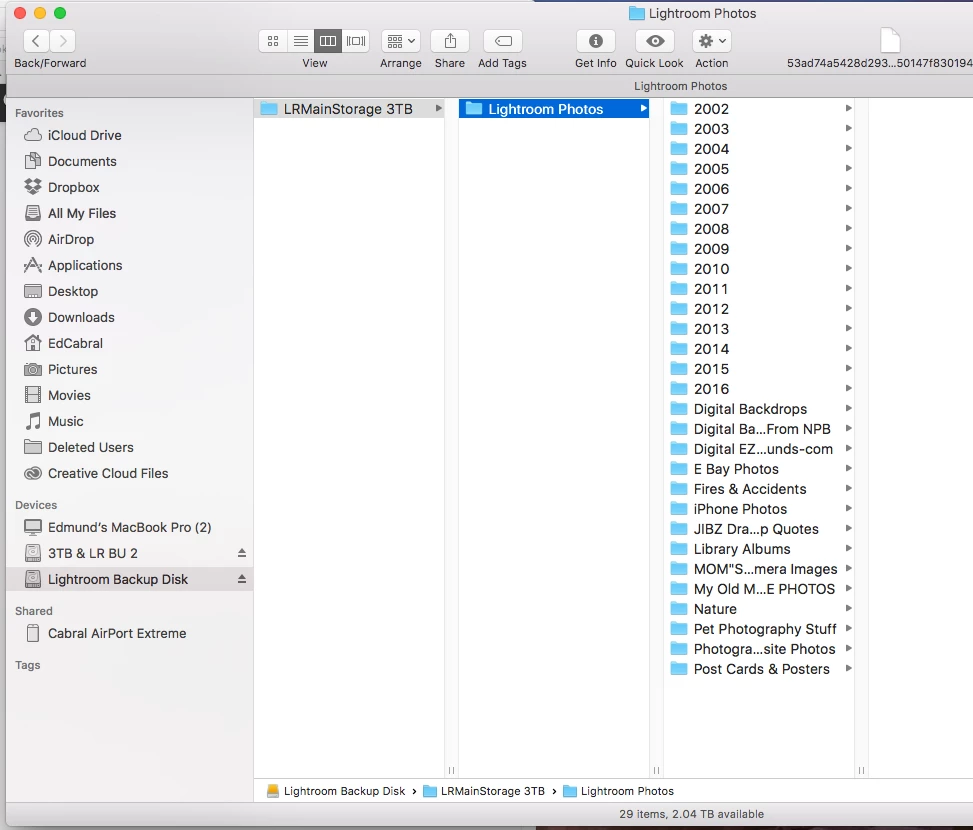
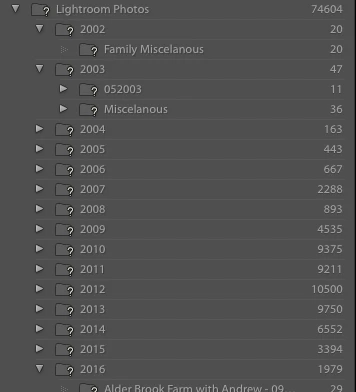
    THANK YOU.  It worked,  however my folder "2002" is not showing  as shown below.   However it is still in the window in finder when I open the up the "Lightroom Backup Disk" in finder as shown  below.   TAHNAK YOU IN ADVANCE.  YOU have been a life saver.  MANY Thanks


    Yes 2002 is not visible in Lr Folder panel screen-clip. Can you scroll down further to see if it is shown somewhere below, or even expand every year folder to see if it jumped into another Year 'parent' folder.  2002 only contained 20 photos so I do not see a real problem re-importing the folder- Lr would warn against importing duplicates if it does still exist in the Catalog.

    OR expand the folder { Macintosh HD drive\Users }  to see the sib-folders there- if 2002 is still there with a '?' you can re-link it to its new address on the Backup drive.

    2017? folder (and 1 or 2 others) will also need some attention- I do not see it on the Backup disk. Could it have been lost with the Disk crash?

    2 replies

    Rob_Cullen
    Community Expert
    Community Expert
    March 23, 2017

    The first thing you must do is read-

    https://www.lightroomqueen.com/lightroom-photos-missing-fix/

    Hopefully, your backup of photos is in the same folder structure as the Lightroom catalog indicates, otherwise you have a large job ahead re-linking your photos to the catalog.

    It is better to re-link the Folders (showing a ?) and preferably start with the topmost folder "Lightroom Photos"

    When this is done, all the photos contained in these folders will also be re-linked.

    Regards. My System: Windows-11, Lightroom-Classic 15.3, Photoshop 27.5, ACR 18.3, Lightroom 9.3, Lr-iOS 10.4.0, Bridge 16.0.3 .
    Per Berntsen
    Community Expert
    Community Expert
    March 23, 2017

    If your backup has the the same folder structure as on the hard drive that crashed, right click the Lightroom Photos folder, choose Find missing folder, and point Lightroom to the new location. This should fix everything.

    edc58Author
    Participant
    March 24, 2017

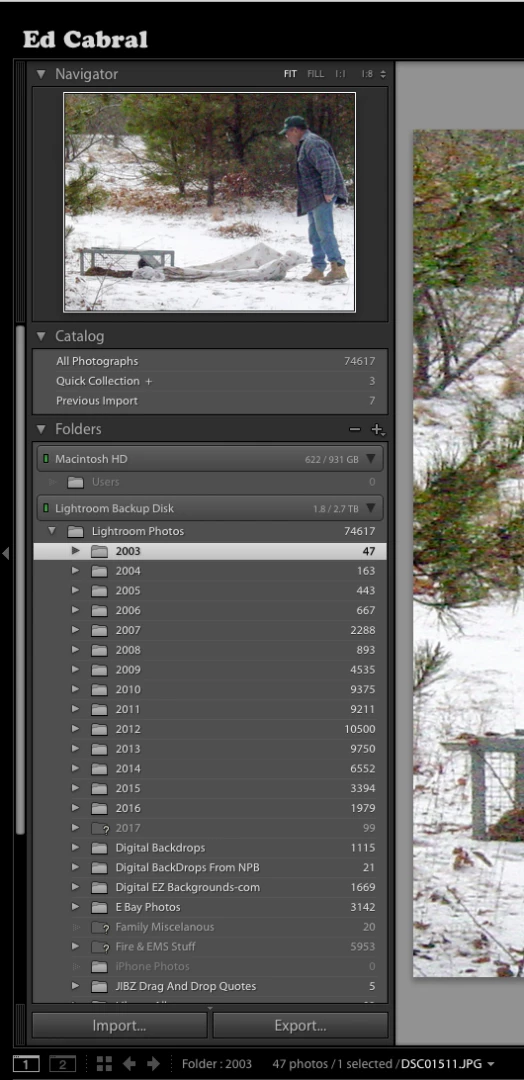
    OK,   So I Did what you suggest.  I right clicked on the top "Lightroom Photos folder" and I selected the "Find missing folder,  then i selected the "Lightroom Backup Disk"  after I clicked on the "Choose" button the window closed and the "Lightroom Photos Folder" disappeared.         

    I did the same thing with the "2002" folder and it to disappeared.

    The folder structure on the backup disk is the same.   As seen below,   Am I doing this right and where are the folders going.

    Rob_Cullen
    Community Expert
    Community Expert
    March 24, 2017

    Close, but a slight mistake in your process- you should have chosen the FOLDER "Lightroom Photos" on the backup disk. (Not the disk itself) Somehow you created a folder called "Lightroom Backup Disk". (see in the second screen-clip)

    Try similar again- R-Click on this FOLDER "Lightroom Backup Disk" and from the menu choose [Update Folder Location]  and in the Finder window that opens choose the FOLDER called "Lightroom Photos" that is on the backup disk (shown in the FIRST screen-clip).

    Hopefully this will now re-link the 'year' folders as well.

    Regards. My System: Windows-11, Lightroom-Classic 15.3, Photoshop 27.5, ACR 18.3, Lightroom 9.3, Lr-iOS 10.4.0, Bridge 16.0.3 .