Participating Frequently
October 14, 2026
Question

In mess with Sync. Need a fix about this issue.

I had my entire library on LR Online. Then I decided to move my entire library to LRC. At one point in this process, I had all my pics on LR as well as in LRC. At this point I was trying to verify sync behaviour and started sync. In 5-10 minutes I realized that it is only duplicating the assets on LRC and filling up my local storage.

I paused the sync. Till it has queued entire LR online inventory of 30k+ assets for download. It downloaded some couple of hundred. At this point, I deleted all online assets except for two albums that are specifically mobile targets and I want to use them to bring mobile photos into LRC. Now I had around 4k photos on LR in these two albums and rest entire library of around 26K in LRC.

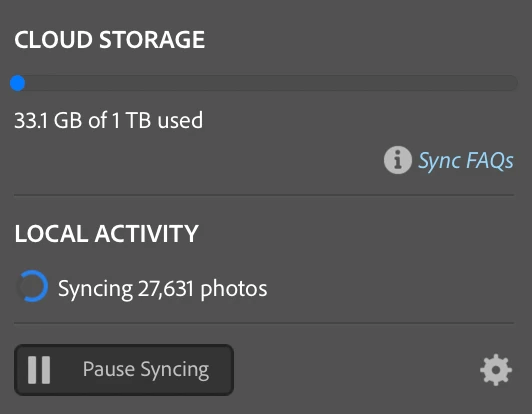
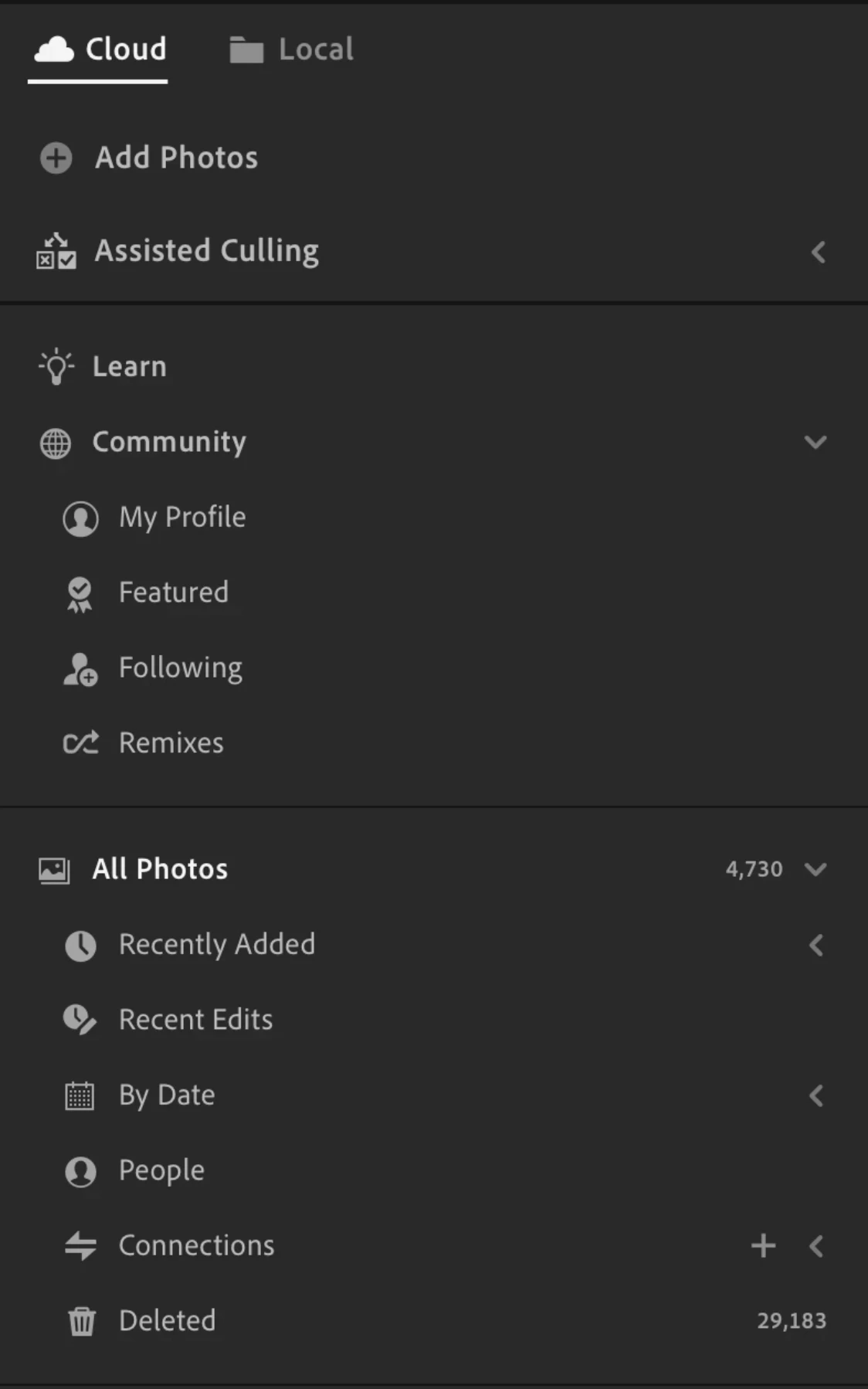
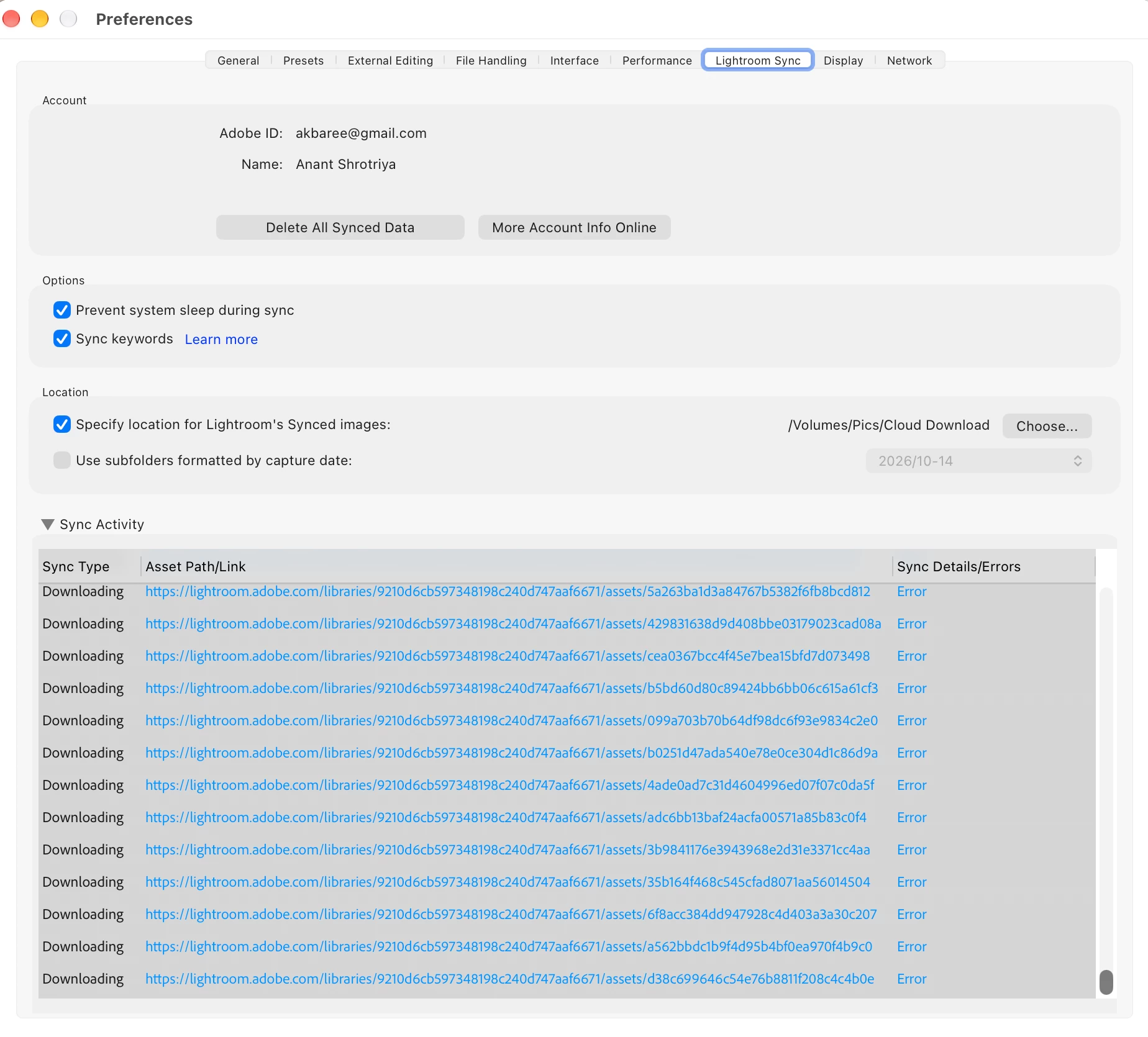
Based on some google searches, to reset my previous sync, I deleted the sync.lrdata file. Without creating any collections in LRC (meaning nothing to sync from LCR to LR), I started the sync again. But I am not stuck. with lot of errors - refer to first image below. From the 2nd image you can notice that it is trying to sync 27k assets when I only have 4.5k assets (last image).


Please advise how can i fix this issue and re-establish a clean sync. Should I rebuild sync from the preferences → lightroom sync page?


    2 replies

    akbareeAuthor
    Participating Frequently
    October 14, 2026

    As I am creating a new catalog in LRC for my images, I just deleted my catalog and created it from scratch. Yet to turn on Sync though. Hoping things will be okay once I turn on the sync for this new catalog. I wanted to avoid fixing issues which take forever. As it was possible right now for me to do this, I just took this route. This is basically option 1 you listed below. Thanks.


    I did think of option 2 as well. But as I am syncing my mobiles to these folders, I thought option is better test of real life use case for me.


    Appreciate your response on this one and listing the 2 options.

    Translate
    Califdan2
    Inspiring
    October 14, 2026

    There are (at least) two methods to get your LR/Cloud images all into LrC (with assumption that all images in Lr/Cloud were imported directly into one of the LR/Cloud apps and not synced from an LrC catalog)

    1. Create a new empty catalog in LrC, turn on Sync, go to bed.  All the files in LR/Cloud will be copied to LrC (full size originals).   The images will be placed in the folder designated in preferences, optionally with ‘by date’ subfolders depending on your setting in preferences.  Before you turn on sync, you should go into preferences and select the parent folder where you want the images that come down from LR/Cloud to be stored so you won’t have to move them after the fact.  Assure that the drive you select has enough space for youre entire LR/Cloud set of images.  Your LR/Cloud albums will become LrC/Colllections but the folder containing those LR/Cloud albums will not automatically become Collection sets in LrC.  Any shared LR/Cloud albums will remain shared with the same URL.  You will continue to have full size originals in both LR/Cloud (where they count against your plans storage limit) and in LrC.
       
    2. Using LR/Cloud (Lr/Desktop or Lr/Web) export all your LR/Cloud images to your computer.  Using Finder/Explorer arrange the images into whatever folder structure you desire.  In LrC, with cloud sync turned off, import the entire set of images.  Before turning on Cloud Sync, completely clear LR/Cloud of all images [see Clear LR Cloud and start LrC syncing from a clean slate (Updated Dec 2025)].  Now, turn on cloud sync. 

      This method has some drawbacks.  Your LR/Cloud albums will not come across to LrC as collections.  Any Shared albums will need to be re-shared and will get new URL’s.  If you use Adobe Portfolio, the links between PF and LR/Cloud will be broken.

      With this method, the images that get synced back to LR/Cloud will be SP’s (Smart Previews) rather than full size originals, and those SP’s do not count against the storage limit of your Adobe plan.  For most people, SP’s in LR/Cloud are just as good and useful as fulls size originals.  However, some people do need full size originals in LR/Cloud for specific purposes so take that into consideration.
    Translate