
Participant
February 24, 2020
Answered

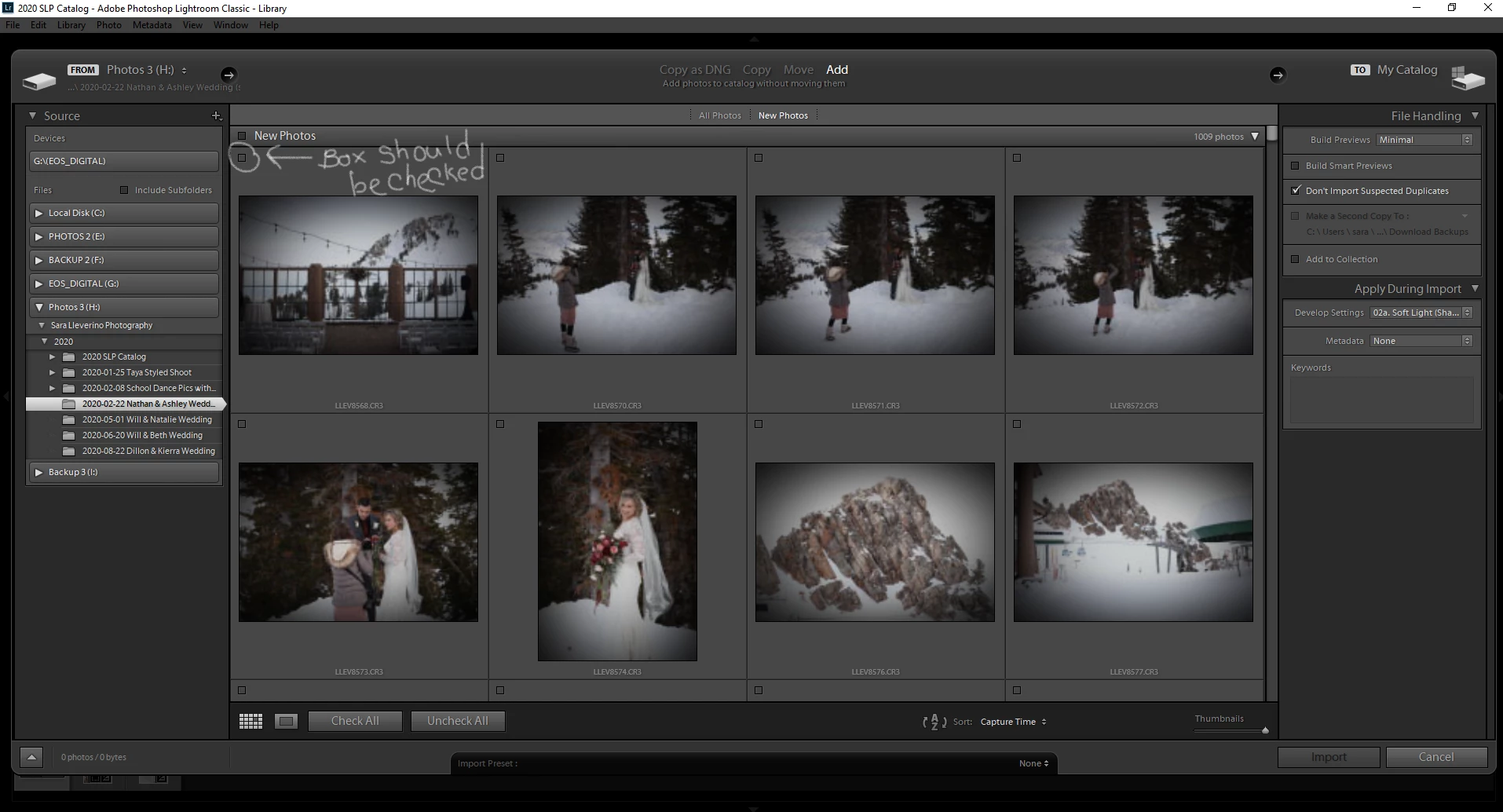
Include in import box not checked when I drag and drop images version 9.2 release

  • February 24, 2020
  • 5 replies
  • 857 views

Since I updated Lightroom Classic to the newest release, version 9.2, the "include in import" box isn't checked when I drag and drop images to import. When I revert back to the previous release, it works again, so I suspect there's a bug in the newest release. Here's a screenshot. Is there a setting I can change that will make this work again?
This topic has been closed for replies.
Correct answer saramlleverino

UPDATE: It seems to be working now. I uninstalled Lightroom and reinstalled again and it's working fine now. I must have had an installation problem. Go figure.

5 replies

Participant
March 5, 2020

This is definitely a bug of some sort.  A small workaround would be to first go into your import dialog and uncheck the "Don't Import Suspected Duplicates" button, then cancel the import.  Then drag your photos into lightroom.  It will load the folder with just the ones you selected checked for import.  I confirmed this isn't an actual duplicate file issue as I tried to import photos from an old camera that I can guarantee are not in my catalog, nor would they have similar file names to any in the catalog.  


In the past, you could uncheck the duplicate file box and it would give you the option to import duplicates as if they were actual duplicates without having to exit the import dialog screen.

Hope they get this bug fixed soon.

Participant
March 2, 2020

Thanks for your reply. This is what I've discovered. Yes, for some reason, this version of Lightroom seems to think that the images I've chosen are duplicates even though I've never imported them before and they are in a completely different folder than any other images I've imported. When I uncheck the "Don't Import Suspected Duplicates" check box and then select my images and drag them over, they are selected. It's just strange because they were brand new images in a brand new folder and I'm certain I've never imported them before. In fact, when I downgraded my version of Lightroom back to the 9.1 version, the "Don't Import Suspected Duplicates" box WAS checked and it worked fine. However, I can't seem to find anyone else with this issue, so it must just be my system for whatever reason. For the moment, I'll just leave the "Don't Import Suspected Duplicates" unchecked when I import and just deal with any possible duplicates manually if I run across them.

saramlleverinoAuthorCorrect answer
Participant
March 2, 2020

UPDATE: It seems to be working now. I uninstalled Lightroom and reinstalled again and it's working fine now. I must have had an installation problem. Go figure.

Just Shoot Me
Legend
February 24, 2020

I also notice that in your screen shot there are no images selected and you have New Photos selected near the top.


Are you Dragging the complete folder? If so Why when you can select it in the Import window itself on the left and not have to have the Explorer window open at all.


And I tested this on LR Version 5.7.1 too. Same thing happens in that version of LR. The whole folder is shown and the images I have selected and dragged are checked.

So for me it work the same in LR 9.2 as it does in that Really old version of LR.

Participating Frequently
February 24, 2020

I am having this exact same issue. I use Photomechanic to pick my images, then select all my picked images, drag and drop into the import dialog. Previously, all my selections would be ticked. Now, nothing is ticked, 750 images are available to be ticked and the 'import' button is greyed out. 

Just Shoot Me
Legend
February 24, 2020

On my system, Win 10 LR Classic 9.2, If I open the Import window and then use File Explorer to select several images then Right Click and Drag to the import window the Whole, Complete, folder of images is Added and the few, 4, images I have selected and Dragged are highlighted and that check box is selected.


So this is either specific to your system. Or more than likely, if you look at the scroll bar to the right, there are MANY MANY images being loaded into the import dialog window and you have NOT scrolled down to find the ones that you had actually selected and Dragged.


Please Note that the File names match from the Explorer window to the images that are highlighted and that check box is checked.


So it is just that you have not scrolled down far enough, or at all, to find the one you selected and or all of those images are already in the LR Classic catalog.


Participant
March 2, 2020

Thanks for your reply. I thought about this as well, but the "Import" button was greyed out which means none of the boxes were checked. I discovered that for whatever reason, the system seemed to think all of my images were duplicates even though I've never imported them before. I'll have to figure out why. When I downgrade to the 9.1 version of Lightroom, it works fine, so who knows.

JP Hess
Inspiring
February 24, 2020

The way those images are being displayed seems to indicate that they have already been imported into the catalog that you are using, and Lightroom is refusing to import them again as duplicates. At least that is the way I am looking at it.