Ken Nielsen
Legend
March 28, 2023
Answered

Is it possible to soften the edges of luminance Range selections?

  • March 28, 2023
  • 1 reply
  • 1467 views

Luminance Range in Lightroom makes choices based on luminance but often the 'edges' of the choice are stark and often result in modifications to selected areas that do not follow the softness where light is changing over a gradual area. Is there a way to 'soften' the areas selected by luminance range so that edges of areas selected are not so sharp and modifications can be made more 'gradual' in appearance?
This topic has been closed for replies.
Correct answer Rob_Cullen

"to 'soften the edges' of a luminance mask".  It should be possible just with the Luminance panel sliders!

My take on the question-

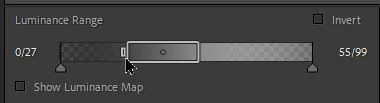
1) Set the RANGE of Luminance by dragging the 'end markers' of the 'box' with the high-lighted border.

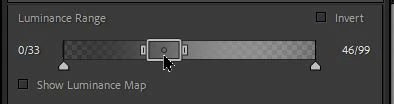
You can compress this box to a very narrow range (eg. only Blacks- see last screen-clip below)

2) MOVE the range box on the scale by dragging it from the middle. (eg. Drag to Blacks, Shadows, Highlights, Whites.)

3) Set the "Fall Off"  or "Fade" (soften edges) of the mask by adjusting the 'Arrow' markers a distance away from the Range Box. The 'Fade' is indicated by the grey tonal range outside ot the Range 'box'.


1 reply

johnrellis
Legend
March 28, 2023

[This post contains formatting and embedded images that don't appear in email. View the post in your Web browser.]


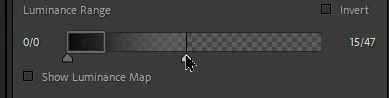
It's not immediately obvious, but if you hover the mouse over the left or right edges of the range bar, you'll see a control appear that you can adjust separately from the bottom two up-arrows:


The range mask will fade smoothly from the edge to the up-arrow.

Ken Nielsen
Legend
March 28, 2023

This does not get me what I was after, but I think I am asking for modification to a mask that is generated by luminance that is a bit out of the range of what 'luminance' actually means. I think I want to do some air brush to soften the transition from the edge of the mask and that most likely is not possible using this, what is actaully a fabulous tool in Lightroom. Thank you for pointing out the ability to modify the 'reach' I will call it, of the luminance in addittion to the 'range' that is being masked. Whew, this gets complex to try to explain but I'm an old 'hands on' user who wants to go beyond what is already being done quite well by just reading the pixel information. You've given me a lot to ponder now so thank you johnrellis for this expert help. I appreciate.

Community Expert
March 28, 2023

For modifying a mask which has selected initially just on a luminance basis, you can apply one or more further components to the same mask, e.g. a brushed selection. That further selection can Add (or exclude if inverted), or Subtract (or Intersect if inverted), in how it combines with the initial luminance selection.