Is there a way to select only the dark areas and denoise only those areas. Those are the areas with the most noise. A way to do that would be very helpful if it doesn’t exist.
Is there a way to select only the dark areas and denoise only those areas. Those are the areas with the most noise. A way to do that would be very helpful if it doesn’t exist.
The darker areas are usually the areas that need denoising the most. It would be helpful to provide a slider for selecting and identifying this areas and be able to deniise just those areas. Suggestions for improvement if this is possible.
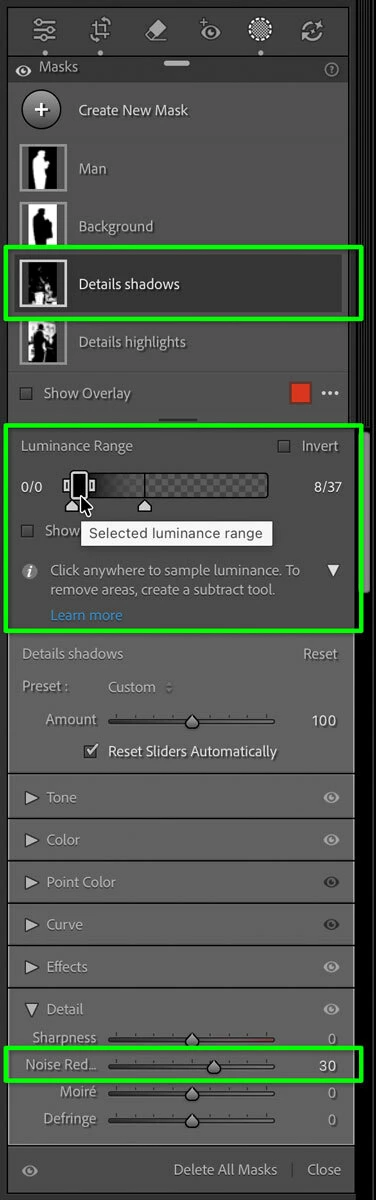
In Lightroom Classic, I agree that a Luminance range mask is a good solution, I do it all the time. The picture below shows a Luminance range mask with the range set to the shadows, and in the mask settings, Noise Reduction is set to 30.
Having a Luminance range mask targeting the shadows also gives you the opportunity to do anything else you think the shadows need, such as adjusting Texture, Clarity, the Tone Curve, and more, if those help make shadow noise less obvious or in some cases help enhance non-noise details in shadows.
All you need to do is add a Range mask set to Luminance, and then drag in the image across the intended range of tones to affect like a shadow area. So creating the mask can take 5 seconds.
Bonus: Save it as a preset for one-click creation. The “Details shadows” mask you see in the picture was added by a preset I saved under that name. The preset contains just that mask, already preset to a Noise Reduction set to a certain value as a starting point. So when I want to add one of those, I just click my preset. If it’s not quite right for that image, I simply adjust the mask settings as needed. As a preset, that means you could select 100 images, click the preset, and now all 100 images have your shadow noise reduction mask.
In Lightroom Classic, I agree that a Luminance range mask is a good solution, I do it all the time. The picture below shows a Luminance range mask with the range set to the shadows, and in the mask settings, Noise Reduction is set to 30.
Having a Luminance range mask targeting the shadows also gives you the opportunity to do anything else you think the shadows need, such as adjusting Texture, Clarity, the Tone Curve, and more, if those help make shadow noise less obvious or in some cases help enhance non-noise details in shadows.
All you need to do is add a Range mask set to Luminance, and then drag in the image across the intended range of tones to affect like a shadow area. So creating the mask can take 5 seconds.
Bonus: Save it as a preset for one-click creation. The “Details shadows” mask you see in the picture was added by a preset I saved under that name. The preset contains just that mask, already preset to a Noise Reduction set to a certain value as a starting point. So when I want to add one of those, I just click my preset. If it’s not quite right for that image, I simply adjust the mask settings as needed. As a preset, that means you could select 100 images, click the preset, and now all 100 images have your shadow noise reduction mask.




 AdChoices