Inspiring
February 15, 2019
Answered

Issue printing in Lightroom

  • February 15, 2019
  • 4 replies
  • 2323 views

Hi,

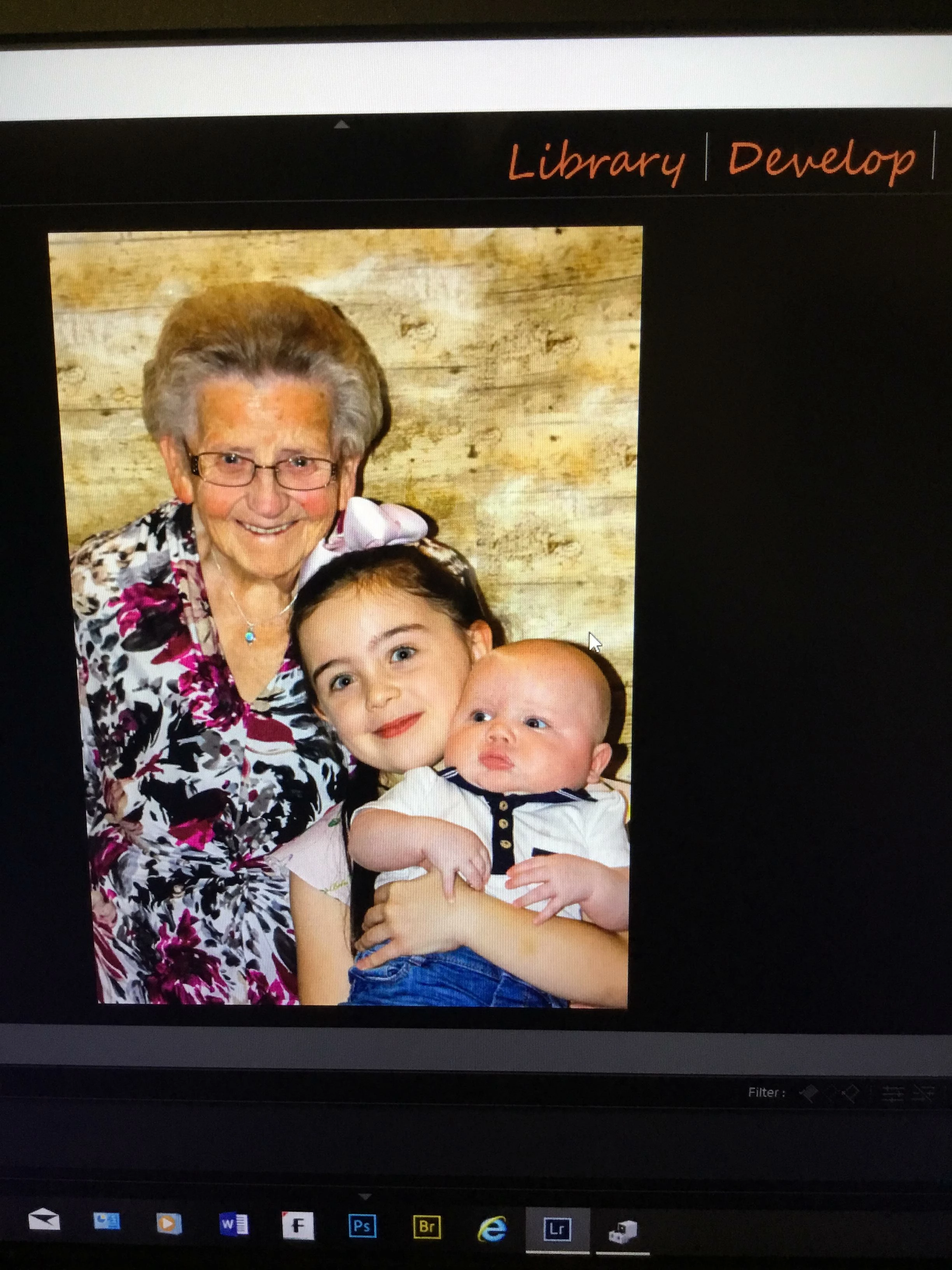
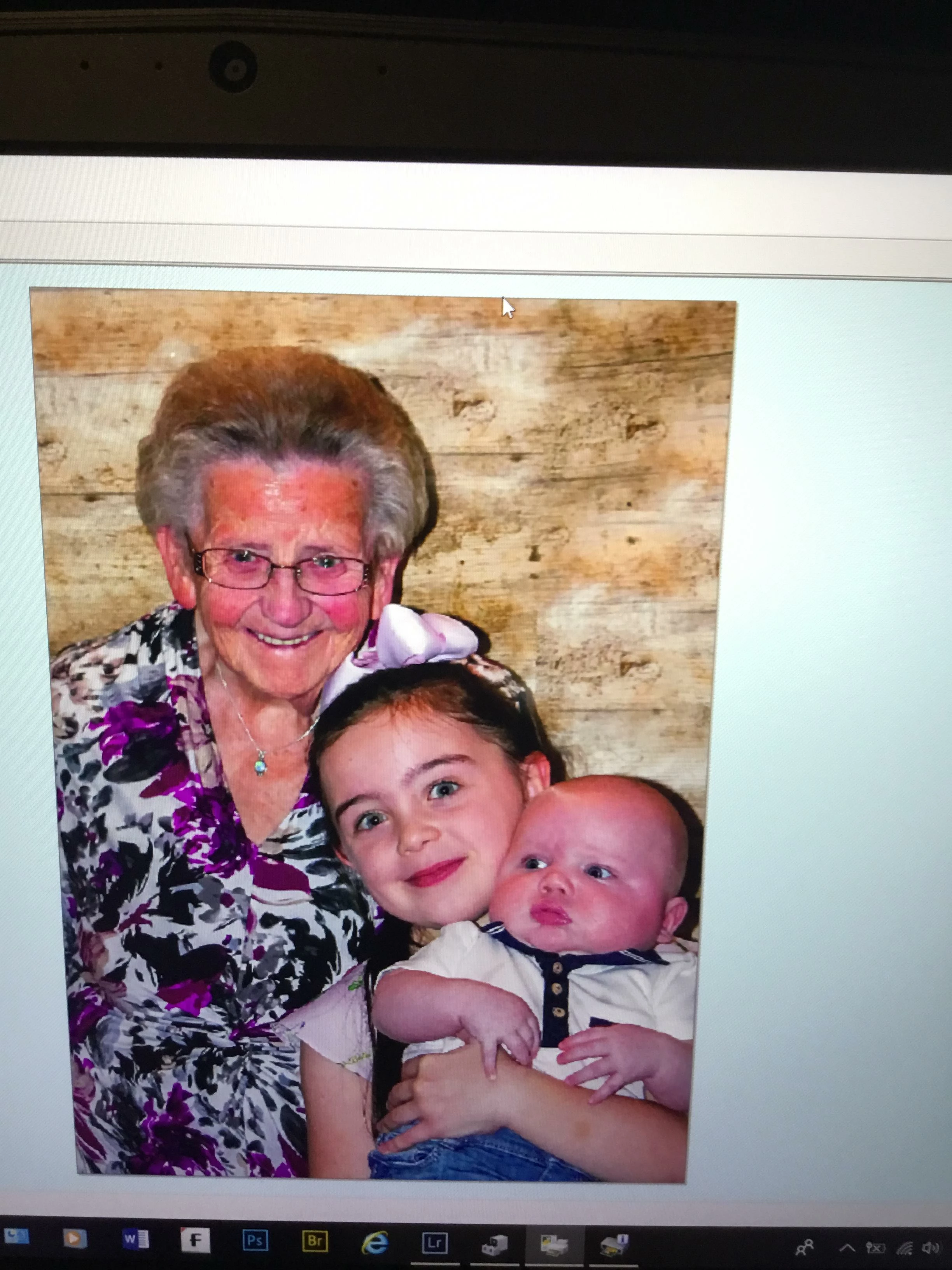
I am having an issue printing to my Canon Pro-100s from Lightroom. When I choose a paper profile and disable the printers color management I get a dramatic change in the picture quality. It also happens if I do not disable the color management. The only way to avoid it is to use the printer settings. I don’t get this issue printing from Lightroom. My monitor has been calibrated.

The picture changes from this:-

To this

Anyone any ideas ?

    This topic has been closed for replies.
    Correct answer Batman385

    Found the solution on a different Adobe forum and it worked.

    Now, since 2012 when I started using Lightroom as well as Photoshop, my normal workflow has been to import images into Lightroom, do preliminary adjustments, then edit further in Photoshop.  Then I print (or try to print) images through Photoshop.  But with the cast problem still there, I decided this time to try printing from Lightroom.  No difference.  Then I looked more closely at the Lightroom printer settings.  Good grief - they were set to allow the printer to manage colours.  Because I usually print from Photoshop, I'd never looked at these settings before.  So I corrected the printer settings in Lightroom and - OMG - perfect print!!!!  I then printed from Photoshop, using a different photo but now with the Lightroom and Photoshop print settings set correctly.  Again, a perfect print.

    So, I can only assume that Lightroom embeds print instructions into the images that are imported into it, regardless of whether the LR print facility is used, and that these embedded instructions are then not overwritten by Photoshop but sit alongside any Photoshop print choices that you make.    And the result?   A clash of colour management instructions and that nasty, nasty magenta cast.

    So, to conclude this long-winded story:  if you use both LR and PS, make sure both have the correct printer settings, regardless of which program you print from.

    4 replies

    Batman385AuthorCorrect answer
    Inspiring
    February 22, 2019

    Found the solution on a different Adobe forum and it worked.

    Now, since 2012 when I started using Lightroom as well as Photoshop, my normal workflow has been to import images into Lightroom, do preliminary adjustments, then edit further in Photoshop.  Then I print (or try to print) images through Photoshop.  But with the cast problem still there, I decided this time to try printing from Lightroom.  No difference.  Then I looked more closely at the Lightroom printer settings.  Good grief - they were set to allow the printer to manage colours.  Because I usually print from Photoshop, I'd never looked at these settings before.  So I corrected the printer settings in Lightroom and - OMG - perfect print!!!!  I then printed from Photoshop, using a different photo but now with the Lightroom and Photoshop print settings set correctly.  Again, a perfect print.

    So, I can only assume that Lightroom embeds print instructions into the images that are imported into it, regardless of whether the LR print facility is used, and that these embedded instructions are then not overwritten by Photoshop but sit alongside any Photoshop print choices that you make.    And the result?   A clash of colour management instructions and that nasty, nasty magenta cast.

    So, to conclude this long-winded story:  if you use both LR and PS, make sure both have the correct printer settings, regardless of which program you print from.
    TheDigitalDog
    Inspiring
    February 22, 2019

    Batman385  wrote

    So, I can only assume that Lightroom embeds print instructions into the images that are imported into it, regardless of whether the LR print facility is used, and that these embedded instructions are then not overwritten by Photoshop but sit alongside any Photoshop print choices that you make.  

    All the 'instructions' are/can be burned into a print template. If you use such a template but the wrong parameters, you'll get poor prints.

    Actually Photoshop does burn some print parameters into the document. Open a document in Photoshop, go into the Print dialog, change something but don't print, try closing the document, you'll get a dialog to save.

    Author “Color Management for Photographers" & "Photoshop CC Color Management/pluralsight"
    TheDigitalDog
    Inspiring
    February 16, 2019

    Batman385  wrote

    Hi,

    I am having an issue printing to my Canon Pro-100s from Lightroom. When I choose a paper profile and disable the printers color management I get a dramatic change in the picture quality.

    Disable Color management where? That's probably the first issue. Please upload a screen capture of the print dialog.

    And try testing with a color reference file first, something like this:

    http://www.digitaldog.net/files/2014PrinterTestFileFlat.tif.zip

    Author “Color Management for Photographers" & "Photoshop CC Color Management/pluralsight"
    Batman385Author
    Inspiring
    February 17, 2019

    I am definately disablng the colour management correctly. Something else is wrong but don’t know what.

    Community Expert
    February 16, 2019

    Does it actually print bad? It is not unlikely that the printer dialog is just not correctly managed.

    Batman385Author
    Inspiring
    February 16, 2019

    It looks really bad, just as it is in the pictures above.

    JP Hess
    Inspiring
    February 16, 2019

    Are you checking the color management settings in the printer dialog itself and not just in Lightroom? The problem you are describing and illustrating is indicative of double color management. In the one instance it appears that both Lightroom and the printer are applying color management. You need to make sure that when you click on page setup in Lightroom that brings up the printer driver dialog from Canon that you either have color management enabled or disabled appropriately.

    Batman385Author
    Inspiring
    February 16, 2019

    Hi, thanks for the reply. I am pretty sure I have disabled. Are you able to do a small step by step guide for Canons that I can try ?

    AxelMatt
    Community Expert
    Community Expert
    February 16, 2019
    My System: Intel i7-8700K - 64GB RAM - NVidia Geforce RTX 3060 - Windows 11 Pro 25H2 -- LR-Classic 15 - Photoshop 27 - Nik Collection 8 - PureRAW 5 - Topaz Photo