Participant
February 28, 2018
Question

issues with setting up margin for 4x6inch print in lightroom

  • February 28, 2018
  • 4 replies
  • 1534 views

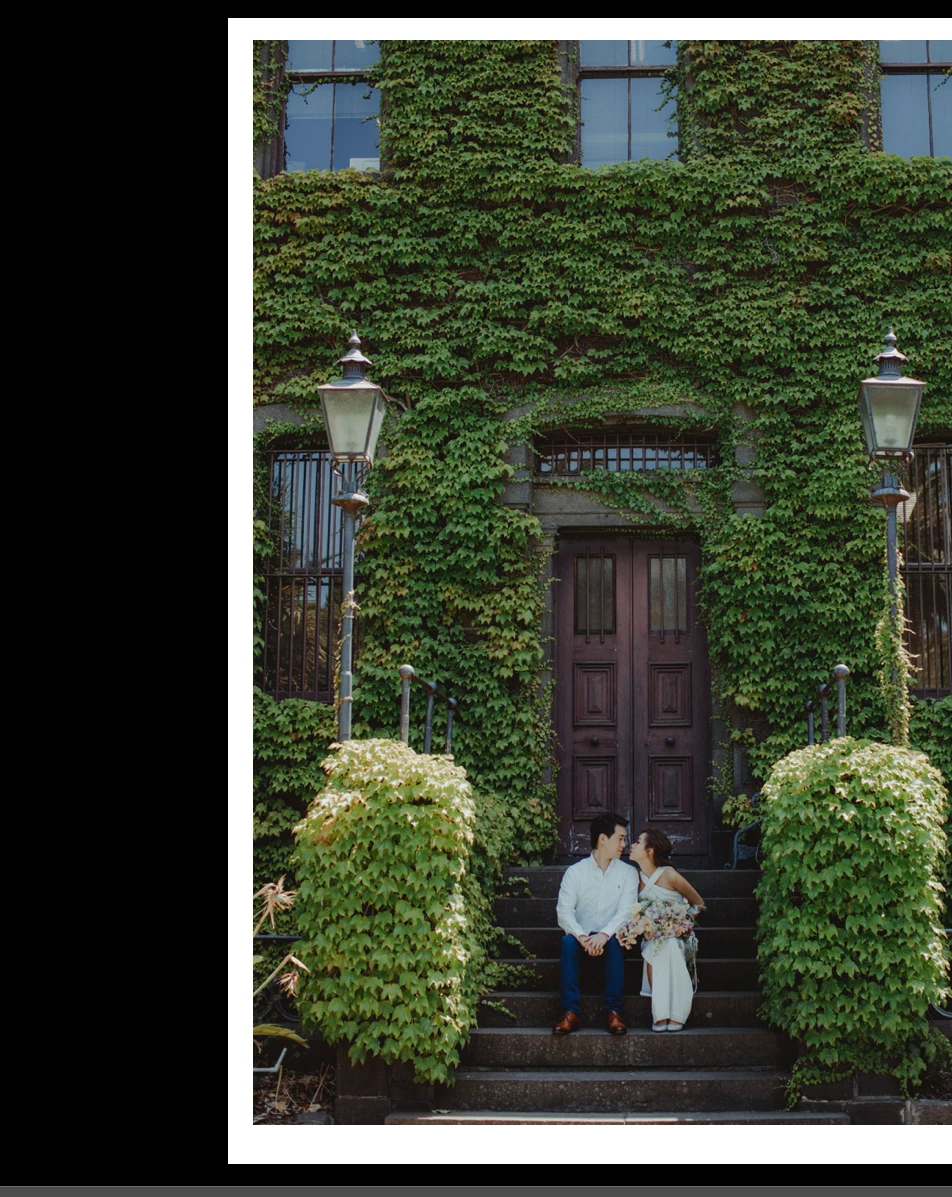
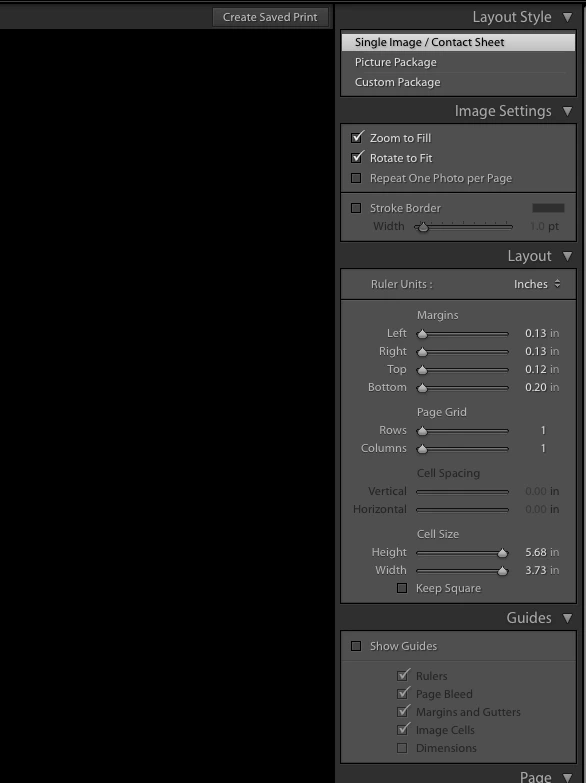
I am trying to print 4x6inch photos from my Lightroom with white boarder, I am trying to adjust the bottom margin to be the same as the top margin but no matter what I do, it just doesn't allow me to reduce it to be lower than 0.2inch, the top one can go as low as 0.12inch. When I print the photo, it shows the top white space is a bit narrower than the bottom big...
This topic has been closed for replies.

4 replies

elie_dinur
Participating Frequently
February 28, 2018

It is happening because you are asking LR to fit your image into a space that is not appropriate for it. I assume that the image has the standard 2:3 aspect ratio, but by subtracting equal amounts for both dimensions of 2:3 paper (4x6 in.) you are creating an image space that is not 2:3. For instance, if you want 0.13 margins, you would have an image space that is 3.76 x 5.76, a ratio which is 2:3.06. LR tries to solve the problem by choosing the aesthetically preferred solution for large prints hung on the wall, a wider bottom margin. But that is not what you want, so you need to do the problem solving yourself by creating a 3.76 : 5.76 custom crop and cropping the image before going to the Print module.

Just Shoot Me
Legend
February 28, 2018

This might be a restriction of the printer.

I can get the margins all the same but to do that I have to click in the text box and enter .13 in each one.

JP Hess
Inspiring
February 28, 2018

So do I. But for some reason, the margins never look exactly equal on the monitor. The print, however, always seems to come out the way it should. I'm on my second monitor, and the issue is consistent. Not serious enough for me to worry about.

Rob_Cullen
Community Expert
Community Expert
February 28, 2018

Mine also is a 'little bit' off.  No way can I set the margins all to 0.11inch.  Tried adjusting all sliders.

(Classic 7.2 WIndows-10,  'old' Epson R800 )

So I cannot be of help to evanw....

Regards. My System: Windows-11, Lightroom-Classic 15.3, Photoshop 27.5, ACR 18.3, Lightroom 9.3, Lr-iOS 10.4.0, Bridge 16.0.3 .
JP Hess
Inspiring
February 28, 2018

I'm my computer, the margin "shows" to be offered little bit. But it prints correctly. Are you saying that it prints wrong for you?

Participant
February 28, 2018

Hi , the print shows the same,. the difference is not a lot but I can tell clearly that the top white space is narrower than the bottom part.

And if I adjusted the margin of the top to be the same as 0.2inch, the print will then show the top is wider than the bottom part.....it can never be the same, it is very very strange.....

I just want to have the white boarder to be the SAME on prints, it doesn't matter if it is 0.2inch or 0.13inch or whatever..

Community Expert
February 28, 2018

some comments:

  • the lower limit for LR defined page margins is whatever hardware margins LR is getting from the print driver
  • if you set borderless mode in the print driver, LR imposes no restrictions on the page margins and lets you make them as small as you like. However most borderless modes will enlarge the image by a few percent (as a "bleed") when it is submitted to the printer - in which case your margins would not then show at the requested width. Some print drivers offer an alternative borderless mode which prints exact to size with no "bleed" enlargement.
  • the image cell does not automatically resize itself larger after page margins have been reduced - it is necessary to drag its size sliders as far as they will go, in order to make full use of the available space
  • the image as cropped may not then fill both the width and height of the image cell, unless the aspect ratio used in the cropping is exactly set to suit. By setting the image to "Zoom to Fill" rather than "Zoom to Fit" such exactness is not necessary; the image self-crops as needed. That can be adjusted a little for best composition, by dragging (or Ctrl+dragging) the image within its self-crop window.