Participating Frequently
September 14, 2017
Answered

jpg files in Finder too saturated

  • September 14, 2017
  • 6 replies
  • 4714 views

Hello everybody,

Recently we bought a new Macbook Pro (2017). We've installed Lightroom again and started to work on some wedding photos.
Yesterday I've discoverd that when we export the photos form Lightroom as jpg, Finder shows them oversaturated. If airdropped to iPhone, colours are correct on iPhone screen (as in Lightroom).
Also, if we right click the oversaturated photo in Finder and select 'more info' the photo is shown in Preview and the colours are correct.

So what can this be?

- Photos are exported from NEF to jpg with sRGB profile.
- Colour is correct in Lightroom, Preview and on iPhone. Also if we upload the photos to Pixieset online galery, the photos are as shown in Lightroom.
- Workflow is exactly the same as on our previous Macbook Pro (2015).

So the only place the photo is way too saturated is in Finder. (skintones are very orange for example).

Thanks in advance! Kind regards,

Robin

This topic has been closed for replies.
Correct answer johnrellis

I've sent the files via WeTransfer


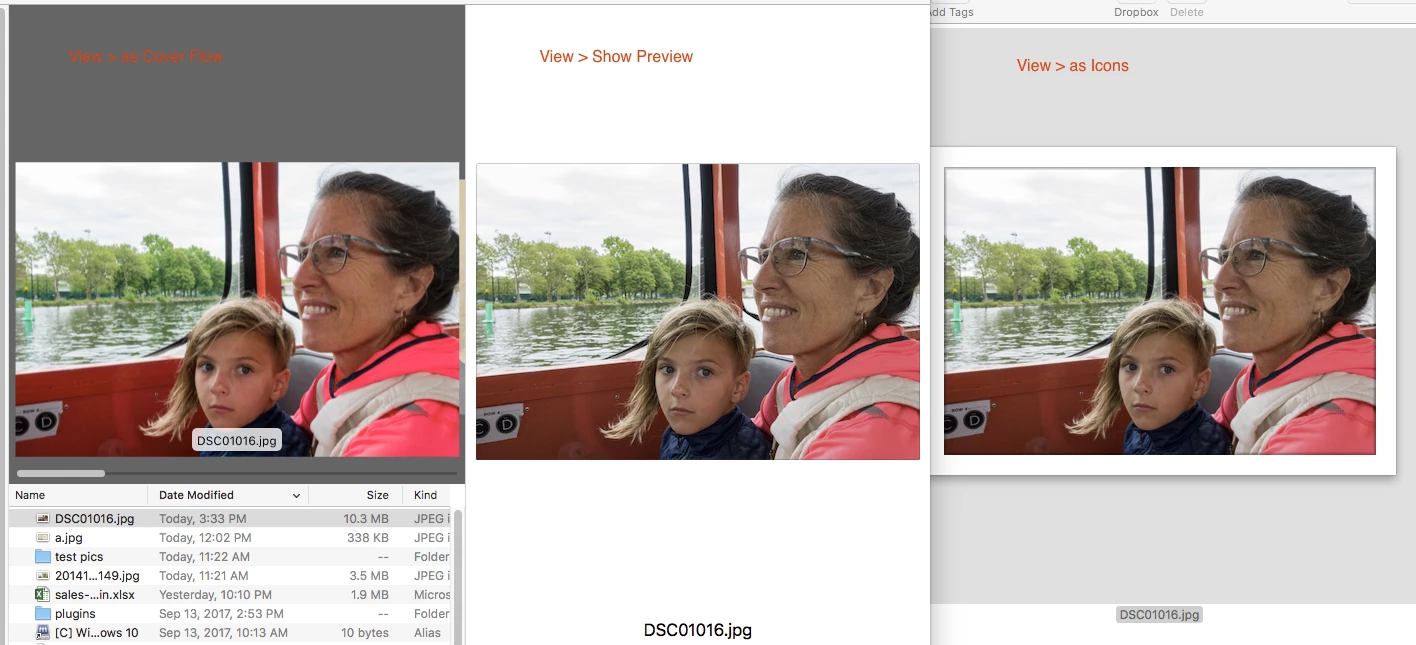
As you can see in the screenshot I sent you, there's a bug in the Finder's View > As Cover Flow that's oversaturating the color. Here's another example, showing View > As Cover Flow, View > Show Preview, and View > As Icons:

The workaround is to use View > Show Preview instead of Cover Flow.

The bug isn't as simple as Cover Flow ignoring the embedded profile -- the test photo of the motorcycle shows that it is using the profile, not just completely correctly.

You could try reporting this to Apple, but that's about as effective as reporting bugs to Adobe.

6 replies

johnrellis
Legend
September 18, 2017
Finder shows them oversaturated. ... the photo is shown in Preview and the colours are correct. ... why the photos on another macbook pro 2017 are shown correctly.

The Finder's display of thumbnails is normally color-managed, so you shouldn't be seeing oversaturated thumbnails.  My OS X 10.12.6 Finder color-manages the display of thumbnails, as does your friend's Macbook.  Troubleshooting steps to narrow down the problem:

1. Click on the Apple menu in the upper-left corner. What version of OS X?

2. Do thumbnails of JPEGs in folders other than the Desktop folder appear oversaturated?  (A couple of years ago, a Finder bug caused Desktop thumbnails only to be non-color-managed. I doubt this bug has resurfaced, but let's verify.)

3. Download this test photo: Dropbox - BGR-Red-Ducati_WCS-Test-TriState.jpg . View its thumbnail in Finder. If the motorcycle looks blue, Finder is ignoring its embedded ICC profile; if it looks green, Finder is using the profile.  In my Finder, the motorcycle looks green (color-managed):

4. Upload a sample JPEG that has the problem to Dropbox or similar, and post the sharing link here.  Seems unlikely the issue is in the photo itself, given what you've described so far, but let's verify.

Participating Frequently
September 18, 2017

Hi John,

Thanks for your help and effort. To answer your questions:

1. The version is OS X 10.12.6
2. Yeah, when we access our external HDD the images look the same.
3. The motorcycle looks green in Finder. But again, it appears less green if I right-click and press 'more info'.
4. Is it possible to send it via WeTransfer? These are photos of clients that we don't want to share in public. Maybe if you could send me your e-mail in a private message?

Thanks again!

johnrellis
Legend
September 18, 2017

I sent you my email in a private message.

Participating Frequently
September 14, 2017

Okay this makes things even more weird. Everything the article says is could be happening here. It's even correct that the photos in Finder are too orange (yellow/red).

But it doesn't explain why the photos on another macbook pro 2017 are shown correctly.

Participating Frequently
September 14, 2017

Quick update. Just ended a phonecall with Apple care.

Exported a NEF to jpg without editing them and finder does the exact same thing. All files are shown too saturated. Preview shows them correct so the files are okay. Also the airdropped images are okay. So there is nothing going on in the files.

They say we have to live with it cause there is no troubleshooting for Finder. But all our photos and documents are shown very saturated on screen (if looked at via Finder).

Any one else with this issue?

D Fosse
Community Expert
Community Expert
September 14, 2017

The oversaturation is because the file is displayed without color management, on a wide gamut display (DCI-P3). It has nothing to do with the file itself (and even less to do with Lightroom).

Everything is explained in the first link in post #7, written by Conrad Chavez. Read it if you haven't, read again if you have.

(The second link has the right idea, but the explanation is rather confusing and incoherent).

Participating Frequently
September 14, 2017

Thanks for your reply. Will read it again

I've sent the same files to another photographer who uses the same macbook 2017 model. His reaction to my screenshots was: "omg what is this?". So he tried the files in Finder on his Macbook (exact same model) and there is no error in color.

Participating Frequently
September 14, 2017

Your Macbook Pro has a wide gamut DCI-P3 display.

The following links will give you an insight into what's happening.

https://creativepro.com/how-do-p3-displays-affect-your-workflow/

https://The Wide Gamut World of Color — iMac Edition flow/

Participating Frequently
September 14, 2017

Didn't the 2015 model have a wide gamut display too? Also, how can it be that the preview on 'more info' shows the right color? (Also in Finder)

dj_paige
Legend
September 14, 2017

What software are you using to view the exported photos on your Mac outside of Lightroom? Is this software color managed?

Participating Frequently
September 14, 2017

I use the latest version of Mac OS Sierra. This worked perfectly well on the other Macbook!

dj_paige
Legend
September 14, 2017

Sorry, I meant to ask ... what application are you using on your Mac to view your exported files?

Mohit Goyal
Community Manager
Community Manager
September 14, 2017

Hi robinh,

You may try and calibrate the monitor profile back defaults and check if that helps you.

How to calibrate your Mac: OS X Yosemite: Calibrate your display

Let us know if that helps.

Regards,

Mohit

Participating Frequently
September 14, 2017

Hi Mohit,

Thanks for your quick reply. I've tried this yesterday and it doesn't solve the problem.

Kind regards,

Robin