Participating Frequently
January 22, 2026
Answered

jpg from wingscape bird camera not compatible with lightroom classic but fine in photoshop

  • January 22, 2026
  • 1 reply
  • 46 views

I took some shots with a Wingscape bird camera. I imported them into Lightroom Classic. It says "Lightroom has encountered problems with this file". They are displayed in very low resolution and cannot be edited. They import into Photoshop fine. If I save one in photoshop as a jpg it is uneditable in LR. If I save it as a PNG from Photoshop it works fine in Lightroom. The jpgs display without issue in Windows and in DXO Photolab 6. The JPG to PNG solution works but I end up with much larger files. A sample file can be found at 

https://paullantz.smugmug.com/Wingscape-sample

Thanks for your help and suggestions.

Correct answer johnrellis

[This post contains formatting and embedded images that don't appear in email. View the post in your Web browser.]


The EXIF metadata in the photo doesn't conform with the EXIF standard, causing LR to choke on the photo.  You should notify the camera manufacturer. I provide a workaround below.


DETAILS


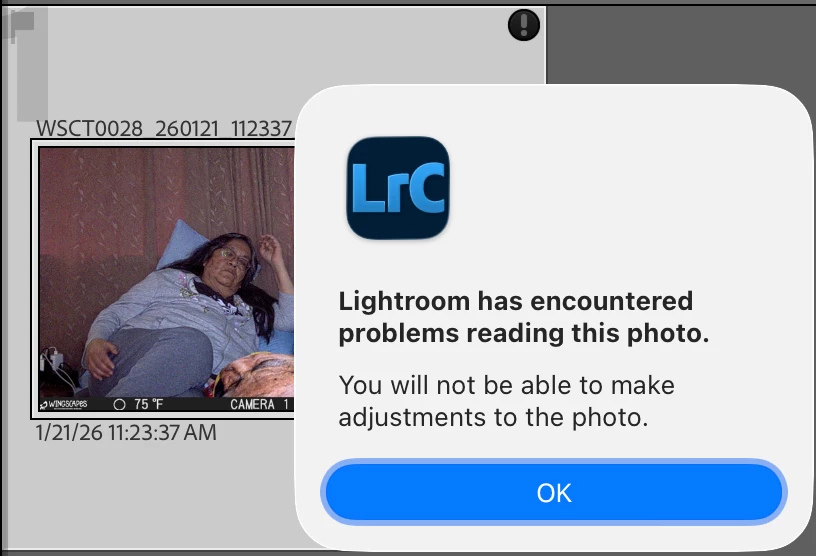
In my LR 15.1.1 / Mac OS 26.2 and Windows 11 (Intel), that sample photo imports but shows the black-circle ! on the thumbnail:
johnrellis_0-1769067329726.png


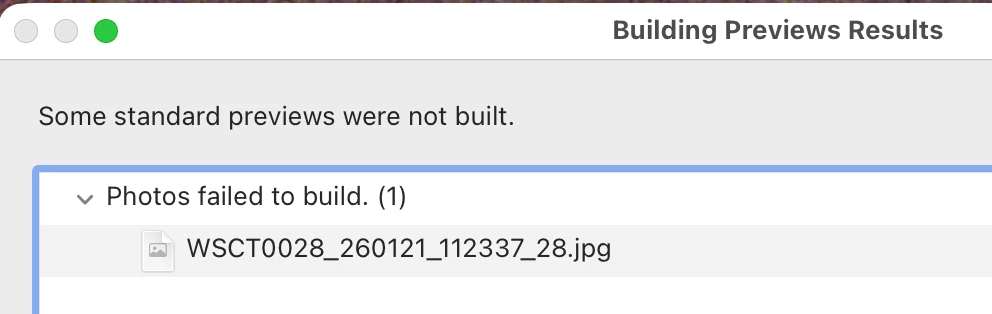
Library Loupe view shows a lower-resolution preview, and doing Library > Previews > Build Standard-Sized Previews shows this error:
johnrellis_1-1769067661188.png


However, I can edit the photo in Develop and make adjustments, and Develop shows the full-resolution photo.


Exiftool shows the photo's metadata isn't strictly obeying the EXIF standard:


[ExifTool] Warning            : Invalid EXIF text encoding for UserComment
[EXIF]     GPSImgDirectionRef : Unknown (?)
[EXIF]     GPSAltitudeRef     : Unknown (244)


There are more serious problems with the EXIF metadata that I haven't precisely identified. But this Exiftool command rewrites the EXIF metadata to be standards-conforming:


exiftool -exif:all= -tagsfromfile @ -all:all -unsafe WSCT0028_260121_112337_28.jpg


and then the photo properly imports into LR without error.


This all indicates that the camera is producing photos with metadata that doesn't strictly conform to the EXIF standard, and you should pass this information back to the manufacturer.


Meanwhile, as a clumsy workaround, you can run this command line in a Command Prompt window in each folder of photos before you import them:


exiftool -exif:all= -tagsfromfile @ -all:all -unsafe *.jpg



1 reply

johnrellis
johnrellisCorrect answer
Legend
January 22, 2026

[This post contains formatting and embedded images that don't appear in email. View the post in your Web browser.]


The EXIF metadata in the photo doesn't conform with the EXIF standard, causing LR to choke on the photo.  You should notify the camera manufacturer. I provide a workaround below.


DETAILS


In my LR 15.1.1 / Mac OS 26.2 and Windows 11 (Intel), that sample photo imports but shows the black-circle ! on the thumbnail:

johnrellis_0-1769067329726.png


Library Loupe view shows a lower-resolution preview, and doing Library > Previews > Build Standard-Sized Previews shows this error:

johnrellis_1-1769067661188.png


However, I can edit the photo in Develop and make adjustments, and Develop shows the full-resolution photo.


Exiftool shows the photo's metadata isn't strictly obeying the EXIF standard:


[ExifTool] Warning            : Invalid EXIF text encoding for UserComment
[EXIF]     GPSImgDirectionRef : Unknown (?)
[EXIF]     GPSAltitudeRef     : Unknown (244)


There are more serious problems with the EXIF metadata that I haven't precisely identified. But this Exiftool command rewrites the EXIF metadata to be standards-conforming:


exiftool -exif:all= -tagsfromfile @ -all:all -unsafe WSCT0028_260121_112337_28.jpg


and then the photo properly imports into LR without error.


This all indicates that the camera is producing photos with metadata that doesn't strictly conform to the EXIF standard, and you should pass this information back to the manufacturer.


Meanwhile, as a clumsy workaround, you can run this command line in a Command Prompt window in each folder of photos before you import them:


exiftool -exif:all= -tagsfromfile @ -all:all -unsafe *.jpg



Participating Frequently
January 22, 2026

Thank you very much for providing both an explanation and a means of rectifying the problem.  Paul

