
Inspiring
June 23, 2026
Answered

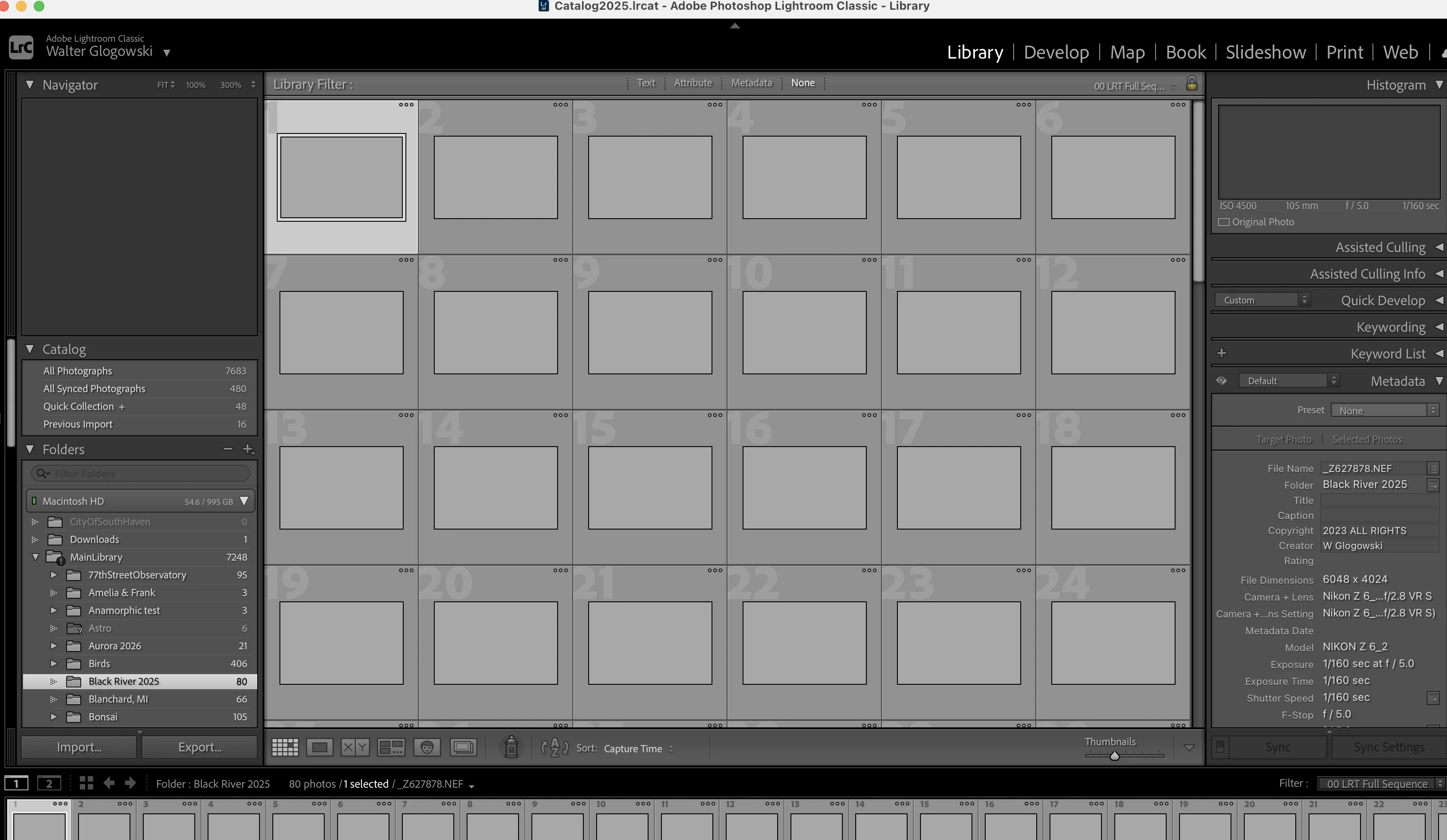
Light Room Classic opens opens but all the image previews are greyed out. When I try to quit the application freezes and I have to force quit. I'm running Tahoe 26.5.1 (25F80) on a MacBook M5 chip.

  • June 23, 2026
  • 4 replies
  • 96 views

When LR Classic opens I can see all of my folders but the previews are all grayed out as the screen shot shows. I tried uninstalling the application and reinstalling it but the problem still happens. 
 

    Correct answer astrowater

    Thank you everyone for helping me. I ended up first backing up my last good catalog from the zip file that was created when I first installed the latest version of LRC, then I copied to a separate hard drive the existing “crusted” file catalog. I then went back and deleted that same catalog from my primary hard drive. I installed the new version of LRC and when it asked me to update the catalog I said yes from the zip file that was created.  When it opened it was perfect and fixed. 

    4 replies

    astrowaterAuthorCorrect answer
    Inspiring
    June 24, 2026

    Thank you everyone for helping me. I ended up first backing up my last good catalog from the zip file that was created when I first installed the latest version of LRC, then I copied to a separate hard drive the existing “crusted” file catalog. I then went back and deleted that same catalog from my primary hard drive. I installed the new version of LRC and when it asked me to update the catalog I said yes from the zip file that was created.  When it opened it was perfect and fixed. 

    johnrellis
    Legend
    June 24, 2026

    @astrowater Glad you got it fixed. It sounds like the preview cache got corrupted, and the process of restoring the catalog from a backup created a new preview cache.  Simply deleting the preview cache from the existing catalog might well have achieved the same end.

    johnrellis
    Legend
    June 24, 2026

    [View this post in your web browser. It contains formatting and images that don't appear in email.]


    The three dots in the upper-right corner of the thumbnails indicates LR is still building previews, and that process might have gotten stuck.  See here for how to reset the preview cache:

    https://helpx.adobe.com/lightroom-classic/kb/lightroom-gives-error-preview-cache.html

    Community Expert
    June 23, 2026

    Which version of Lightroom do you have installed?

    Is your system up-to-date?


    Do you ave tried to generating new previews by going to Library > Previews > Build Standard-Sized Previews? Before you do that you should delete the Previews folder.


    My System: Intel i7-8700K - 64GB RAM - NVidia Geforce RTX 3060 - Windows 11 Pro 25H2 -- LR-Classic 15 - Photoshop 27 - Nik Collection 9 - PureRAW 6 - Topaz Photo AI
    Inspiring
    June 23, 2026

    MacBook Pro M5, Tahoe 26.5.1 (25F80), newest release of Lightroom Classic. 1) When I try to delete the preview folder via Optimize catalog it never finishes. I ran it for 30 minutes and nothing happened. I followed these directions: Lightroom Classic stores previews in the Previews.lrdata folder, which can be deleted via File > Optimize Catalog to clean up orphaned entries, or by removing the entire folder and letting Lightroom rebuild previews as you view folders again. 


    Community Expert
    June 23, 2026

    In most cases the issue is a corrupt monitor profile.

    See here: How do I change my monitor profile to check whether it’s corrupted? | The Lightroom Queen


    My System: Intel i7-8700K - 64GB RAM - NVidia Geforce RTX 3060 - Windows 11 Pro 25H2 -- LR-Classic 15 - Photoshop 27 - Nik Collection 9 - PureRAW 6 - Topaz Photo AI
    Inspiring
    June 23, 2026

    I have my monitor set for XDR Display, and this worked with the previous version of LR CLassic