

Linealo
Inspiring
April 3, 2026
Question

Lightroom 15.2 - Color Label, Metadata and File Info not working

  • April 3, 2026
  • 1 reply
  • 54 views

Preamble: In case this case is a duplicate, please merge. Clostest I did find was this one. But it has issues with the filters themselves whereas I have issues with the display mode and file metadata.


Hi and welcome back to yet another episode of me running my head against a wall with Lightroom Classic issues. As always, here are my relevant specifications first:

Lightroom Classic 15.2.1, CameraRAW 18.2.2, German Language installed
Windows Pro 11.0.26200 (25H2) x64 (Also known as Windows 11 Business Edition)
AMD Ryzen 9 7950x3D, Adrenaline 26.3.1, Driver 25.10.43.05-260303a-19874C
64GB RAM 6000MTs CL30
Nvidia RTX 4070ti, Studio Driver 595.79
Lightroom Catalogue located on C: drive in default location, SSD M.2 Gen4, more than 2TB space left.


The issue: For a while now, I’ve been unable to do three things. I will from here on out try to refer to these issues by their number.

  1. Mark images with a color label will not mark the labels in the gallery module with that color.
  2. Displaying file information in the edit module doesn’t work
  3. File metadata in the gallery module does not show / load…. ever


The first simple fixes I have tried:

  • Backup Catalog and move to an external drive. (Safety Step)
  • Optimize catalog
  • Reset preferences / settings (start holding alt, also using alt in settings and clicking “reset”)
  • Deleting the helper data and settings folder within the catalog folder
  • 1) Make sure the “show color labels in grid” is checked in the library view settings
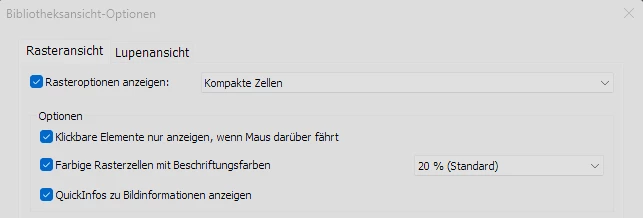
    “Use colors on grid” is checked and set to 20%


  • 1) Make sure the color label presets in the “metadata” menu are reset to defaults (should be after reinstall anyway - see below)
  • 2) “Show Information” is checked in the view settings for the files in edit mode 
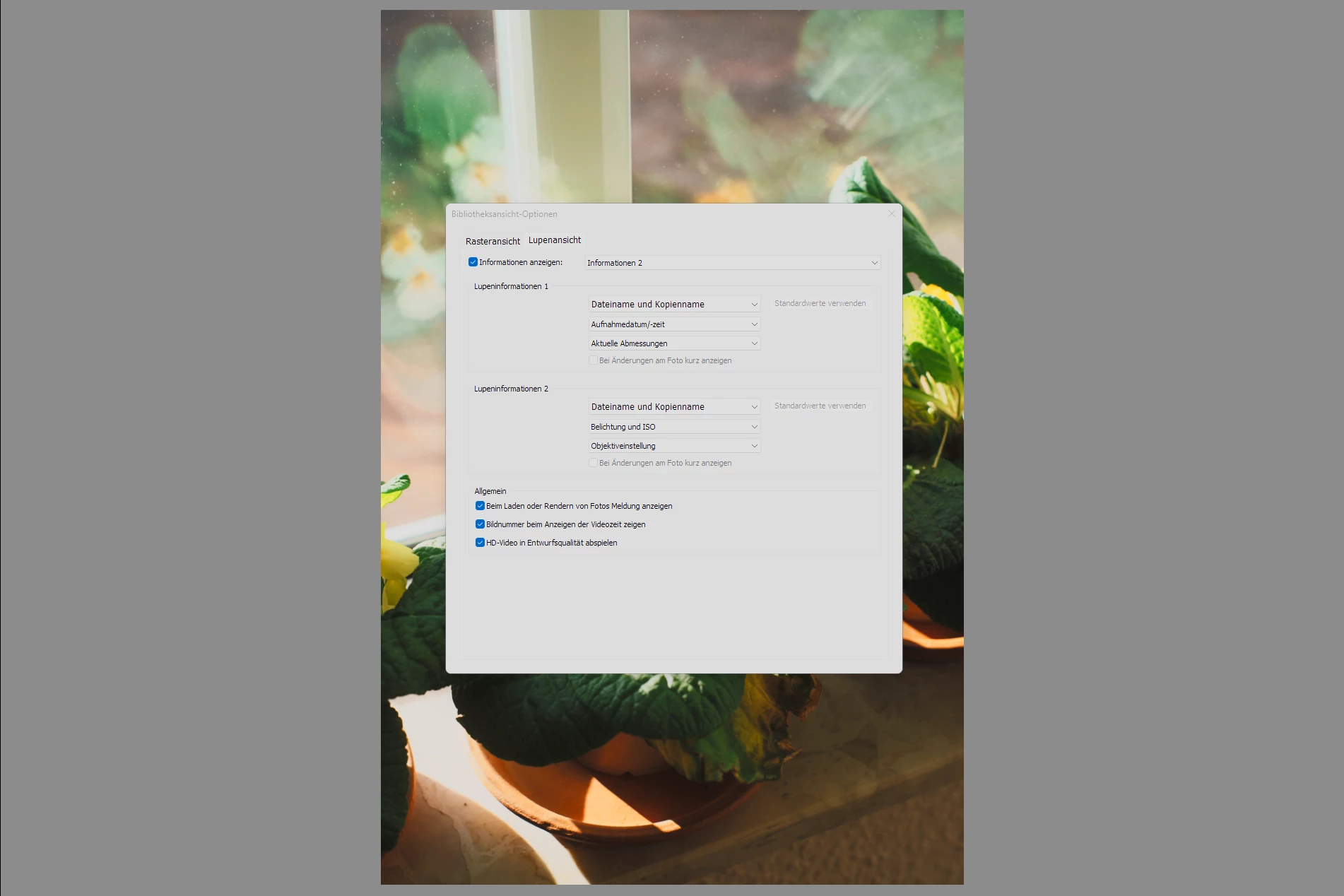
    “Show information” is checked (tried checking and unchecking)


  • Make sure Lightroom has full read/write permissions on the respective folders (Save location for photo files and catalog location)
  • 3) Try using “Read Metadata from file” manually on a single image at a time
  • Uninstall and re-install GPU drivers (Nvidia GPU and AMD iGPU both. Full clear with Display Driver Uninstaller DDU in safe mode)

Sadly these did not help with any of the issues, so I tried the following, more extreme measures:

  • Fully uninstalling Lightroom and Lightroom Classic, including CameraRAW and Creative Cloud. Clearing the full install via the official Creative Cloud Uninstaller and removing any remaining registry entries via external tools and manual search in RegEdit.
  • Reinstall all needed requirements and Lightroom after a complete reboot of the system (shutoff, not restart) with German selected as my language (important, since color labels are string dependent and vary between languages) via the Creative Cloud application
  • Opening a completely new catalog file at a different drive location and using the “import from catalog” option to import only the .lrcat file from the old catalog without any presets, profiles, addons or similar extras. Clean catalog at new drive location on clean install 

These steps sadly also didn’t fix my issues. I still cannot see color labels in my gallery (1) on the grid. When using the “metadata” panel on the right in the gallery module (3) metadata will never finish loading. And when opening an image in edit view, I cannot hit “I” or choose “loupe information” to show me image metadata (2).


There are a few interesting observations though: 

  • When I have the filter panel expanded in grid view, I can see that applying a color label does indeed give the image the color label as it shows up in the “label filter” and also when right clicking the image. 
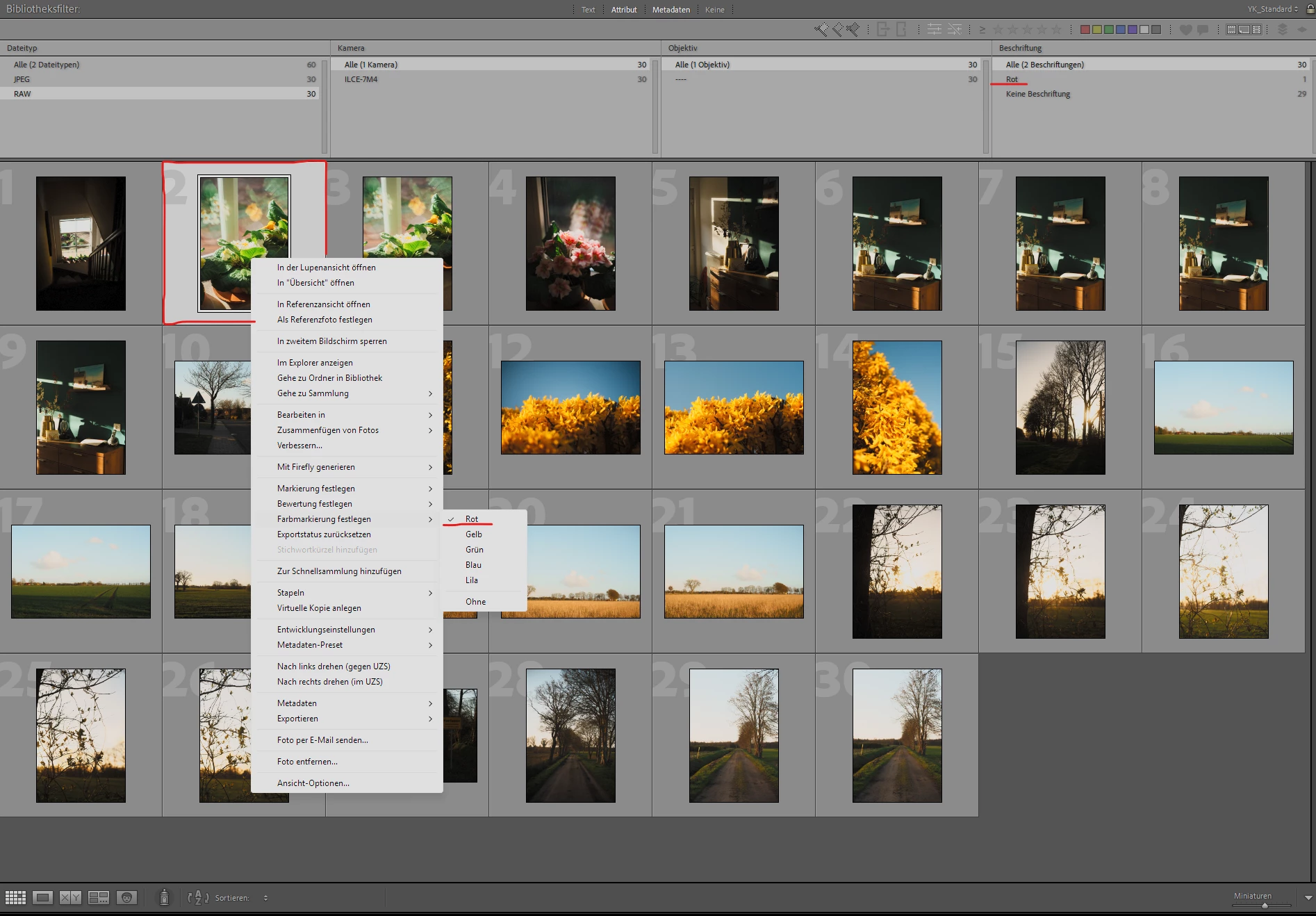
    Filter options show that “red” was assigned as a color label
  • Marking an image with red, closing and then reopening Lightroom will start showing the color mark on the grid view
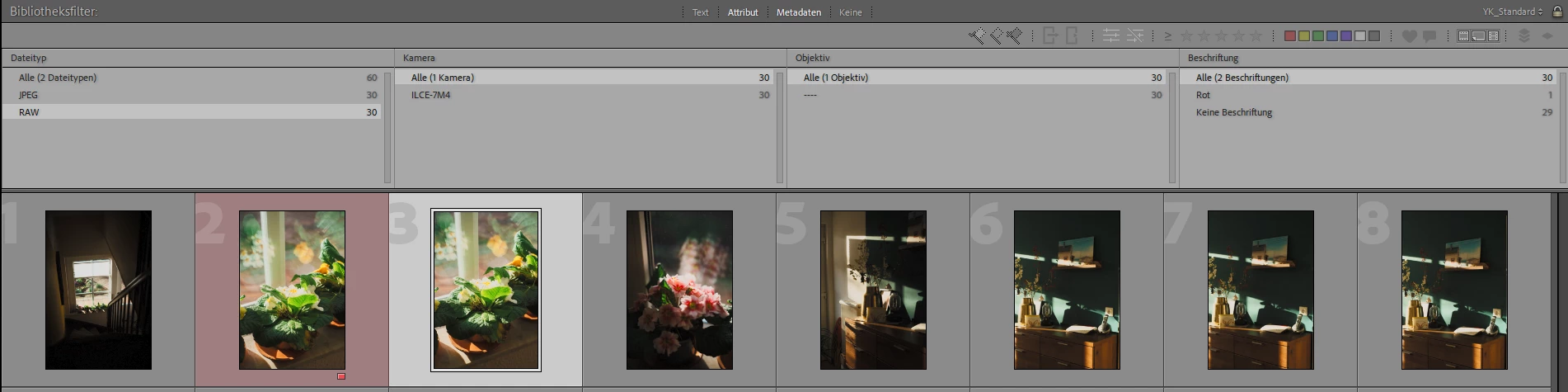
    The respective image receives its red color label after a program restart. Taking the label away requires another full restart of t


  • The metadata on the files does exist when viewing the file in other programs e.g. MediaInfo
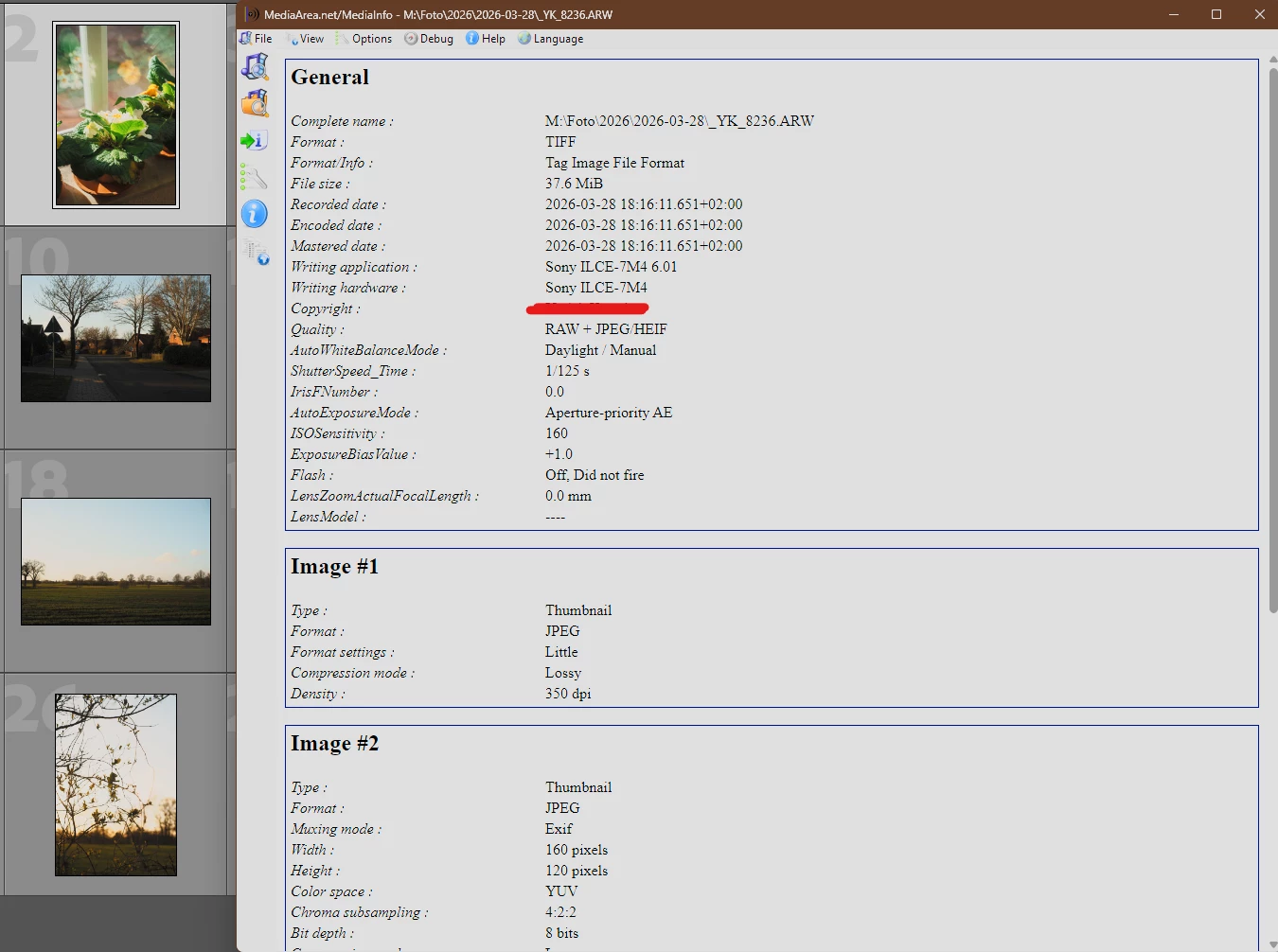
    File metadata does exist on the file and is readable. 

At this point, I tried exploring every option I know of. At the point of reinstall of the software, there shouldn’t have been a single trace left of the program on my device. No prior settings or presets were existent after the reinstall, making me relatively sure I did remove them all successfully. 

The functions also do not get fixed when opening a new catalog file, as explained above. Re-importing the old catalog into the new one to keep my edits and catalog structure worked, but doesn’t remidy the issues.

Sadly I do not get any crash-reports or other error-messages when using these functions, so I cannot send an automatic error report as there is no crash happening. 

As a last resort, I have attatched a diagnosis file creates from the settings (holding alt on the general tab → create diagnosis file.) The file is attatched to this post. In it I did find a single issue I cannot identify myself:

No idea what this error refers to, so I cannot fix it. 
Interestingly, it also lists my integrated AMD iGPU despite being set to run on the Nvidia GPU.


Thank you for your time and potential help.
Best regards!


    1 reply

    johnrellis
    Legend
    April 5, 2026

    [View this post in your web browser. It contains formatting and images that don't appear in email.]


    Looking at the Lightroom Classic Console Log included in the .zip, there are 944 instances of the error:

    L: Bad sqlite return code: 8. Info: attempt to write a readonly database


    Many of the method calls shown in the stack dumps (format_image, getTagFromTagName, getTagsFromTagName) are associated with the Metadata panel’s display of metadata fields.


    Taken together, this strongly suggests that LR is having problems updating the <catalog>Helper.lrdata database (which accelerates LR’s access to catalog metadata).  You’ve already tried deleting that file, so here are some more diagnostic steps that I don’t think you’ve tried:


    1. Make a new test catalog and import just a few new photos into it (don’t do Import From Another Catalog).  Does the problem happen with this catalog?


    2. Make sure you’re not syncing the catalog folder(s) with a cloud service such as Onedrive, Google Drive, etc. They are known to interfere with correct operation of LR’s catalog.


    3. Temporarily fully disable all anti-virus / anti-malware packages, including Microsoft Defender. Does the problem still occur?


    4. Start Windows in Safe Mode With Networking and repeat step 1, making yet another new test catalog. Does the problem still occur?

    Linealo
    LinealoAuthor
    Inspiring
    April 5, 2026

    Hi John!

    Thank you for your answer. I think I remember you helping me with another issue in the past, so I’m glad to see that you're still up and running ;)

    As for your suggested help first:

    1. As already stated, I have tried creating a new catalog on a complete fresh install after a complete disk wipe including a fresh OS setup (for unrelated reasons). The issues persist. This is the case regardless of if I import images manually or restore them from the former catalog.
    2. I do not have any SYNC services on my computer enabled. OneDrive is forcefully disabled via the services panel in windows and I do not have a GoogleDrive or similar set up. My NAS does not have an auto-sync set up with my machine. (Important note: My photos inside the catalog are not on the NAS but a regular HDD inside my desktop PC. The NAS is indipendent from my LR installs and folders on my C: and storage drive and not automatically connected in any way.)
    3. I have tried this and restarted the PC after (making sure the Windows Defender AV is off still) and found no change. I also added all Adobe folders to the exceptions list and made sure the catalog folder has all read and write permission given to SYSTEM, ADMINS, AUTHENTICATED USERS and my user account. There are no blocks on this. I also checked the same settings for my dedicated drive where the photos are saved at. And I checked the “full access” for all files within the catalog folder seperatly - file by file. No help sadly.
    4. Sadly the issue does still occur even in safe mode. Starting Lightroom with Admin priviliges in safe mode also didn’t fix it.

    I did however temporarily “fix” this issue. Sadly it came back after a restart of the program. The “fix” was creating the catalog new on my laptop, where this issue does not exist. I then copied the catalog from my laptop to my desktop PC. This temporarily remedied the issue. After restarting the program, I was able to mark a single image with the red label and after that it stopped working again within the same session. This does indeed suggest there might be an issue with the catalog, as you have indentified from the log files I have send. The other idea is that there might be a file (photo or otherwise) within my catalog / drive that crashes this function for lightroom, throwing it for a loop or something like that. 


    My next test will be copying the complete Lightroom install from my laptop after another wipe of everything Adobe related. But I’ll also see and investigate if there’s something regarding persmissions that causes this. The thing that makes me reluctant to believe it’s a permission issue is how it did work for a short while after copying my laptop’s catalog over, but stopped working after a restart of the program and applying a single label. So it did indeed work once, but then not again. And since the permissions didn’t change between those instances, it realistically shouldn’t be that.

    In any way, I appriciate your help and time and will report back if anything changes. Similar issue reports popping up over the last few days that I seem to have missed indicate to me though, that this might be a dedicated issue that can happen without my doing (as it did anyways, because between it working and not working I didn’t change anything - didn’t even import photos). 

    Best regards,
    Linealo

    johnrellis
    Legend
    April 6, 2026

    [View this post in your web browser. It contains formatting and images that don't appear in email.]


    The error message “attempt to write a readonly database” certainly suggests a permissions issue.


    1. After the error occurs, exit LR.  In File Explorer navigate into <catalog>Helper.lrdata. Right-click the file “metadatahelper.db” and do Properties. Select the General tab, and verify Read-only is not checked.


    Then select the Security tab and select your user name -- it should show your user as having full control:


    Repeat those steps for “helper.db”.


    2. Windows permissions can be mysterious, so to double-check the permissions, start a Command Prompt.  Do this command:

    cd "c:\Users\john\Lightroom\Test-15\Test-15 Helper.lrdata"

    except type the path to your test catalog that’s failing.


    Then do this command, which will try to modify “helper.db”:

    echo Hello >> helper.db

    Does that fail with an error message?


    Then do this command:

    echo Hello >> metadatahelper.db

    Does that fail?


    Delete the <catalog>Helper.lrdata folder when done (since these commands have likely corrupted it).