Inspiring
October 22, 2010
Answered

Lightroom 3 Develop previews different from Loupe view?

  • October 22, 2010
  • 9 replies
  • 135490 views

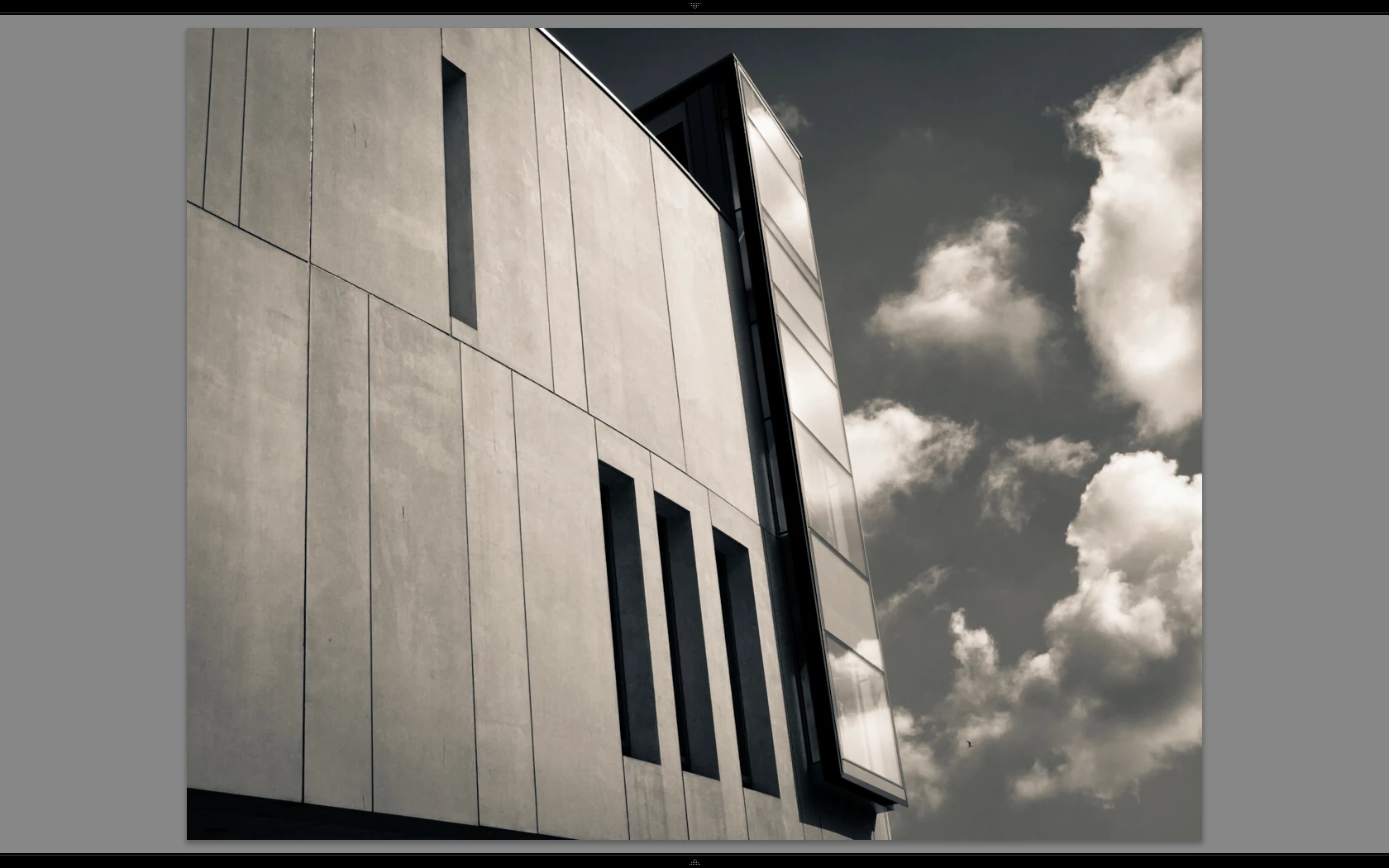
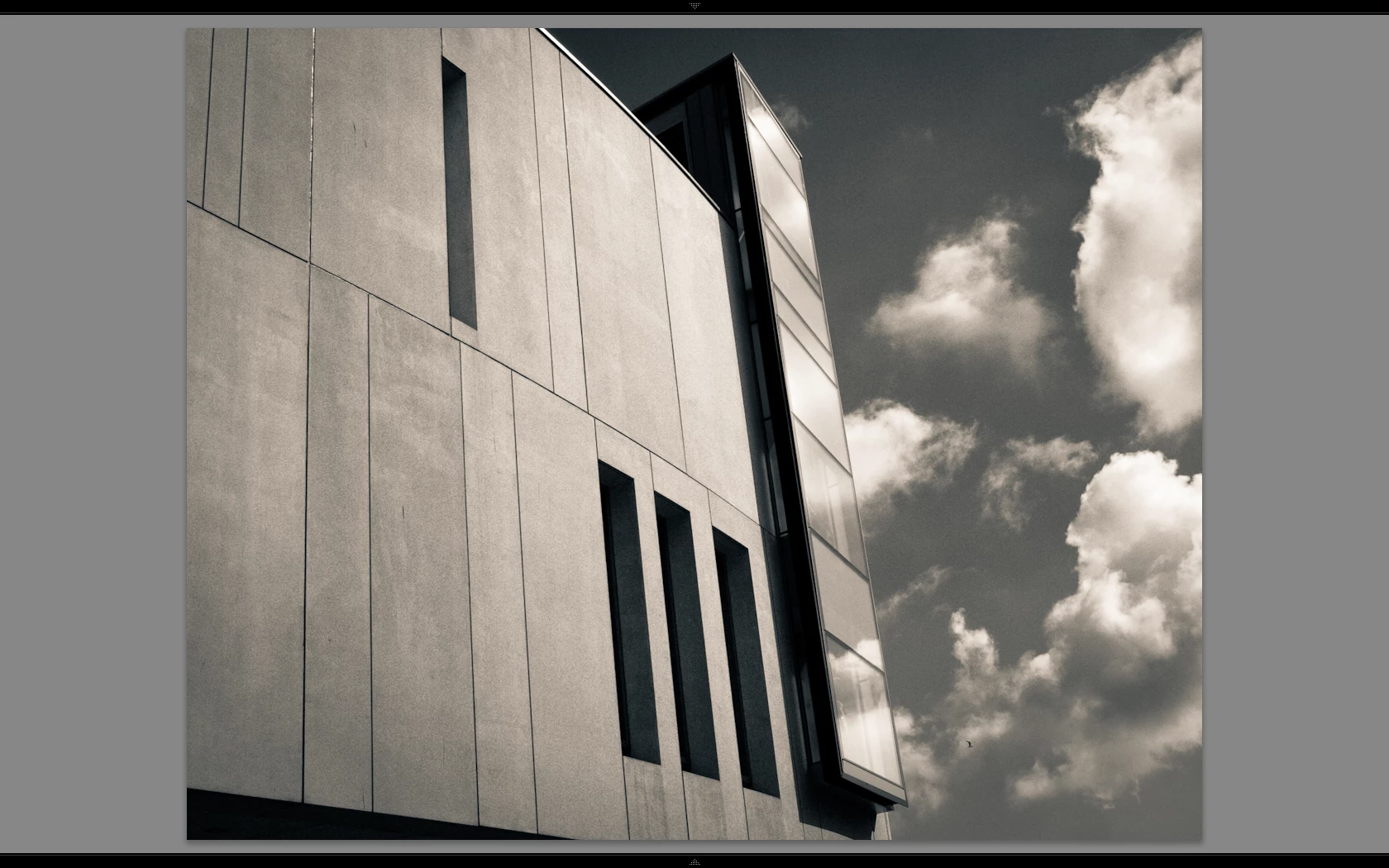
Hi there, I have a weird problem and it's very difficult to explain but I will try 🙂 I have a Macbook and a secondary profiled monitor connected for a better view of how the image will turn out once developed. I have just noticed (as I have only just started using the secondary monitor) that in standard view once I have started editing an image in develop, and then go back to loupe view, and then back into develop, the image on the secondary monitor displays identically for a second or two and then degrades. Becomes very grainy. If I then go back to loupe view it smoothes out. At first I thought this was because Lightroom uses the RAW data to compile the standard preview in develop as opposed to a preset preview (1680 high in my case) in loupe view, and that the develop module was obviously providing a more accurate view - but this isn't a more accurate view, as when I go 1:1 the image is smooth and not grainy!

To further illustrate, lets say I choose an image I have edited before, the view is the same in both modules initially, but as soon as I alter the image in any way in develop the preview degrades. Lets again say I have a degraded preview on screen, standard view, in develop module. If I then flick to another image that image is smooth for a second or two and then degrades too - you can see it happen! If I then edit the image whilst in develop, then I go back to loupe view, the image is still degraded, but then if I stay in loupe view and go 1:1 the secondary monitor (which is still displaying standard preview) picks up the change and shows an accurate smooth detailed view.

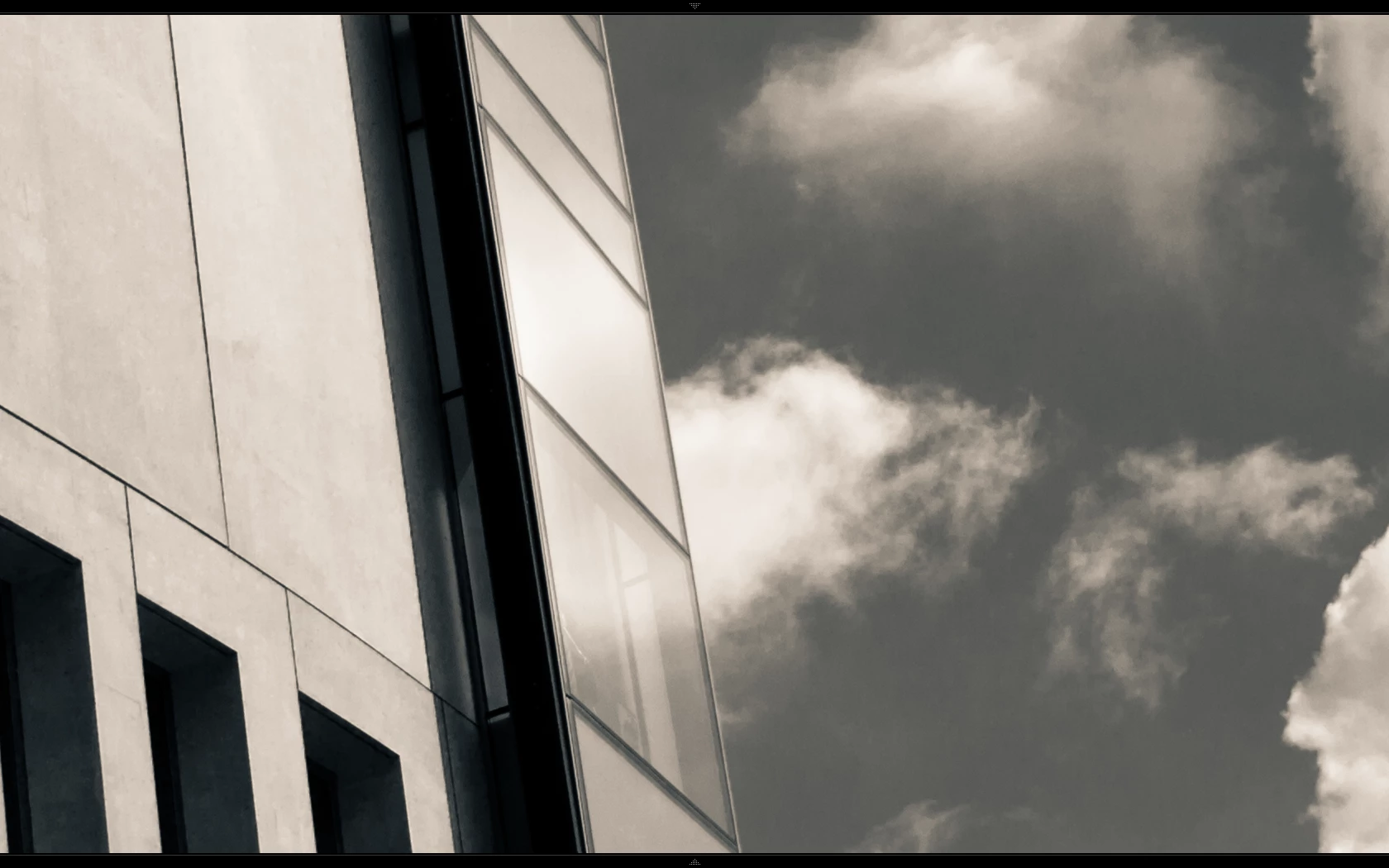
This is very weird but does mean that using Lightroom for serious editing is not possible as I can't trust the preview (unless I keep flicking back to loupe view!) except at 1:1 which anyone with a 14Mp camera knows is so big you cant get an overview of what you are doing. 1:1 is only useful for sharpening and noise reduction really. Please note: this is not visible when minor edits are made, but I often convert my images to B&W with split toning, and when you do this and say bring down the blue mix sliders down to increase sky definition (which can introduce artifacts) the degrading is severe - but like I say it isn't true or real as 1:1 view shows nice smooth tone variation. I have rebuilt previews to match the resolution of my larger monitor, deleted preview files, not sure what else to do except forget using the bigger monitor as the effect is far more noticeable on that! I have attached files (which I hope upload OK as I couldn't preview) showing the problem. If anyone else has this issue I would be very interested to hear about it!

Tim.

Loupe View
Develop View
Develop View 1:1
    This topic has been closed for replies.
    Correct answer Todd Shaner

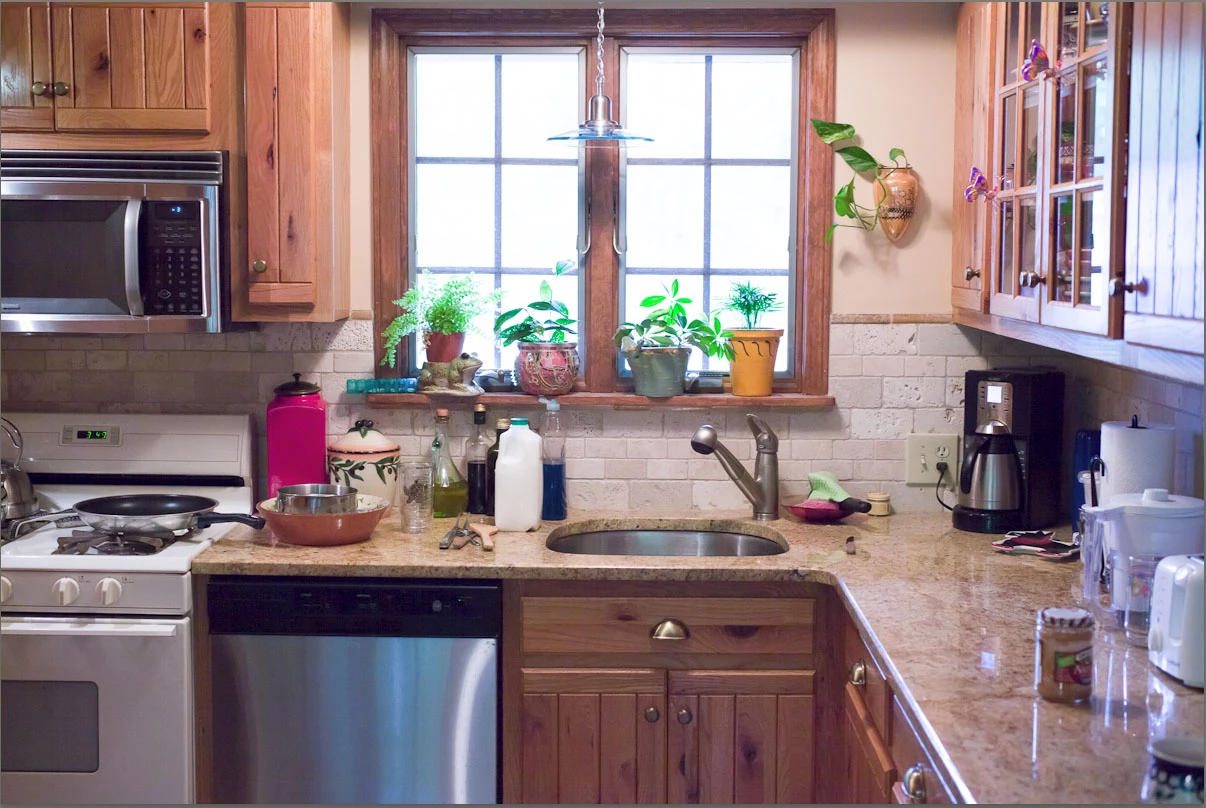
    Yes, noise reduction appears to be applied at all view levels from Fit through 1:1 in LR4 Beta Library and Develop modules. Compare the below image processed with LR4 Beta versus the same picture posted above on Aug 12, 2011:

    Double-Click on image to see full size. The application of NR is most obvious in the wood doors below the sink and stainless steel door to the left.

    9 replies

    Participating Frequently
    January 10, 2012

    So, LR4 Beta released, I see in the list of changes.....

    "NR effects are now rendered in image previews other than 1:1 view"

    Does this mean that the develop bug is fixed?

    Downloaded the beta for checking, but it will be a few days before I get around to loading it on the spare machine to see.

    P.

    Todd Shaner
    Todd ShanerCorrect answer
    Legend
    January 10, 2012

    Yes, noise reduction appears to be applied at all view levels from Fit through 1:1 in LR4 Beta Library and Develop modules. Compare the below image processed with LR4 Beta versus the same picture posted above on Aug 12, 2011:

    Double-Click on image to see full size. The application of NR is most obvious in the wood doors below the sink and stainless steel door to the left.

    Participant
    August 8, 2011

    Is there any progress on this?

    I have the exact same issue.

    At first I thought it was processing power, however it still happens with my new Macbook Pro 13 i7 with 8GB RAM upgrade.

    Annoying!

    Participating Frequently
    August 9, 2011

    Hi Mark,

    There has been no progress at all on this. This thread should not be called

    "Possibly answered" because there has been no answer and Adobe appears to

    continue to ignore the problem. It would be useful to Adobe if you could

    specify the details of your observation: what camera, was it RAW format or

    jpeg, what version of Lightroom, what computer and system, at what

    magnifications (FIT, FILL, 1:4, 1:3, 1:2) do you see the problem in the

    Develop Loupe view? If the spirit moves you to file a bug report, that

    might help wake them up.

    Thanks, Tom

    Participating Frequently
    August 11, 2011

    tomtrippe wrote:

    Hi Mark,

    There has been no progress at all on this.  This thread should not be called

    "Possibly answered" because there has been no answer and Adobe appears to

    continue to ignore the problem.  It would be useful to Adobe if you could

    specify the details of your observation: what camera, was it RAW format or

    jpeg, what version of Lightroom, what computer and system, at what

    magnifications (FIT, FILL, 1:4, 1:3, 1:2) do you see the problem in the

    Develop Loupe view?  If the spirit moves you to file a bug report, that

    might help wake them up.

    Thanks, Tom

    It's not a bug, it's by-design.

    It works like this:

    NR is always shown at 1:1 or higher.

    NR is only shown at smaller sizes if the algorithm thinks it will be visible.  The algorithm is based only on camera and ISO.  So, it won't start to show NR at fit view for a full-frame camera until a very high ISO while it will show that NR at fit view at a lower ISO for a compact camera.

    The algorithm fails a lot especially because it doesn't take into account WB, exposure, fill light, tone curve and blacks settings, which can dramatically effect the visibility of noise in the image.

    This was all done for performance reasons.  As you know, NR and sharpening were dramatically improved, but that improvment came at a cost of dramatically higher CPU usage to get the job done.  Previous versions never showed the NR at less than 1:1 but people wanted to see it so they added it but because of the high CPU cost, they tried to only add it where necessary.

    My proposed solution is a preference slider:  NR shown at less than 1:1, never - sometimes - always, with a slider showing fast - to - slow for those options.

    As computers have gotten faster I think this has become more viable.

    Participating Frequently
    May 5, 2011

    I created a bug report for this in the new feedback forum. If you have this problem, follow the link and click the "+1" button and optionally leave a comment about your specific observations/arguments.

    Participating Frequently
    May 6, 2011

    I agree that the problem still exists in Lightroom 3.4. Besides this

    thread, several of us have submitted bug reports and requests for features,

    so I'm disappointed. Let's try TK2142's suggestion.

    Tom Trippe

    Participant
    July 11, 2011

    Hi,

    I'm a complete newbie to LR and have just downloaded the trial version but after editing my very first RAW image with it (Nikon NEF) I encoutered the exact same problem, hence why I found this thread.

    Just wondering if anyone has heard of any solutions as of yet and if anyone has experience in using Aperture or Bibble at all as for me this problem with Lightroom is turning me of it quite considerably, especially after experiencing problems with Photoshop, which is why I tried LR.

    Cheers

    Participating Frequently
    May 5, 2011

    I have the same problem. Chroma noise reduction does not seem to be applied in smaller than 1:1 views in the Develop module.

    I agree that adjustments to sharpening, etc. should be made while looking at a 1:1 view, but of course there should be a way to judge one's editing efforts on a downscaled image as well.

    It is completely unacceptable to be forced to go the the Library module to get a downscaled rendering of the current edits.

    I do not only see differences regarding chroma noise reduction (resulting in ugly grainy, Develop module views) but also in highlight rendering. There are quite non-subtle differences in how some highlights are shown between the Library and the Develop module views.

    It doesn't make sense for me that the Library module shows a more accurate downscaled version of the 1:1 view than the Develop module. If anything, it should be the other way round as it would be excusable to lose accuracy in favour of speed while browsing (Library). The image editing activity (Develop) should always be enabled with the best possible preview, no matter the magnification.

    I personally respect Sean and others who comment that the issue is not a bug but "as designed", however, I cannot accept that. To me, very clearly, the current behaviour is a bug and bug reports should be responded to as if they were "feature requests", if that's necessary.

    Inspiring
    May 5, 2011

    Hey ho its version 3.4 and whilst I download (it's free so worth a try!?) I wonder if I will be able to see the edits I have made to my Canon raw files in the Develop module, or whether I shall still have to keep switching between Library and Develop every time I want to see an adjustment at anything other than 1:1!?

    Participating Frequently
    May 5, 2011

    3.4 identical - installed some time ago. First thing I did was open the file that brought it to my attention in the first place, saw it was still an issue and cursed.

    I have become adept at spotting the images that I need to keep dropping back into the library module to check that  I have not over sharpened etc.

    Most of the time it is not an issue and I can carry on working.

    As far as this thread being listed as being probably answered.... Nope not yet...

    www.paulclarkphotography.co.uk

    Participant
    February 28, 2011

    Same problem with Samsung NX10 and SRW file Raw.

    Lightroom 3.3 64 bit

    Win 7 Ultimate 64 bit

    512 Ram Video Nvidia GeForce 8800M GTS

    Sean McCormack
    Community Expert
    Community Expert
    February 28, 2011

    Folks, it's been clearly stated that Lightroom does not apply noise reduction or sharpening at views under 1:1, except where there's high ISO and the noise reduction would be clearly visible at lower sizes. It's not a bug, it's a design choice. Why? Because it would make Library intolerably slow recreating previews all the time. The preview behaviour has been like this all along, in fact in LR2, it was only visible at 1:1. If you want a change, then a feature request is the way to go, not a bug report. http://adobe.com/go/wish

    The more people that request a feature, the more visible it becomes, helping it onto the to-do list.

    Sean McCormack. Author of 'Essential Development 3'. Magazine Writer. Former Official Fuji X-Photographer.
    areohbee
    Legend
    March 1, 2011

    Seán McCormack wrote:

    The more people that request a feature, the more visible it becomes, helping it onto the to-do list.

    Really? I would have guessed Adobe relied more on independent market research (and their own thinking) than number of feature request submissions. I've always hoped one FR was enough... - may need to rethink my FR strategy...

    Participating Frequently
    December 19, 2010

    Tim, I am having the same problem and can report this additional detail.  I'm working in Lightroom 3.3 on a Mac PowerBook with a secondary monitor.  In the Develop module, if I make Detail corrections (luminance and color noise reductions) I observe them on the screen (either the primary or secondary display) in all magnifications except the smallest, FIT and 1:4.  If I choose the magnification FILL then I can change the image size on the screen by changing the window size.  As I increase the size, the Detail corrections kick in suddenly at a certain size.  This appears not to be a bug but a deliberate choice, and a bad choice at that.  I am surprized that Adobe has ignored this problem for a year.  I'm guessing that the programmer thought that the corrections would be unnecessary below a certain magnification and then made a very poor choice of cutoff magnification.  Come on, Adobe, and fix this obvious flaw.

    Inspiring
    December 20, 2010

    Hi there - well it certainly seems to be a recurring theme this sometime inability to display your adjustments at all sizes of preview, and like I have said before a preview isn't much use as a preview unless it does show as accurate a picture as it can within the limitations of the size displayed. I would like to raise this issue with Adobe directly, but it seems unless I want to pay for support I can only report a bug - which will just go into the bug list for God knows when! I might have missed something here but after spending too long trying to find a way to raise a support ticket I seem to have drawn a blank - perhaps someone in the US can raise this as I can see telephone support numbers for the states but not the UK - except 'help with using your application" which like I say is a paid service I think.

    I have sort of given up on this now as it obviously doesn't effect many people, but in the example I have posted it makes the application a complete pain (I have to keep switching between Develop and Library Loupe view to check my adjustments at anything other than 1:1) - I have several images with lots of local brush adjustments and graduations, plus noise and sharpening, plus excessive tone curves and B&W mix plus split toning (I admit it I like post processing!) and the rendering is fine all sizes - the only big clue is that these are JPEG's and the ones I have problems with are various RAW formats?

    areohbee
    Legend
    December 21, 2010

    I confess I have not read this thread in its entirety - my apology in advance if this isn't helpful, but

    If you haven't already tried this: be sure to delete all the previews then rebuild 1:1 - sometimes this jostles things into working order again...

    Also: if process version is 2003, then detail settings are not applied at sub 1:1 develop views (or is that loupe views?), in any case, if process version is 2010 the view in develop mode should look good at all magnifications - it does for me.

    Rob

    Participant
    November 2, 2010

    Hey Tim! I have the same issue. I realized that while editing the skin tones with HSL/Color/B&W adjustments. When I got back to an image I have edited earlier the color and tone was different. Hope someone will answer with explanations.

    Inspiring
    December 7, 2010

    This is now getting very silly - I simply can't use the application for some images as it simply won't display an accurate standard preview no matter what I do! I have identified the problem, it is in the "Detail" section of the Develop module. If I switch this section off, then the view updates between 1:1 and Standard sized previews and from Develop to Library perfectly, but if I switch this on then the Library view is accurate, the 1:1 view in Develop is accurate but the Standard preview is exactly the same as if the Detail section was switched off! I am now on V. 3.3 and still no cure for this... I have deleted all previews but no effect. Does anybody know if this is still a bug that has been reported and if so what is the ticket number or any reference so I can complain to Adobe?

    Inspiring
    December 9, 2010

    Here are a coupe of screen shots - the differences are obvious...

    Inspiring
    October 23, 2010

    PS. Just in case anyone does stop by, you need to open files in a tab or new browser window to get them at a size where the differences are noticeable! Also I have spotted other references here to monitor profiling issues and colour gamut, but this is not my issue - this seems to be a case of Lightroom showing me a lousy preview in Develop module as opposed to Library module. I have also seen some people say that you should only expect an accurate result at 1:1, but this is silly, no-one will be viewing these images at 1:1, I export for the web for instance at 800 x 600 so the image will fit in an average browser. Surely a photo editing package needs to show a standard sized preview based on the actual edited data, showing a reasonable representation of what you will get when the image is viewed "at that size" on a typical sRGB gamut monitor?

    October 23, 2010

    Sounds like a known issue where you have to open up the image at 1:1 once to get a better preview at other view sizes. This one has been raised with Adobe and is discussed here in a few places.

    Inspiring
    December 9, 2010

    Just to confirm, clvrmnky suggested this might be an issue that can be resolved by opening the image in 1:1 view once, but sadly this doesn't solve the problem, the image is only correct in 1:1 view Develop and 1:1/Loupe view in Library - Loupe view in Develop module is incorrect at all times, after previews have been completely deleted and rebuilt, after viewing in 1:1 view the problem is still there. PS. dual monitor issues are not involved now as I am getting this wherever I look at the image. It seems to be when lots of adjustments to sharpness and noise reduction have been applied, they simply don't show in Develop Loupe view - making the the whole process of developing with Lightroom a case of switching between the modules to see what effect your adjustments have had at normal viewing size!