
Known Participant
October 25, 2012
Question

Lightroom 4.2 very poor CPU usage

  • October 25, 2012
  • 3 replies
  • 28809 views

Lightroom 4.2 seems reasonably fast when I work with it, whether it's browsing photos or adjusting sliders, although it takes several seconds to go into develop mode after launching it for the first time.

But now I'm exporting 1498 photos that are 5184 by 3456 and it's taking quite a while, I would say about an hour or more. This is on a brand new system I just assembled consisting of an i7 3930k with 32 GB of RAM that flies with every other program. While exporting this batch I opened Task Manager and I noticed that CPU usage never goes to 100%, not even close. There are peaks of 50%, but on average it must be in the 20s:
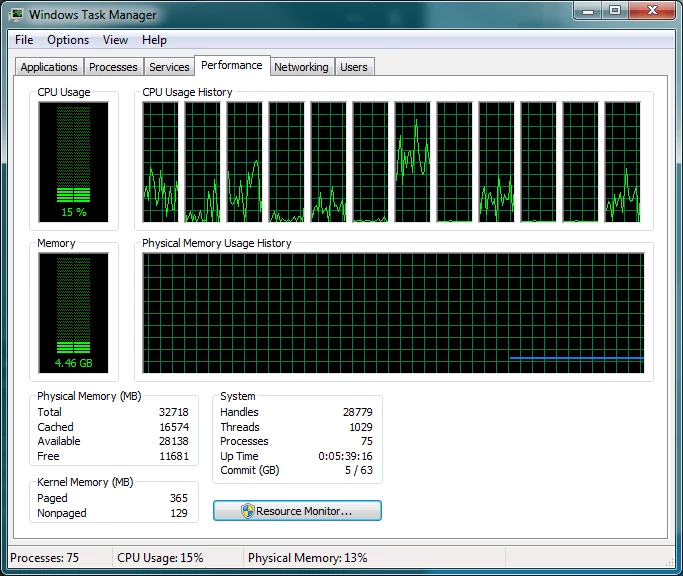
This is very disappointing on a CPU that has 6 physical cores and 12 logical cores with hyperthreading at 3.2 with turbo at 3.8 Ghz. The batch is exporting these photos from one SATA 6 drive to another SATA 6 drive, and the HD LED barely lights up, so I know the hard drives are not the bottleneck. So I'm wondering, is Lightroom 4.2 really that bad when it comes to taking advantage of the CPU cores? Is there anything I can do to make it use the CPU more?

Thanks,

Sebastian

    This topic has been closed for replies.

    3 replies

    Inspiring
    March 5, 2013

    I would expect any export operatorn to be "bottlenecked" by the peroformance of I/O operations, not by CPU or memory prerformance. Which means that it is prefectly normal to observe fairly low CPU loads during export operations. If you somehow manage to create a very CPU-intensive Export operation, run several of them in parallel and use a very fast I/O destination (SSD or virtual RAM disc) then it might be possible to saturate the CPU(s)... But in case of normal everyday export operation I would expect the I/O to be the bottleneck and CPU loads to remain low.

    Participating Frequently
    March 5, 2013

    A fast I/O system is a good choice, but it does not influence the export much, as the source files and destination files aren't that big (20-50 Mb per RAW 5-10Mb JPEG). The disk I/O is critical for LR database, as it uses thousands folders and files. So a fast SSD is a must have for LR database location, but not for RAW storage and export.

    BTW, I've done one more experiment – exported the same 500 NEF files from Nikon D4 in 1, 3, 5 and 9 threads. The results are impressive:

    1 thread – 14m17 = 857 sec total export time
    3 threads – 9m14s = 554 sec
    5 threads – 7m56s = 476 sec
    9 threads – 7m27s = 447 sec


    So in total we have an almost 2x increase in export performance while using more threads.

    CPU usage on 5 threads:

    Participating Frequently
    April 6, 2013

    I've noticed almost no reference to file defragmentation as a performance enhancement. The Lightroom databases (indexes, caches, catalogs, previews, etc) are build in such a way as to make them easily fragmented. As an example, I had a catalog with 2100 photos have 1200 fragments after just a few days of editing. For rotating media (HHDs) this will slow access considerably. That is a partial explanation for slowing down as you progress through a heavy editing work session. That and real memory exspansion.

    I have found that defragmenting frequently is quite beneficial. I also use a product called Perfectdisk Pro to minimize fragmenting using the Opti-Write feature.

    While I haven't bothered to document the value of defragmenting, I can say with some certainty that it is a relatively easy and cheap enhancement.

    Participating Frequently
    March 5, 2013

    As far as I know, the lower CPU usage is good when you do export in background and retouch while exporting. There is a way to force more CPU usage.
    Lightroom can scale pretty well when you use multiple exports at a time. I have a PC with Windows 8 and Core i7-3960X here and when I'm have to export few hundred RAW to JPEG, I separate them in even groups.

    For example, I have to export 450 RAW files. To do it faster I select 200 of them and launch the export dialog. After the export starts I select 150 more and run the export dialog again. And than again with last 150 files. This gives my PC a good load and the increase in output performance is about 35-40 percent.
    You can use 3-5-6 or more export processes at a time if your computer can handle it. For example yesterday I exported in 9 threads and the CPU was used all the time 100%, the LR took about 10.5 gigs of RAM during the process.

    I've done a special benchmark for this post. Exporting 500 NEF files (Nikon D4) to JPEG@90% took me exactly 9 minutes and 14 seconds. Source RAW files were located on a NAS device connected with a Gigabit LAN. So doing simple math gives me about 1,01 FPS of rendering speed.

    Victoria Bampton LR Queen
    Community Expert
    Community Expert
    October 25, 2012

    Some people are finding that turning off hyperthreading is helping, so I'd be interested to know if that makes a difference for you. 

    I would also split the export into 2 or 3 exports, which can run concurrently, which should max out your CPU.  They don't max it out by default in order to let you carry on working while the export runs in the background.

    Victoria - The Lightroom Queen
    Inspiring
    October 25, 2012

    Victoria Bampton wrote:

    Some people are finding that turning off hyperthreading is helping, so I'd be interested to know if that makes a difference for you. 

    I would also split the export into 2 or 3 exports, which can run concurrently, which should max out your CPU.  They don't max it out by default in order to let you carry on working while the export runs in the background.

    How do I turn off hyperthreading when running Mountain Lion (10.8.2)?

    Better still, how do I get more than one core to participate when zooming an existing 1:1 preview to 1:1 in the Library module?  Performing this operation in the Develop module is much faster.

    OS X (10.8.2)

    15 inch MacBook Pro (retina)

    2.6 GHz i7 (quad-core)

    512 GB SSD

    Victoria Bampton LR Queen
    Community Expert
    Community Expert
    October 25, 2012

    Not a clue on Mac, sorry Bob.  The hyperthreading reports I've heard have all been Windows ones.

    But zooming an existing 1:1 preview in Library should be a disc operation, so wouldn't require more than 1 core, as far as I know.  It's quicker in Develop as it's only rendering the section you can see, but it's rendering from raw data so it's using all the cores to render the preview on the fly.

    Victoria - The Lightroom Queen