
Participant
September 16, 2022
Question

Lightroom 6

  • September 16, 2022
  • 1 reply
  • 151 views

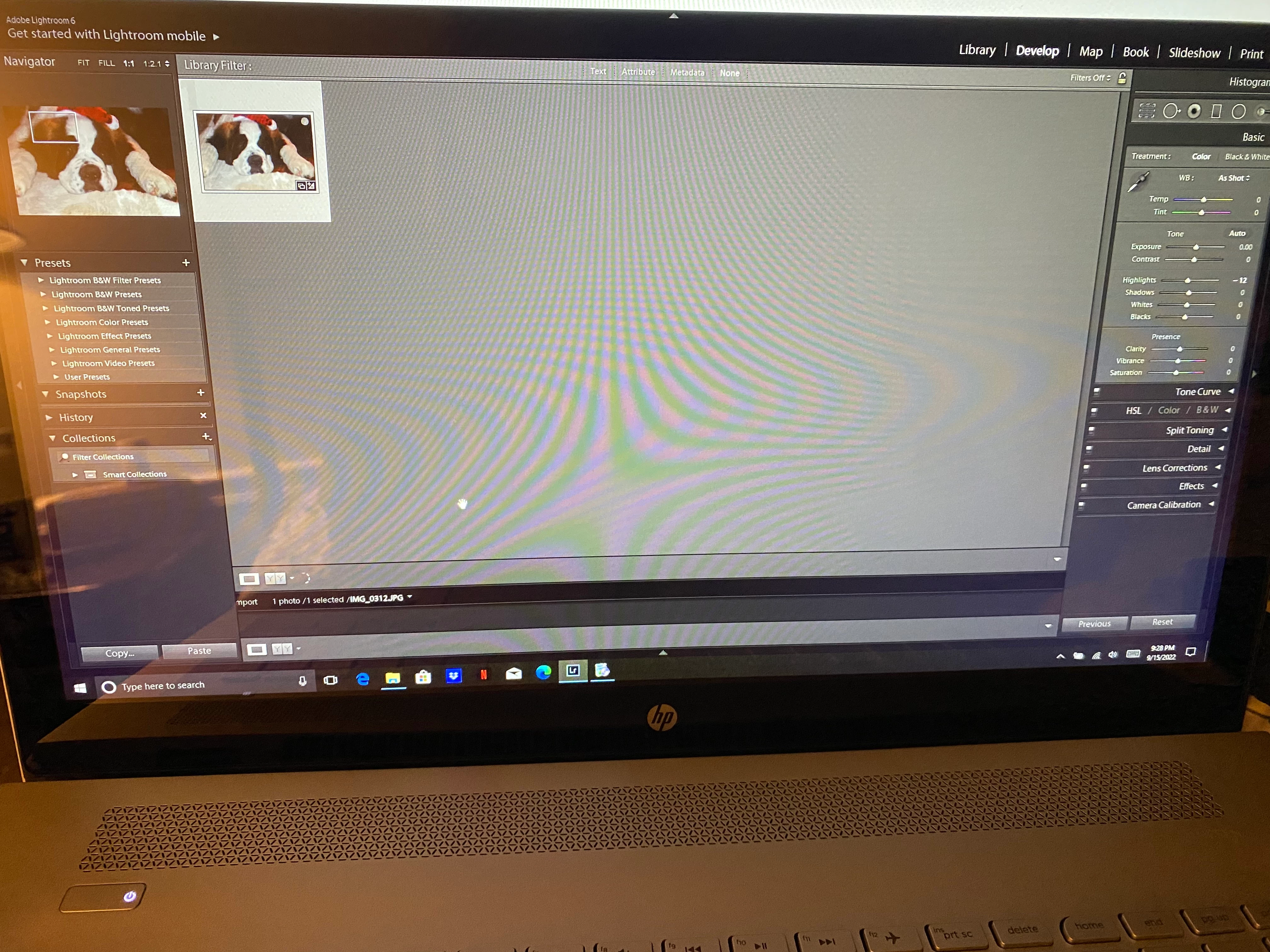
I had to load my Lightroom on a new computer and I am having an issue that seems like it should be such an easy thing.  I selected my photo and when I go to develop the picture is not taking up the whole grey area so I can edit it.  It is in the "navigator" section in the left corner.  Any editing I'm doing is showing in the little small square of the picture.  I cannot figure out for the life of me how to "blow up" my picture so I can edit it on the main screen right in front of me.  I don't know what I'm doing wrong?!  Please help as I've already had many tears.  I don't know how I'll edit pics, right now this is useless for me because I can't even use it to edit.  
This topic has been closed for replies.

1 reply

Rob_Cullen
Community Expert
Community Expert
September 16, 2022

Weird.!  You are seeing the Library Grid View window in the Develop module.

You are however using 'old' Lr6 in a 'new' computer (OS version?) that may not be compatible with v6.

You could start by a reset of the Preferences file-

PREFERENCES RESET

(Note in particular the instructions for v6.)


Regards. My System: Windows-11, Lightroom-Classic 15.3, Photoshop 27.5, ACR 18.3, Lightroom 9.3, Lr-iOS 10.4.0, Bridge 16.0.3 .
F. McLion
Community Expert
Community Expert
September 16, 2022

Woks as well with old v6. However, only the "manual" way.

--- Got your issue resolved? Please label the response as 'Correct Answer' to help your fellow community members find a solution to similar problems. ---