ianf316485
Participant
July 29, 2019
Answered

Lightroom 6 Sony A7RII RAW Preview Strange Behaviour

  • July 29, 2019
  • 2 replies
  • 430 views

Hello,

Sorry if this has been answered somewhere but I couldn't find anything similar in my search.

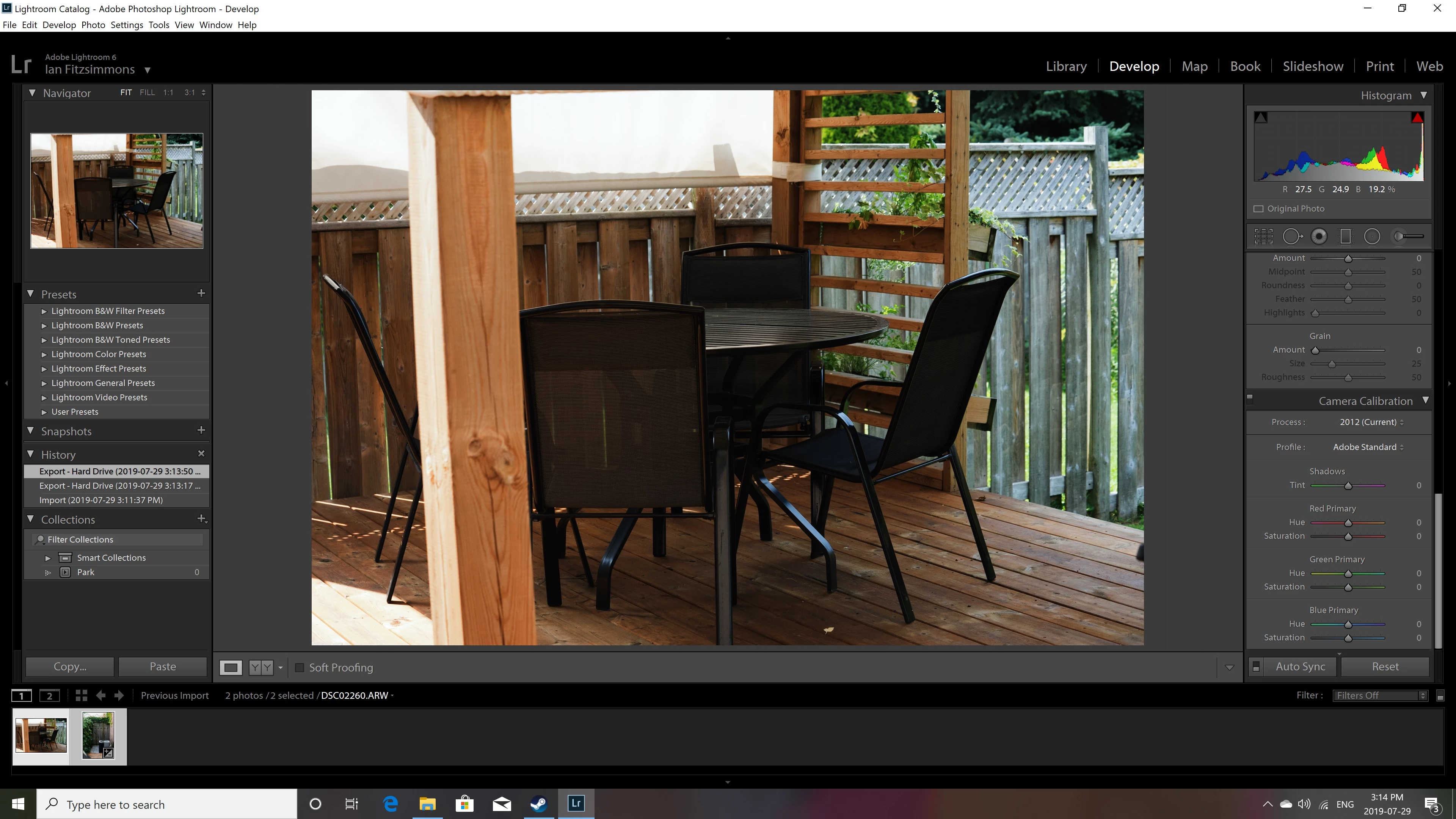
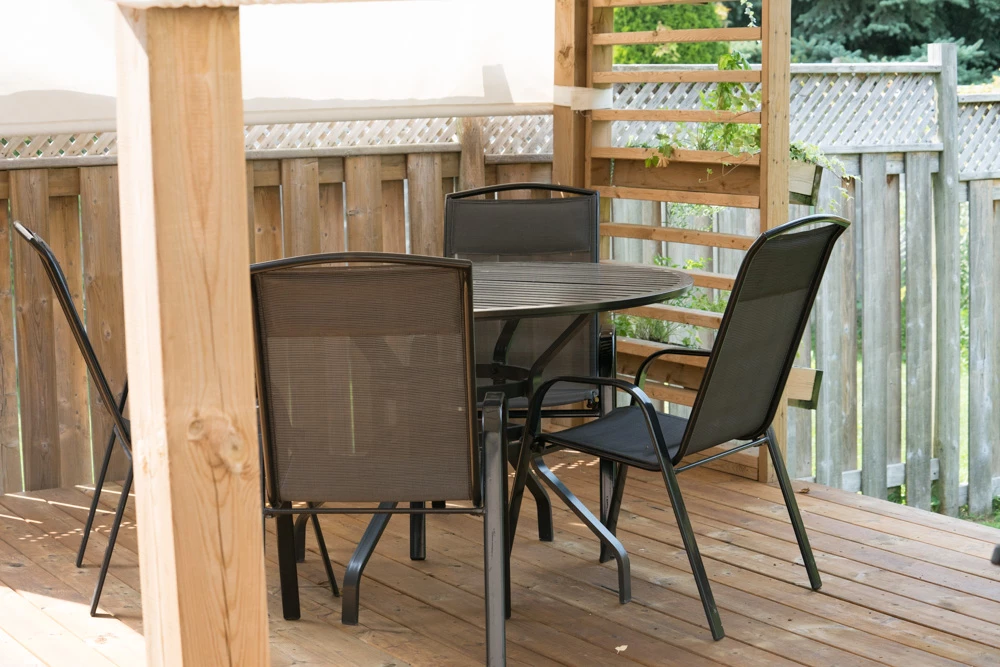
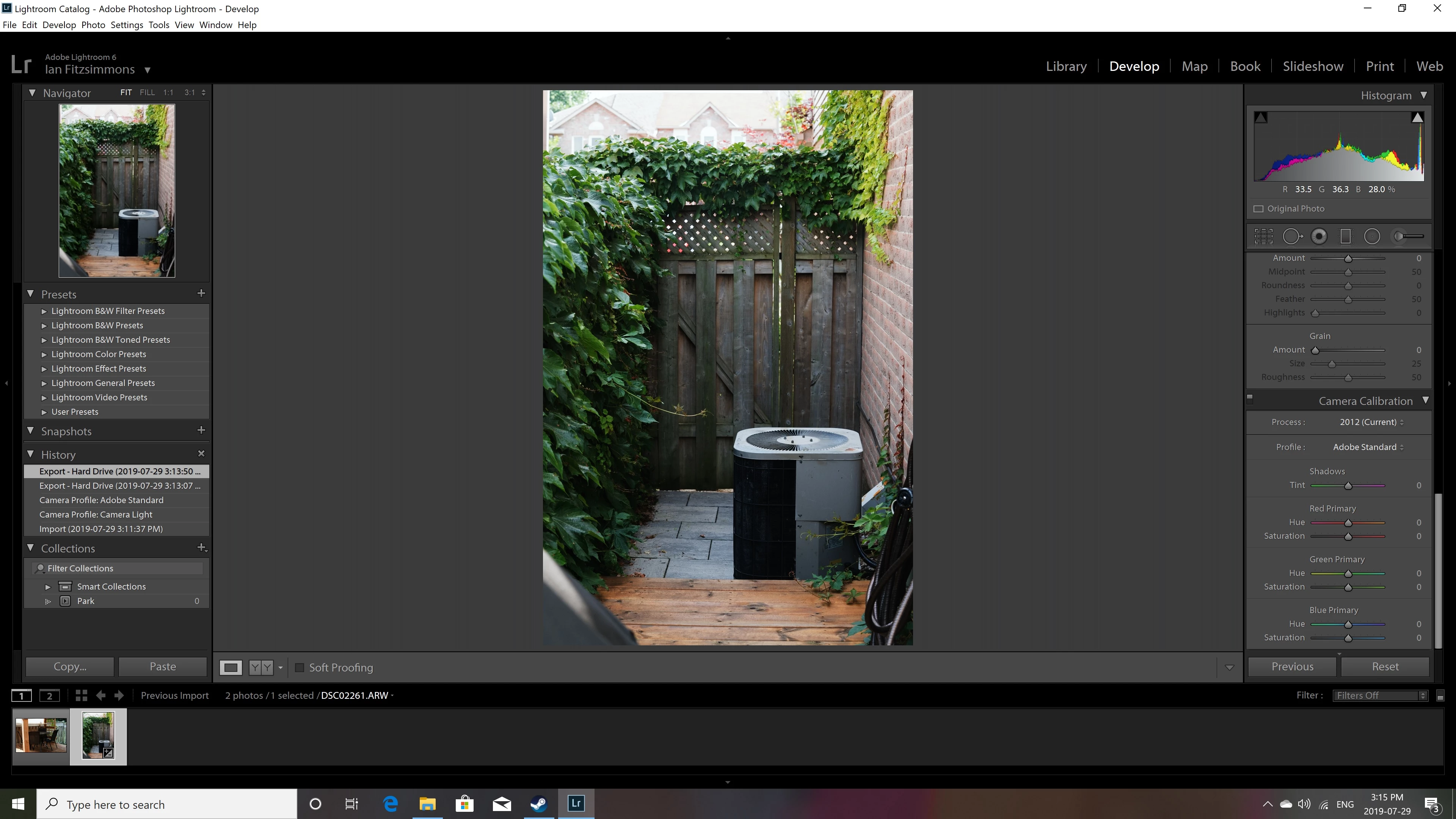
Yesterday I opened Lightroom 6 and all my Sony A7RII photos are underexposed with far too much contrast.  It's almost like there's not enough colour information.  I made no changes to Lightroom and when I export the file converts properly.  I've reset all Lightroom settings and reinstalled the program as well, but the problem persists.  What's going on?

In Lightroom:
Converted:
In Lightroom:
Converted:
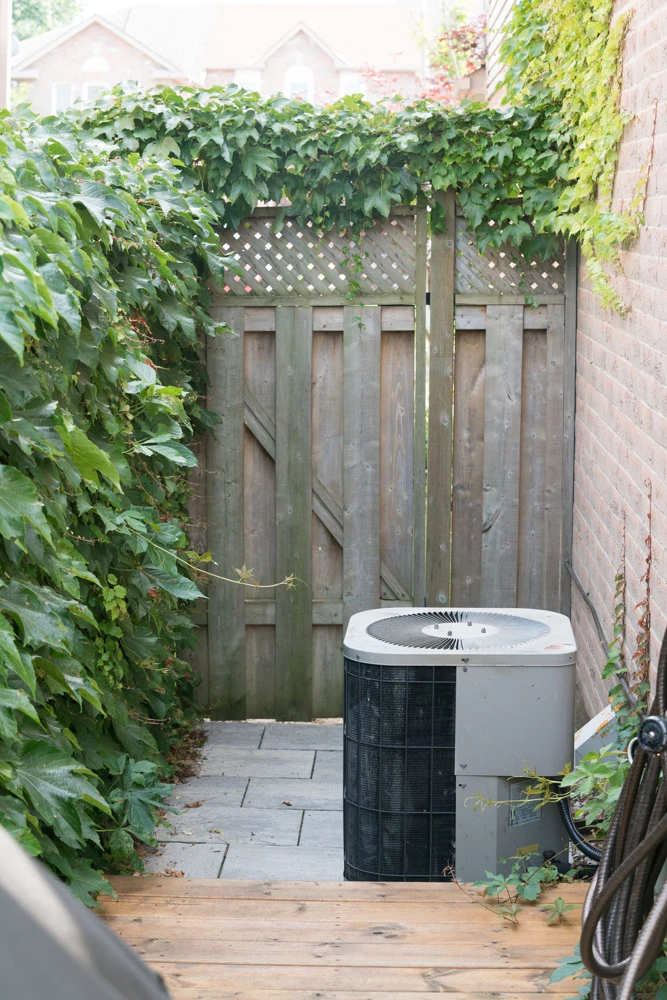
It's really bizarre and I can't figure out why the RAW rendering changed so much seemingly overnight.  Right now Lightroom is unusable.  Any ideas?

Thank you.

Message was edited by: Sahil Chawla

    This topic has been closed for replies.
    Correct answer Sahil.Chawla

    Hi Ian,

    That shouldn't be happening, let's make it right.

    As the images appear normal outside of Lightroom, it seems that there is some issue with the screen color profile.

    Could you please try changing the screen color profile to srgb iec61966 and let us know if it helps?


    Change Color Profile for both Windows & macOS:
    https://www.lightroomqueen.com/how-do-i-change-my-monitor-profile-to-check-whether-its-corrupted/


    Regards,
    Sahil

    2 replies

    Per Berntsen
    Community Expert
    Community Expert
    July 29, 2019

    First of all, try to disable the GPU. Edit > Preferences > Performance > Uncheck Uses graphics processor.

    If this helps, try updating your graphics driver, then try to enable the GPU.

    But the most likely cause of the problem is a defective or incompatible monitor profile.

    Windows 10 is known to install low quality monitor profiles (from monitor manufacturers) when doing updates.

    Try setting the monitor profile to sRGB (use Adobe RGB if you have a wide gamut monitor).

    If this fixes the issue, you should ideally calibrate the monitor with a hardware calibrator, which will also create and install a monitor profile that accurately describes your monitor.

    With Lightroom closed, go to Control panel > Color management.

    Add the sRGB profile, then set it as default. Make sure that Use my settings for this device is checked,

    Now launch Lightroom.

    ianf316485
    Participant
    July 29, 2019

    Thank you!  That was the problem.

    Per Berntsen
    Community Expert
    Community Expert
    July 29, 2019

    Didn't realize that the monitor profile would only affect Lightroom and keep the desktop looking normal.

    Only color managed applications use the monitor profile, so other applications are unaffected.

    With a correct and sound monitor profile, you will see correct colors in color managed applications, because they convert the colors in the image from the document profile to the monitor profile.

    Native applications on Windows, like Photos, Paint, the Desktop and the File explorer are not color managed, and can not be expected to display correct colors. The only color managed native application is the Windows Photo Viewer.

    A good color managed photo viewer for Windows is FastStone , free for personal use.

    Color management must be enabled under Settings > CMS.

    Sahil.Chawla
    Adobe Employee
    Sahil.ChawlaCorrect answer
    Adobe Employee
    July 29, 2019

    Hi Ian,

    That shouldn't be happening, let's make it right.

    As the images appear normal outside of Lightroom, it seems that there is some issue with the screen color profile.

    Could you please try changing the screen color profile to srgb iec61966 and let us know if it helps?


    Change Color Profile for both Windows & macOS:
    https://www.lightroomqueen.com/how-do-i-change-my-monitor-profile-to-check-whether-its-corrupted/


    Regards,
    Sahil

    ianf316485
    Participant
    July 29, 2019

    Thank you so much.  Didn't realize that the monitor profile would only affect Lightroom and keep the desktop looking normal.

    Fixed!