

nukecity
Participating Frequently
January 1, 2020
Answered

Lightroom 9.1 - Slow Start

  • January 1, 2020
  • 12 replies
  • 5331 views

When I start Lightroom, it takes about two minutes before I can begin working in the application. If I even so much as click a menu item or picture, the Lightroom app starts again, so that two sessions are now trying to run. I have cancel Lightroom and start over. 

If I wait the two or three minutes, the thumbnails will sharpen (focus), and I know I can then begin work. I only have 3800 pictures, so I don't know why it should take so long before I can start using Lightroom.

I usually build my previews in Standard, with no Smart Preview. I keep my Catalogue and files on an SSD, connected to my laptop via USB 3.0. (That way, I can attach the SSD to the Desktop PC, and continue working from that platform using the same Catalogue.) 

Any ideas on how / why Lightroom takes so long to generate the Thumbnails, or any comments on my configuration? Thanks.
This topic has been closed for replies.
Correct answer Per Berntsen

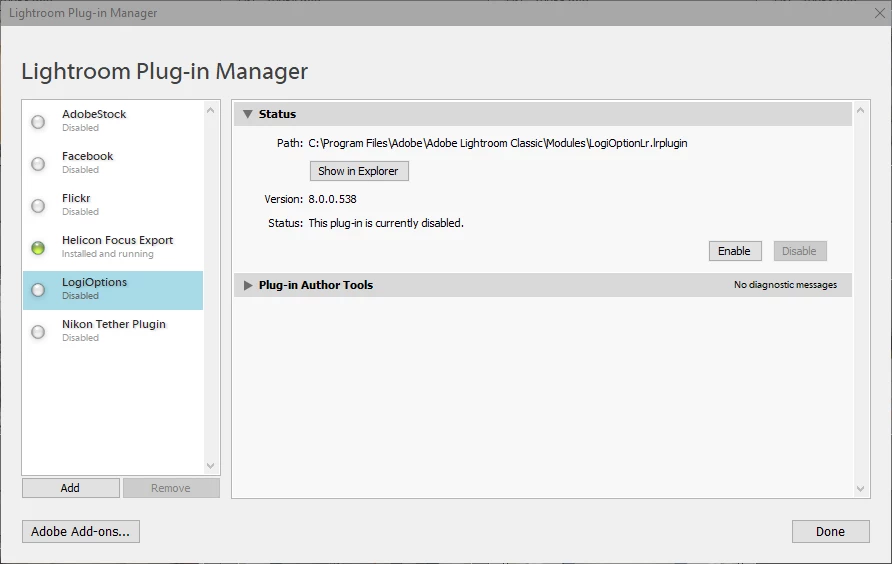
As David has mentioned above, the LogiOptions plugin could be the culprit.

I had a similar problem, and disabling the plugin fixed it.

Go to File > Plugin manager to disable it.


12 replies

GoldingD
Legend
January 1, 2020

Please post your system info as lightroom classic reports it. In lightroom click on Help, then system info, then copy. paste that in a reply, not interested in data after plug-in info. Mostly interested in OS, LRC version, Display info, GPU info, and any odd plugins


nukecity
nukecityAuthor
Participating Frequently
January 1, 2020

Lightroom Classic version: 9.1 [ 201911291132-64cf80b4 ]
License: Creative Cloud
Language setting: en
Operating system: Windows 10 - Home Premium Edition
Version: 10.0.18363
Application architecture: x64
System architecture: x64
Logical processor count: 8
Processor speed: 1.9 GHz
Built-in memory: 20293.7 MB
Real memory available to Lightroom: 20293.7 MB
Real memory used by Lightroom: 1282.1 MB (6.3%)
Virtual memory used by Lightroom: 1376.7 MB
GDI objects count: 598
USER objects count: 1848
Process handles count: 1993
Memory cache size: 233.0MB
Internal Camera Raw version: 12.1 [ 351 ]
Maximum thread count used by Camera Raw: 5
Camera Raw SIMD optimization: SSE2,AVX,AVX2
Camera Raw virtual memory: 258MB / 10146MB (2%)
Camera Raw real memory: 259MB / 20293MB (1%)
System DPI setting: 96 DPI
Desktop composition enabled: Yes
Displays: 1) 1920x1080
Input types: Multitouch: Yes, Integrated touch: Yes, Integrated pen: Yes, External touch: No, External pen: No, Keyboard: No

Graphics Processor Info:
DirectX: NVIDIA GeForce MX230 (26.21.14.4166)


Application folder: C:\Program Files\Adobe\Adobe Lightroom Classic
Library Path: E:\Adobe\Lightroom\Lightroom-2019\Lightroom-2019.lrcat
Settings Folder: C:\Users\nukec\AppData\Roaming\Adobe\Lightroom

Installed Plugins:
1) AdobeStock
2) Facebook
3) Flickr
4) LogiOptions
5) Nikon Tether Plugin

Ian Lyons
Community Expert
Community Expert
January 1, 2020

Odd behaviour such as you describe can sometimes be corrected by resetting the Lightroom prefernce file. Instructions for doing so can be found in Method 1 at this document https://helpx.adobe.com/lightroom/help/setting-preferences-lightroom.html

nukecity
nukecityAuthor
Participating Frequently
January 1, 2020

Thanks. I reset the preferences (Win), but that did not seem to help. 


I found more info and a possible workaround. Once I start the LR application, the Library starts to load the thumbnails but then seems to stall. If I then click on the Windows taskbar, which changes the "focus" from LR to Windows and then mouse away from the taskbar, the "Reading Preferences" splash screen comes up and the rest of the thumbnails are loaded. (You can see the focus is removed from LR when you click on the Windows taskbar, because the LR window becomes greyed out. Once you move back into LR, the LR window is solid and that's when the splash screen pops up.)