


ginniel62063664
Participant
July 22, 2024
Answered

Lightroom always on top in Windows 11

  • July 22, 2024
  • 7 replies
  • 1298 views

I was having an issue with Lightroom Classic 13.4 staying on top of all other windows when using it. Selecting another app in the task bar did not bring up that app on top of Lightroom, I had to minimize Lightroom in order to see any other application, including Photoshop when I would attempt to open an image in PS from Lightroom. I am running Windows 11, version 23H2 with all updates on a Lenovo laptop and 32 GB RAM.


A tip from a post originally posted in 2018 and replied to in 2020 has solved the problem more easily than restarting Lightroom which only solved it briefly.


Here's the tip that worked for me:

In LR Classic go to Window/Screen Mode and choose Full Screen with Menubar.

Then immediately go to Window/Screen Mode again, and this time choose Normal.

Correct answer GoldingD
In LR Classic go to Window/Screen Mode and choose Full Screen with Menubar.

Then immediately go to Window/Screen Mode again, and this time choose Normal.

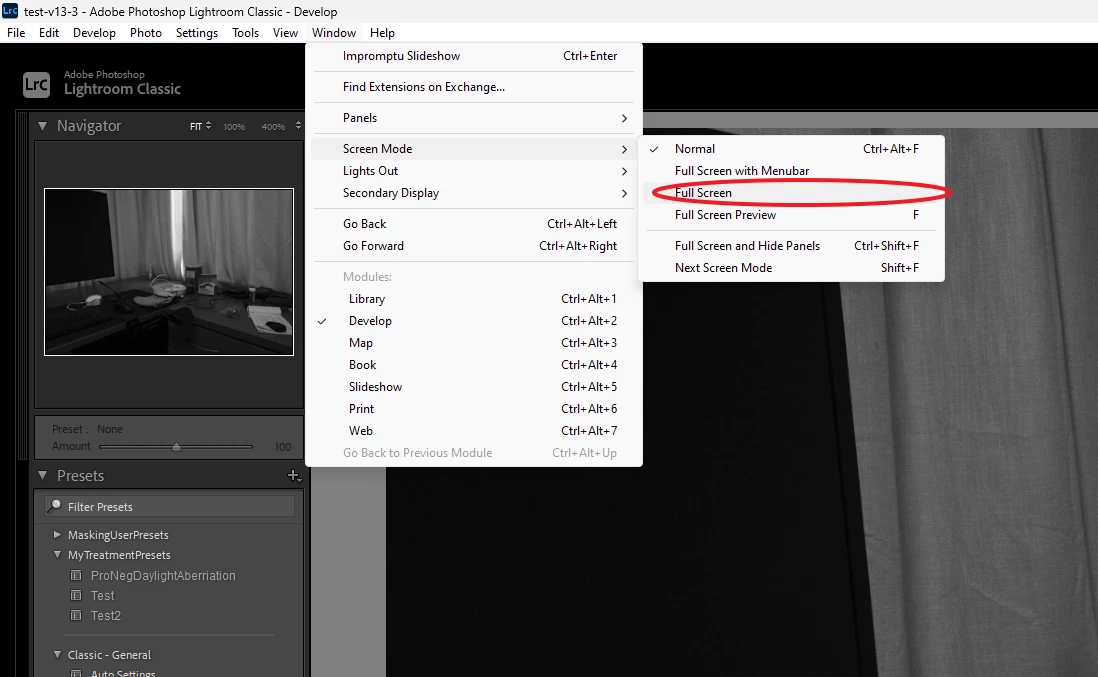
Ah, my bad. in clear site.


Yes, that is a bit of an issue. Do not do that if you want to work with other than LrC.


Instead click as shown:


7 replies

ginniel62063664
Participant
August 14, 2025

Although this "trick" does work temporarily, the behavior returns regularly. I wish there were an actual final fix for this issue.

Participant
August 14, 2025

That succeeded, however the other programs stopped starting as soon as I returned to LR. I had to repeatedly use the Screen Mode technique. vidio editing app 

paul3.14159
Participating Frequently
July 21, 2025

That worked, BUT, as soon as I went back to LR the other programs wouldn't start again. I had to do the Screen Mode trick again and again. 

Participant
April 2, 2025

This did the trick for me!! Thanks for posting the answer to this irritating behavior.

GoldingD
GoldingDCorrect answer
Legend
July 22, 2024
In LR Classic go to Window/Screen Mode and choose Full Screen with Menubar.

Then immediately go to Window/Screen Mode again, and this time choose Normal.
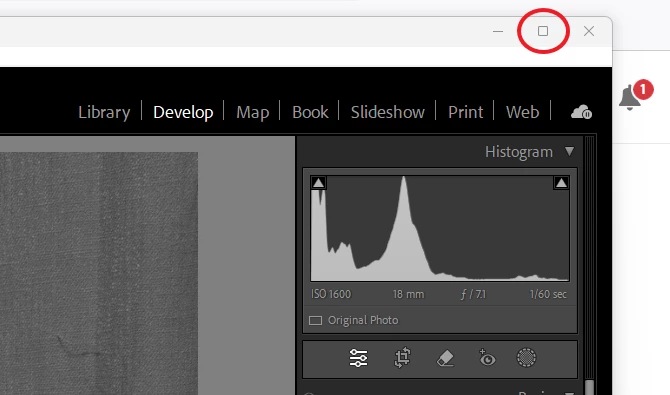
Ah, my bad. in clear site.


Yes, that is a bit of an issue. Do not do that if you want to work with other than LrC.


Instead click as shown:


Participant
July 17, 2025

It works, but why can't you fix this?  It's a significant annoyance. 

GoldingD
Legend
July 22, 2024

Please specify what correction attempts you may have taken. such as:


  • Reset the Preference file (In case it got corrupted, but I am thinking not)
  • Restarted Windows (as opposed to a shutdown)
  • Removed then installed LrC (Do not do that)
  • Looked at and/or changed Windows System values (list)
  • Bribed my Gremlins with good Bourbon, They ignored the Tequila.
  • etc


GoldingD
Legend
July 22, 2024

Please post your System Information as Lightroom Classic (LrC) reports it. In LrC click on Help, then System Info, then Copy. Paste that information into a reply. Please present all information from first line down to and including Plug-in Info. Info after Plug-in info can be cut out as that is just so much dead space to us non-Techs and it takes up vast amounts of scroll space making the reply less readable and less likely that others will bother with your post.


example:

ginniel62063664
Participant
July 22, 2024

Not sure why all of this information is required? I included the LrC version and Windows 11 version.