


Inspiring
December 5, 2024
Answered

Lightroom Classic 14.0.1 hangs when synchronizing any folder

  • December 5, 2024
  • 5 replies
  • 1586 views


Platform: Lightroom Classic 14.0.1 on Windows 11 Pro on a high-powered desktop PC


I upgraded to Lightroom Classic 14.0.1 and am now unable to synchronize any folder.  If I right click on a folder and click on synchronize, Lightroom hangs and nothing happens.  No error message; the folder just never synchronizes no matter if you give it hours and there are only a few images to import.  I have tried resetting my preferences, closing Lightroom, rebooting my PC and restarting Lightroom and same thing.  I tried going back to 14.0.0 and had the same issue.  The photos have not loaded into any other folder so that Lightroom thinks they are already there.  I have never had this issue in the past.
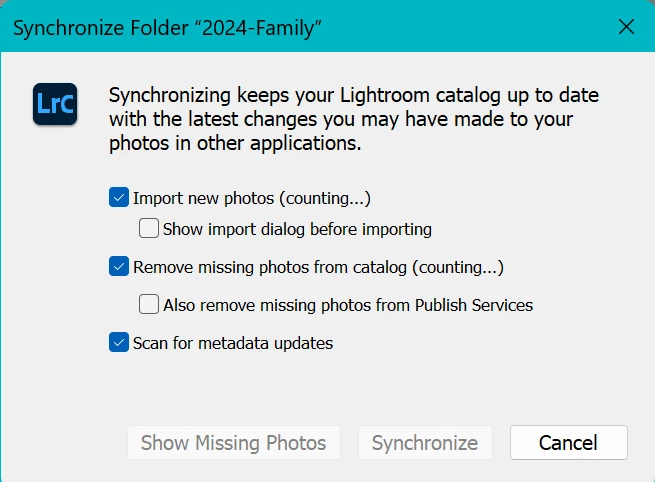
 

I saw that this is a known issue and that this was how you were supposed to fix it, but I can’t make it work as I don’t understand the directions:

  1. “In the My Photos area in the left pane, select the All Photos album.
  2. Switch to the Square Grid view , which displays photos as equal-sized thumbnails along with their flag status, sync status, and rating.
  3. Click the filter  icon next to the Search bar to bring up the filter options. 
  4. From the filter bar options, choose Sync Status > Syncing. Lightroom now displays only those photos that it is trying to sync.
  5. Press Ctrl+A (Win) or Command+A (Mac) to select all the photos displaying in the grid and then do any of the following:
    • Apply a flag or a star rating to selected photos.

The syncing issue should now be resolved. To check the sync status, click the cloud icon  at the upper-right corner.” 

However I do not see a filter icon.  I see the words Filter and clicked and saw:
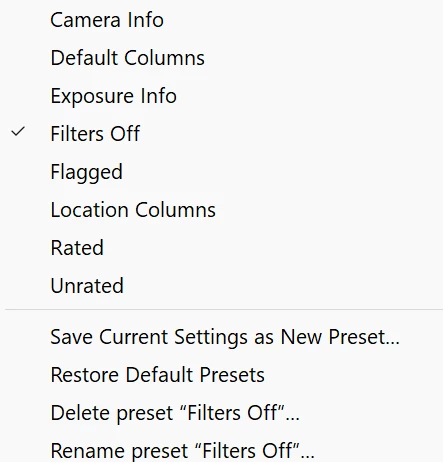
 

But that doesn't have “Sync Status > Syncing” in it.  Step 5 makes no sense at all, as I am trying to import new photos into Lightroom, so why would I want to apply a flag or star to images already in Lightroom?


I have spent several hours trying to fix this and would appreciate any help.


Correct answer photogal11

My system installed a Windows update to Windows 11, version 24H2, and the sync started working again. 


5 replies

Participant
January 15, 2025

I am having similar issue with LR Classic 14.1.1 on a Windows 11 laptop. I was trying to update the catalog from my old laptop, but kept getting stuck, so I tried from scratch (>30,000 photos from over 20 years) with a clean slate to ID the problem. It would appear that if there is a video file in a folder, it will trigger some issue with sync.


Different workarounds that seem to work:

1. In the import dialog, if I go to a folder with videos (for the first time), sort by media type, then unselect the videos, then the photos would sync successfully. However, if I click multi-select folders after this (i.e. if there is any "interaction" with a folder with video files), then the import would hang.

2. If go to Windows Folder Explorer and I remove the videos from the folder, then the rest of the photos would sync quickly.

3. As an alternative to 2, if I go to Windows Folder Explorer and move a videos into the subfolder, then go to the import diaglog in LRC  and unselect the video files, that also works (even in if I have "interacted" with folders with video files as described in #1 above)


This is all very strange and frustrating.  The workawrounds are not straighforward and are labour intensive.


It is as if  any time LRC has to deal with a video file, some kind of error would get triggered.


Any additional insight on how to make this work would be appreciated.


Thanks!


tomw91190698
Participant
April 7, 2025

I had the same issue where LRC would crash when trying to synchronise a folder (right click folder in left panel > Synchronize folder). I can confirm that following workaround 3 from @PineLakeChic solved the issue for me.

tomw91190698
Participant
April 21, 2025

Just found that sync would also fail when heic images are in the top level folder. I needed to put them in a subfolder as well.

photogal11AuthorCorrect answer
Inspiring
December 12, 2024

My system installed a Windows update to Windows 11, version 24H2, and the sync started working again. 


kglad
Community Expert
Community Expert
December 12, 2024

good to hear.

GoldingD
Legend
December 5, 2024

Does this sync invlove any video's?


Inspiring
December 5, 2024
Yes, but primarily photos.
Per Berntsen
Community Expert
Community Expert
December 5, 2024

I think @GoldingD might be on the right track.

There are issues with importing from folders containing videos. I don't do video, so I haven't paid much attention to it.

Move the videos to a different folder with the Windows File explorer, then try to synchronize again.

Per Berntsen
Community Expert
Community Expert
December 5, 2024

The directions seem to be for the cloud version of Lightroom (which is named "Lightroom").

"My Photos" and "Albums" do not exist in Lightroom Classic, but they do exist in Lightroom.


How exactly did you reset the preferences? It can be tricky using the keyboard.

The easiest way is Method 3 described on this page:

https://helpx.adobe.com/lightroom-classic/help/reset-preferences.html

Inspiring
December 5, 2024

Yes, I followed the directions to reset the preferences as in the link above.  It didn't help.

kglad
Community Expert
Community Expert
December 5, 2024

in the future, to find the best place to post your message, use the list here, https://community.adobe.com/

p.s. i don't think the adobe website, and forums in particular, are easy to navigate, so don't spend a lot of time searching that forum list. do your best and we'll move the post (like this one has already been moved) if it helps you get responses.


<"moved from using the community bugs">