
Lightroom Classic 14.0.1 hangs when synchronizing any folder
Platform: Lightroom Classic 14.0.1 on Windows 11 Pro on a high-powered desktop PC
I upgraded to Lightroom Classic 14.0.1 and am now unable to synchronize any folder. If I right click on a folder and click on synchronize, Lightroom hangs and nothing happens. No error message; the folder just never synchronizes no matter if you give it hours and there are only a few images to import. I have tried resetting my preferences, closing Lightroom, rebooting my PC and restarting Lightroom and same thing. I tried going back to 14.0.0 and had the same issue. The photos have not loaded into any other folder so that Lightroom thinks they are already there. I have never had this issue in the past.
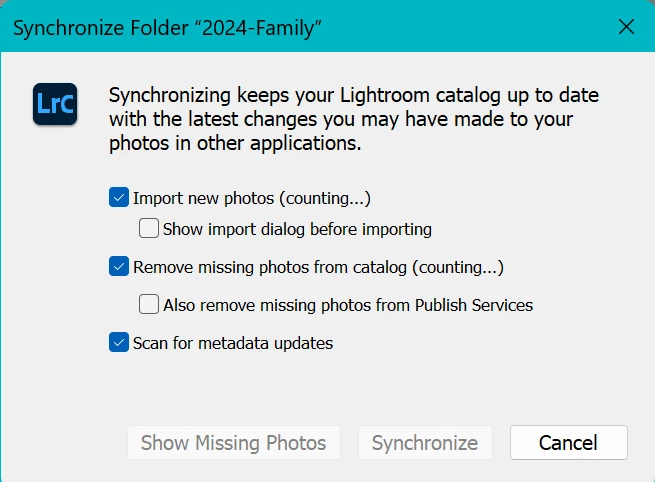
I saw that this is a known issue and that this was how you were supposed to fix it, but I can’t make it work as I don’t understand the directions:
- “In the My Photos area in the left pane, select the All Photos album.
- Switch to the Square Grid view , which displays photos as equal-sized thumbnails along with their flag status, sync status, and rating.
- Click the filter icon next to the Search bar to bring up the filter options.
- From the filter bar options, choose Sync Status > Syncing. Lightroom now displays only those photos that it is trying to sync.
- Press Ctrl+A (Win) or Command+A (Mac) to select all the photos displaying in the grid and then do any of the following:
- Apply a flag or a star rating to selected photos.
The syncing issue should now be resolved. To check the sync status, click the cloud icon at the upper-right corner.”
However I do not see a filter icon. I see the words Filter and clicked and saw:
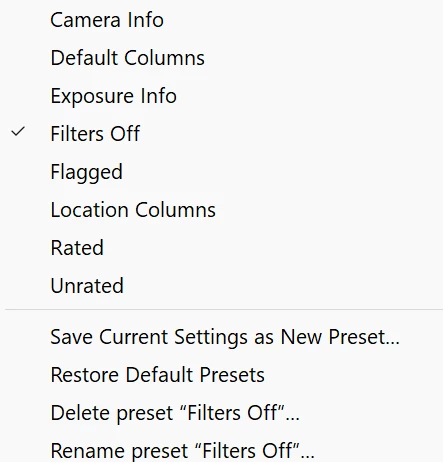
But that doesn't have “Sync Status > Syncing” in it. Step 5 makes no sense at all, as I am trying to import new photos into Lightroom, so why would I want to apply a flag or star to images already in Lightroom?
I have spent several hours trying to fix this and would appreciate any help.
 AdChoices