

JorgJanke
Participant
May 8, 2026
Question

Lightroom Classic becomes unresponsive in Library if day contains DJI .dng file

  • May 8, 2026
  • 3 replies
  • 23 views

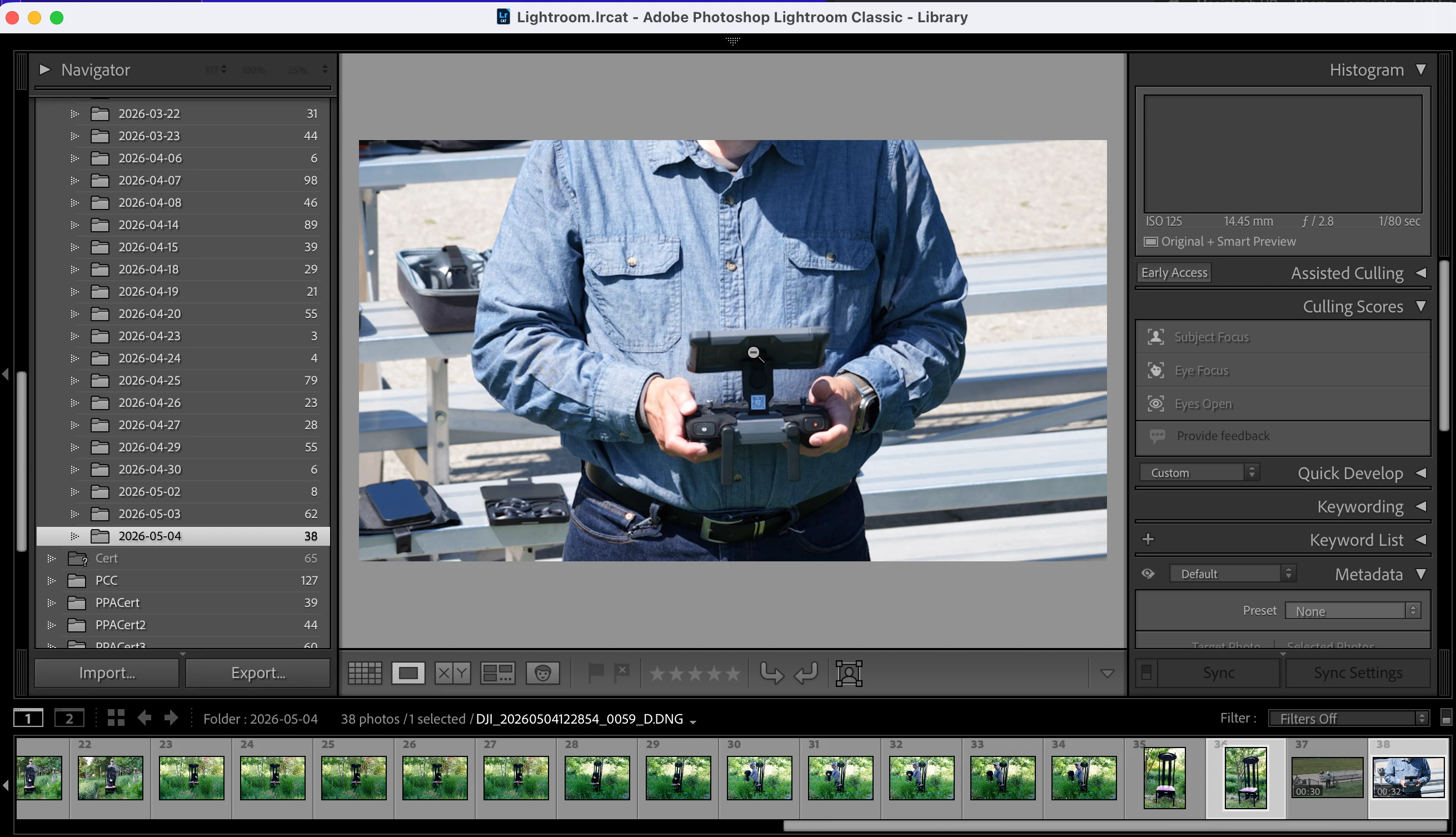
When in Libary, move to a day with has a DJI Mavic 4 still photo .dng (114MB) the application becomes unresponsive showing the spinning colorwheel.  When Importing from the DJI media, it also imported the .jpg file.  The apps needs to be Force Quit.

Loading a .dng file takes very long (~15 sec) and then after another ~15 sec it becomes unresponsive.

Easiest to see experience with a second monitor, but also happens in Library single photo.

The import also contained .mp4 files. 


Lightroom Classic version: 15.3 [ 202604090947-8f3672ed ]

Apple M4 Max - MacOS Tahoe 26.4.1

Screenshot does not show the spinning color wheel but the zoom loop (in the center of the controller display)



    3 replies

    Participating Frequently
    May 8, 2026

    Problem resolved after downgrading to the LRC 15.2.1. Speed restored, no crashes, imports the DJI files without problem. 15.3 is seriously defective.

    Participating Frequently
    May 8, 2026

    I have the same problem. Same configuration. Unable to import new DJI dng files. Import dialog shows a blank space, no preview, but does show the name of the file. Attempting to import, or trying to quit crashes the app. I’ve uninstalled and re-installed x3, no change. Full disk access is active for LRC.

    This just started in the last few days. I had successfully imported such files a few days earlier. Then this mess started. Any help appreciated.

    JorgJanke
    JorgJankeAuthor
    Participant
    May 8, 2026

    It may have been the mp4 files - after I removed the files from the directory, I get “The video file is missing” … and the spinning color wheel appeared (i.e. unresponsive).  As a short term fix how do I remove the cache files from the catalog?

    Conrad_C
    Community Expert
    Community Expert
    May 8, 2026

    If you suspect the video cache, you can click the Purge Cache button in Lightroom Classic Preferences, Performance tab, Video Cache Settings options group, as shown in the picture below.


    Or, you can open the video cache folder on your desktop and if there are files in there, you can try deleting them. On my Mac I think this where it is:

    /Users/[username]/Library/Caches/Adobe/Lightroom/Video