
jojosch93
Participant
October 19, 2017
Answered

Lightroom Classic CC won't render photos in library view

  • October 19, 2017
  • 22 replies
  • 41183 views

After updating to Lightroom Classic CC, my photos won't show up in the interface of the library tab. But if I hover over where the photos should be, the preview image in the top left corner changes accordingly. So, my photos "are there" but they simply won't show up. I face the same problem in the import view. If I switch over to "Develop", I can see the single photo as well. Does anybody else faces a similar problem or has a solution?

Here is a screenshot: https://imgur.com/a/pHLDy
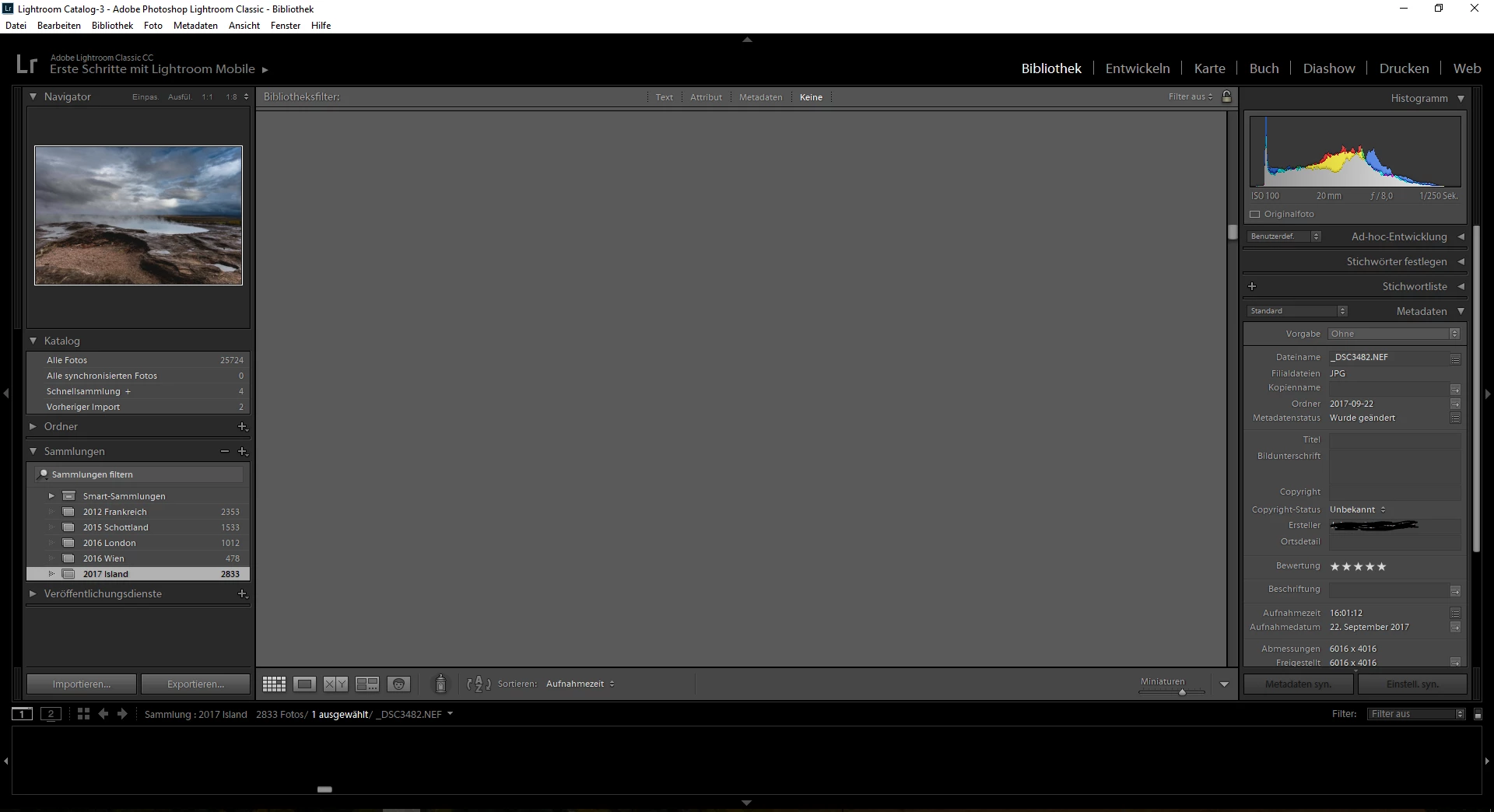
I run Lightroom on a HP Probook 4540s with a AMD 7650M graphic card. I've already installed the newest driver available.

This topic has been closed for replies.
Correct answer lucg3962859

This problem has been resolved by a workaround provided by Adobe.

I followed these instructions:

Could you please try the following and report back if it solves the issue.

==

Try this workaround to see if it works for you. If not, delete the config.lua file afterwards.

  1. Choose Edit > Preferences.
  2. In the Preferences dialog, go the Presets tab.
  3. In the Presets tab, click the Show Lightroom Presets Folder button. The root preset folder opens in the File Explorer.
  4. In the File Explorer, navigate into the Lightroom folder.
  5. Go to the link https://adobe.ly/2hUHGYa and download the config.lua file. Copy the downloaded config.lua file into the Lightroom folder mentioned in the previous step.
  6. Relaunch Lightroom Classic CC.

The System Info dialog (Help > System Info) should display the config.lua flags entry as shown below:

Config.lua-Flags:

AgView.disableDirect2D = true

==

Thanks,

Sunil

22 replies

Community Expert
October 19, 2017

Can you check what it says in Help->System Info->Graphics Processor Info?

jojosch93
jojosch93Author
Participant
October 19, 2017

Informationen zum Grafikprozessor:

OpenGL: AMD Radeon HD 7500M/7600M Series

Check OpenGL support: Passed

Vendor: ATI Technologies Inc.

Version: 3.3.13417 Core Profile Context 15.301.1901.0

Renderer: AMD Radeon HD 7500M/7600M Series

LanguageVersion: 4.40

Total Video Memory: 1004 MB

Community Expert
October 19, 2017

That looks normal. Not sure why it isn't working right.

Per Berntsen
Community Expert
Community Expert
October 19, 2017

The most likely cause for this is a defective monitor profile. Windows 10 is known to install bad profiles during updates.

As troubleshooting, and as a possible temporary fix, try setting the monitor profile to sRGB.

If setting it to sRGB fixes the problem, you should calibrate the monitor with a hardware calibrator as soon as possible.

Press the Windows key+R, type colorcpl, and hit Enter.

Add the sRGB profile, then set it as Default profile. See screenshot below.

If this doesn't fix the problem, you probably have a corrupted preview cache.

Using the File explorer, go to the folder that contains your Lightroom catalog, usually inside the Pictures or My Pictures folder.

If you can't find it, go to Edit > Catalog settings in Lightroom, and click the Show button top right in the dialog, which will open the folder in the File explorer.

With Lightroom closed, delete (or rename) the folder whose name ends with Previews.lrdata. Do not delete anything else.

The previews will rebuild as you browse the folders in Lightrom's Library.

jojosch93
jojosch93Author
Participant
October 19, 2017

Thanks for your answer! I tried both steps but they didn't solve my problem unfortunately. This problem occurs also with a fresh library or in the import view. I guess it is a graphics related problem. If I change the window size, there are some graphic glitches. See following image:

Per Berntsen
Community Expert
Community Expert
October 19, 2017

Try to disable the GPU.

Go to Edit > Preferences > Performance, and uncheck Use graphics processor.