
Participating Frequently
October 13, 2018
Question

Lightroom Classic Import Hangs Up - Freezes on the Import Screen

  • October 13, 2018
  • 12 replies
  • 29992 views

I installed the newest version of Lightroom Classic yesterday and now I can't import images. Before this everything was fine. I could import images with no issue. Now when I go to import the circle in the lower left hand corner spins 1ce and then the application freezes. I can't choose an external or internal device to import from, because the application just freezes. I can drag and drop using Windows Explorer and then synchronize the parent folder and it will import, but I can't use the import function.
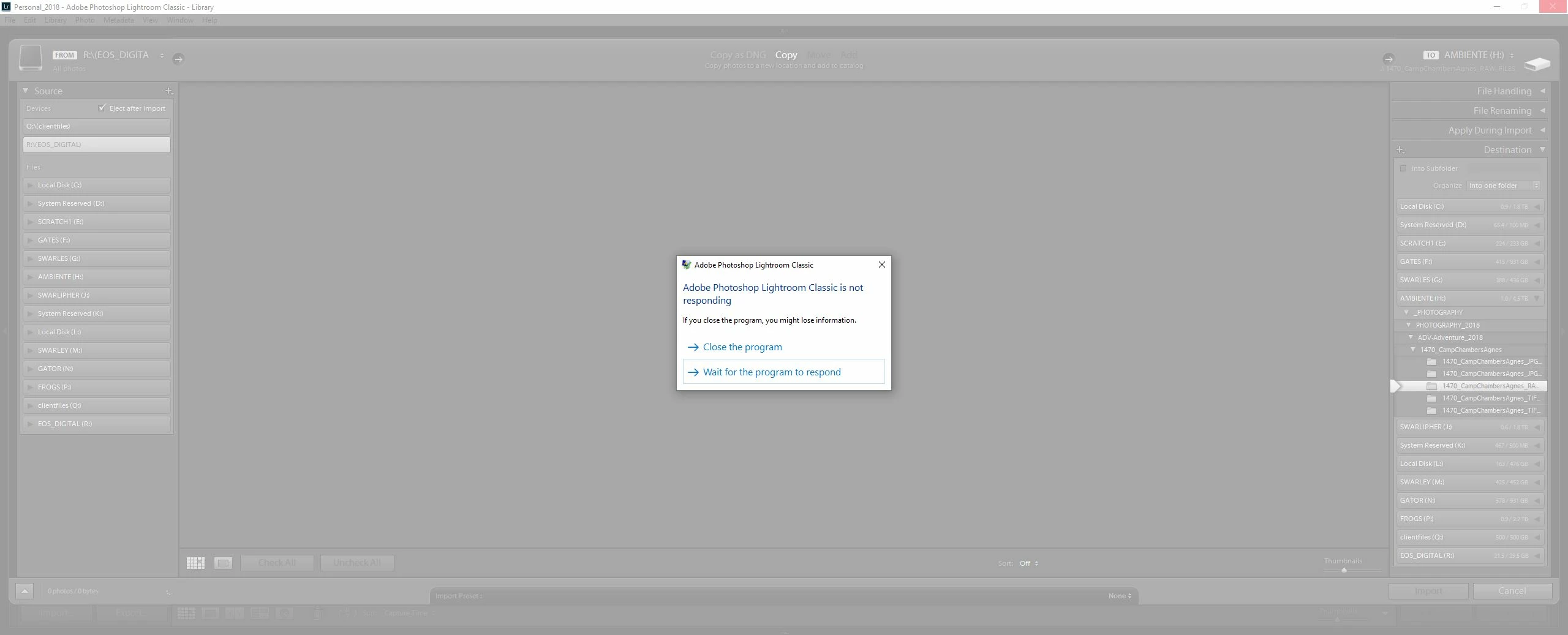
I have tried uninstalling, cleaning my registry, and reinstalling after a reboot. I've tried simply rebooting. I've tested the integrity of the catalog. I've created a new catalog. I've reset my preferences. I've killed all processes and restarted all Adobe. I've tried starting from the desktop shortcut, starting using the CC app, starting by clicking on the catalog, and starting as administrator. I've signed in and out of the CC app. Nothing has worked.

If I click on the program it grays out and says it's not responding and asks if I would like to wait or kill the program. I've left it waiting for an hour to no avail.

This wasn't an issue before, but I've now spent the better part of 2 hours on this issue. My specs are listed below. Nothing on my system has changed since the update. No additional drives have been used. The card I'm trying to import from is fine. I've tried other cards. Same issue.

Lightroom Classic version: 7.5 [ 1186149 ]

License: Creative Cloud

Language setting: en

Operating system: Windows 10 - Enterprise Edition

Version: 10.0.17134

Application architecture: x64

System architecture: x64

Logical processor count: 12

Processor speed: 3.3 GHz

Built-in memory: 24476.0 MB

Real memory available to Lightroom: 24476.0 MB

Real memory used by Lightroom: 5863.5 MB (23.9%)

Virtual memory used by Lightroom: 6836.8 MB

GDI objects count: 734

USER objects count: 2026

Process handles count: 2913

Memory cache size: 4710.0MB

Internal Camera Raw revision: 1001

Maximum thread count used by Camera Raw: 5

Camera Raw SIMD optimization: SSE2,AVX,AVX2

Camera Raw virtual memory: 1892MB / 12238MB (15%)

Camera Raw real memory: 1903MB / 24476MB (7%)

System DPI setting: 96 DPI

Desktop composition enabled: Yes

Displays: 1) 2560x1080, 2) 2560x1080

Input types: Multitouch: No, Integrated touch: No, Integrated pen: Yes, External touch: No, External pen: Yes, Keyboard: No

Graphics Processor Info:

DirectX: NVIDIA GeForce GTX 1060 3GB (23.21.13.9135)

This topic has been closed for replies.

12 replies

GoldingD
Legend
November 6, 2018

So, many if the normal suspects:

Hardware issue, GPU failing, Hard drive failing, etc

OS issue (like all the MAC OS Mojave that is going on), yes, I know, Windows not MAC. OS updates current?

Driver issues, related to hardware issues, GPU driver up to date?

Registry issues, typically in something like this, left over detritus from previous installs/updates,

Third party, in this case plug-ins not behaving well

Now a bit of caution on my part. I take No responsibility to results of anything that follows. And if your Information Technology skill set is that if a normal person, perhaps going to a computer tech would be best.

Moving on.

(1) You mentioned uninstalling Lightroom, Most would just bring up the Adobe Creative Cloud Desktop application, and remove it from their, in addition, did you use Windows application removal to remove any extra copies (versions).

Did you also go into Windows explorer (file mgt) and look for detrus in C:/Programs Files and for old 16 bit stuff C:/Program Files (86). Warning, have backups of presets, plug-ins, catalogs, etc.

You mentioned cleaning the registry, with a maintanc/repair app?? Or hardcore go in and edit?

(2) Does looking at your event viewer indicate anything?

(3) I notice in your task manager several items not running in background, anything going odd their?

Participant
November 7, 2018

Thanks for trying. I just don’t think it is any of the usual suspects. My computer is new; I keep my Windows up to date; I don’t mess with registry; I don’t have any plug-ins and I have not yet installed any presets I have. If you try to uninstall with Programs and Features it takes you to CC anyway. According to CC you can only have one version of LR on your computer at one time. I am going to call Adobe in a few minutes.

Best Regards,

Norton

Participating Frequently
October 13, 2018

Update. Lightroom now also freezes on export. If I try to choose a folder, it simply freezes. I can't click on or move any of the windows. Lightroom also disappears as a process from the task manager, so I can't end process on the application to kill it. This is a big problem. Import and export are core functions of the program. Why are they not working with this update? Again, this was working yesterday before I updated to the new version of LR.

Akash Sharma
Legend
October 15, 2018

Hi DJLCreative,

Sorry that Lightroom Classic CC 7.5 is freezing while importing and exporting images.

As you've mentioned a lot of troubleshooting has already been done to no avail. One thing that comes to my mind is: Have you tried removing all the external devices (like external hard drive, Camera, SD card, Card reader, Phone or Tablet) and then tried importing images directly from the desktop or exporting directly to your local drive?

Also, uncheck the option "use graphics processor" under the Preferences > Performance menu in Lightroom and see if that helps. More troubleshooting info can be found here: Adobe Lightroom GPU Troubleshooting and FAQ

Another suggestion: take a look at this article Troubleshoot Adobe Lightroom problems, issues, or bugs

Let us know how it goes.

Thanks,

Akash

Participating Frequently
October 27, 2018

I've tried removing the devices, but not the "use graphics processor" option. The issue with removing all devices is that I'm a web developer and I have several virtual mapped devices - server folders mapped as drives and that type of thing. They show up first under the devices section of the import screen. It's not possible to unmap them without considerable issues, and it's never been an issue before.

I am trying to import as we speak and I'm still having the issue. I'm going to restart LR and uncheck the graphics processor option. I appreciate the input. Thank you! I'll let you know how it goes.