Participant
March 10, 2026
Question

Lightroom Classic not creating previews

  • March 10, 2026
  • 3 replies
  • 72 views

Hi all. 

I’m on a M3 MacBook Air running macOS 26.3 and using  LR classic v15.2 with Camera Raw up to date at 18.2.1.

My problem is that on one of my external SSDs, a 2TB Samsung T7, LR will not show the photos. In grid mode it will show empty thumbnails with meta data, like star rating, but no previews. In develop it will show only the background color.

I tried building previews, both standard and 1:1, via the menu for individual files, for a group of files and for all files. The progress bar appears but does not move at all and no previews of any kind are created. I tried creating a new catalog and copying the files to another T7 SSD and creating a catalog on that, but that did not work either. The drives are all exFAT formatted. The catalog lives on the drive.

I’m confused especially because for other photos, I use the same setup and it works well.

The photos and folders were originally created on an HDD drive on windows and then also on windows 10 copied to the SSD and used on the SSD on win 10 before using mac. But that is also true for my other drives.

Thanks for any suggestions!
    3 replies

    dj_paige
    Legend
    April 1, 2026
    Claire H.
    Community Manager
    Community Manager
    April 1, 2026

    Hi ​@david.at.large, I'm just checking in to see if the suggestion helped or if you are still running into this issue? Let us know how things are going. Happy to keep troubleshooting with you if needed. Thanks! ^CH

    gary_sc
    Community Expert
    Community Expert
    March 10, 2026

    Hi, ​@david.at.large, when you say you’ve used the same setup, were those on external drives as well? 

    Have you provided the Permissions for an external drive? Just in case you need this, here’s how:

    This is not the fault of Adobe or anyone; this is Apple making sure that applications that have not been given permission to access areas of your computer cannot access those areas of your computer.

    The following instructions were done in Sequia, but they are essentially the same. Also, the following screenshots show “Acrobat.” Just change that to Bridge, and it’s no different.

    Go to your Mac's Settings, and search for "security." That will get you to the settings that Apple uses to let you bypass their default "vault" protection. (This is a good thing.)


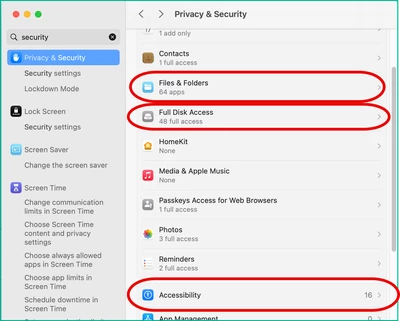
    Starting off, you see this. Note I have three things marked out.

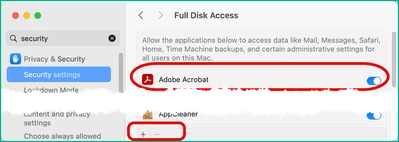
    Starting from the 2nd, Full Disk Access, if you select that, you'll see all of the applications that have been granted Full Disk Access. If you see Acrobat but it is not turned on, click on the switch on the far right side. If you do not see Acrobat, click on the "+" symbol on the bottom, locate Acrobat to add it, then turn on the switch.

    Next go to Accessibility, same conditions as above.

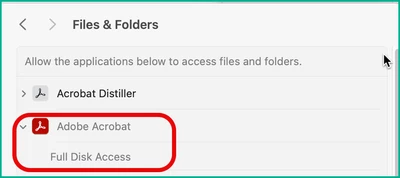
    Lastly, go to Files & Folders, this should already be set but depending on where it's located (such as a server), you may have to set this as well.

    Again, all of the above may have already been done by you, but it's wise to check.


    Let me know what you find.