Participating Frequently
November 11, 2022
Answered

Lightroom classic - RESET does not remove rotations

  • November 11, 2022
  • 2 replies
  • 389 views

I am trying to remove rotations applied with Photo/Rotate CW, Rotate CCW, Flip H, and Flip V.

I want the image to go back to the orientation in came into lightroom with.

I have tried Reset, but it does not work.

I understand I can "undo" Rotates and Flips manually, but for some images it is not clear what the camera thought was "up".

The rotate commands do not appear in the HISTORY list, so it can't be cleared there.

Anyone know the trick?
Correct answer johnrellis

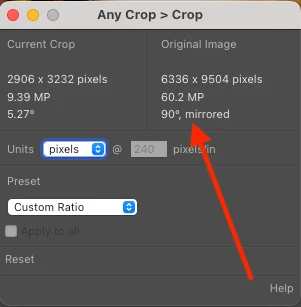
LR doesn't consider rotate and flip to be Develop settings and, incredibly, provides no way of viewing the current rotation and mirroring.  You'll have to use a plugin.  The Any Crop plugin shows the rotation and mirroring for the current photo:


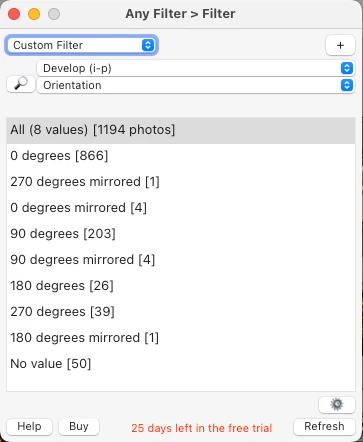
The Any Filter plugin filters by orientation and mirroring:


You could select all the photos with the same orientation and then use Photo > Rotate/Flip commands to get all of them back to their original state.


2 replies

johnrellis
johnrellisCorrect answer
Legend
November 11, 2022

LR doesn't consider rotate and flip to be Develop settings and, incredibly, provides no way of viewing the current rotation and mirroring.  You'll have to use a plugin.  The Any Crop plugin shows the rotation and mirroring for the current photo:


The Any Filter plugin filters by orientation and mirroring:


You could select all the photos with the same orientation and then use Photo > Rotate/Flip commands to get all of them back to their original state.


Art in MTAuthor
Participating Frequently
November 11, 2022

Thank for both confirming my suspicions that there is no way in LR, and for offering a solution!


Rob_Cullen
Community Expert
Community Expert
November 11, 2022

Easiest way I can find is-

In Library Grid View,

Pick up the 'Painter' tool (on the Tool Bar) and set it to [Rotation:  Rotate Right (CW) ]

Now one simple click of the mouse on a preview thumbnail will 'rotate'. You can select multiple photos in Grid View and 'rotate' them all with one click of the Painter Tool. 


 Remember to de-activate (click back on the grey circle) the Painter Tool after its use.


Regards. My System: Windows-11, Lightroom-Classic 15.1.1, Photoshop 27.3.1, ACR 18.1.1, Lightroom 9.0, Lr-iOS 10.4.0, Bridge 16.0.2 .