
Participant
July 3, 2021
Answered

Lightroom Classic stuck syncing even after all images deleted

  • July 3, 2021
  • 2 replies
  • 1852 views

Okay, so I'm using Lightroom Classic 10.3 on Windows. I've had ~16k images properly synced to the cloud. When I tried to add some new ones, they got stuck syncing forever and would never succeed. I tried what I've seen on various posts:


- Delete the Sync.lrdata folder

- Recover the Catalog from backup

- Rebuild the Sync Data (Preferences, hold down alt)

- Delete all images from the cloud via Lightroom CC (they're all gone, I'm at 0 images on the cloud)

- Delete all synced collections from Lightroom Classic


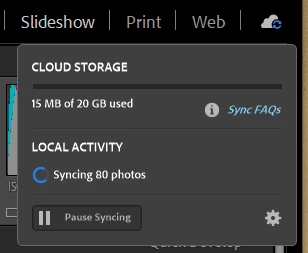
Essentially, I've resigned myself to start over with zero images on the cloud to then reupload everything. However, even with ZERO images on the cloud, I am still stuck with 80 images syncing and no sync activity in Lightroom Classic.


How can I fix this? I just want to upload my photos again.


For kicks I just tried to create a new collection and add a photo. The counter in the cloud menu recognizes this and increments the count from 80 to 81, but it also just sits there forever.



No images on the cloud (from the web):



This topic has been closed for replies.
Correct answer kellywh

Solved. Sheesh. I was on a screenshare session with a tech for an hour and then another for three hours. They did not solve my problem. However, while they were scrolling through my screen, I noticed the "All Synched Photographs" in the Catalog pane of Classic. The number there was larger than the number of images I'd sync by... wait for it... 80. They were images that were not synced by me in one my synced collection (it's all of my 2021 photos, so easy to identify ones that aren't). I deleted those from the All Synced Photographs catalog and poof, the 80 that the sync were stuck on disappeared.


Very painful. I spent probably 12 total hours on this, 4 of which was watching a tech largely do what I'd done and shared here. Luminar might be worth trying out, though I really do like the cloud sycning of smart previews...

2 replies

kellywhAuthorCorrect answer
Participant
July 5, 2021

Solved. Sheesh. I was on a screenshare session with a tech for an hour and then another for three hours. They did not solve my problem. However, while they were scrolling through my screen, I noticed the "All Synched Photographs" in the Catalog pane of Classic. The number there was larger than the number of images I'd sync by... wait for it... 80. They were images that were not synced by me in one my synced collection (it's all of my 2021 photos, so easy to identify ones that aren't). I deleted those from the All Synced Photographs catalog and poof, the 80 that the sync were stuck on disappeared.


Very painful. I spent probably 12 total hours on this, 4 of which was watching a tech largely do what I'd done and shared here. Luminar might be worth trying out, though I really do like the cloud sycning of smart previews...

guillaumee22862743
Participant
June 14, 2023

I had a similar problem.

I had 5 synced Photos impossible to find.
None in the Deleted Photo or with syncing problems
And the i went to the Adobe Lightroom on the web, and when you unscroll " ALL THE PHOTOS" you can see a line with syncing problems.
I deleted all the photos and my problem was solve.

Participating Frequently
October 22, 2024

My issue is LR Classic is attemting to sync an old image that was deleted in 2017. LR Classic sync is hung & clearly is shown as unavilable in LR for web. Any ideas to stop this nonsense?


cmgap
Community Expert
Community Expert
July 5, 2021

In the Catalog panel do you see a folder that is named All Sync Errors? If yes remove all images in that folder. Sign out of Creative Cloud completely and then back in.

kellywhAuthor
Participant
July 5, 2021

No, I do not have such a folder.