Known Participant
May 6, 2021
Answered

Lightroom edit in Photoshop mismatch color

  • May 6, 2021
  • 5 replies
  • 3528 views

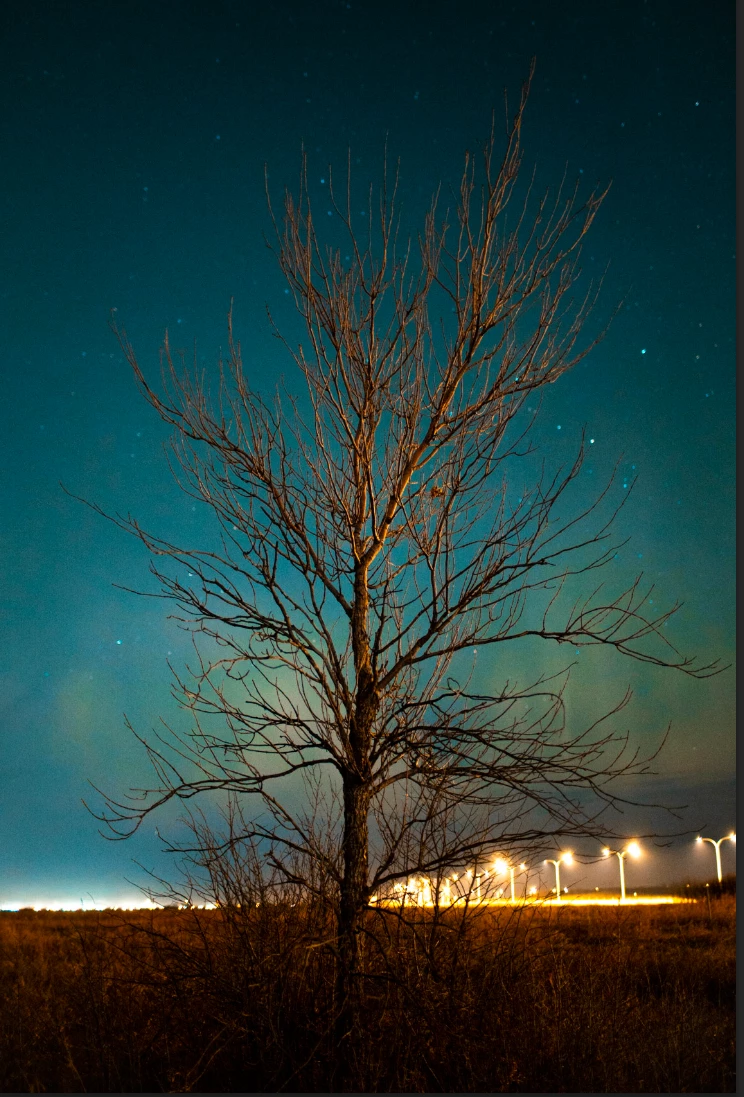
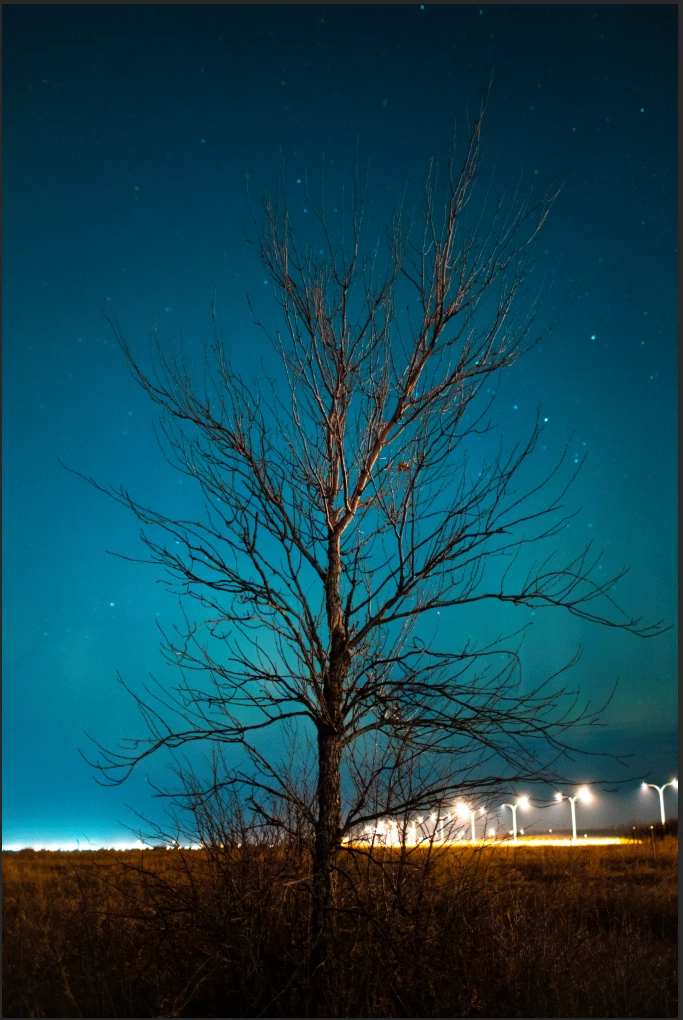
When I edit in Photoshop while using Lightroom the color appear to be very different and it only happen to certain picture and I am losing my mind. This has never happened before until now. If anyone know how to fix this please help, I have tried everything. 

 - Lightroom 


 - Photoshop


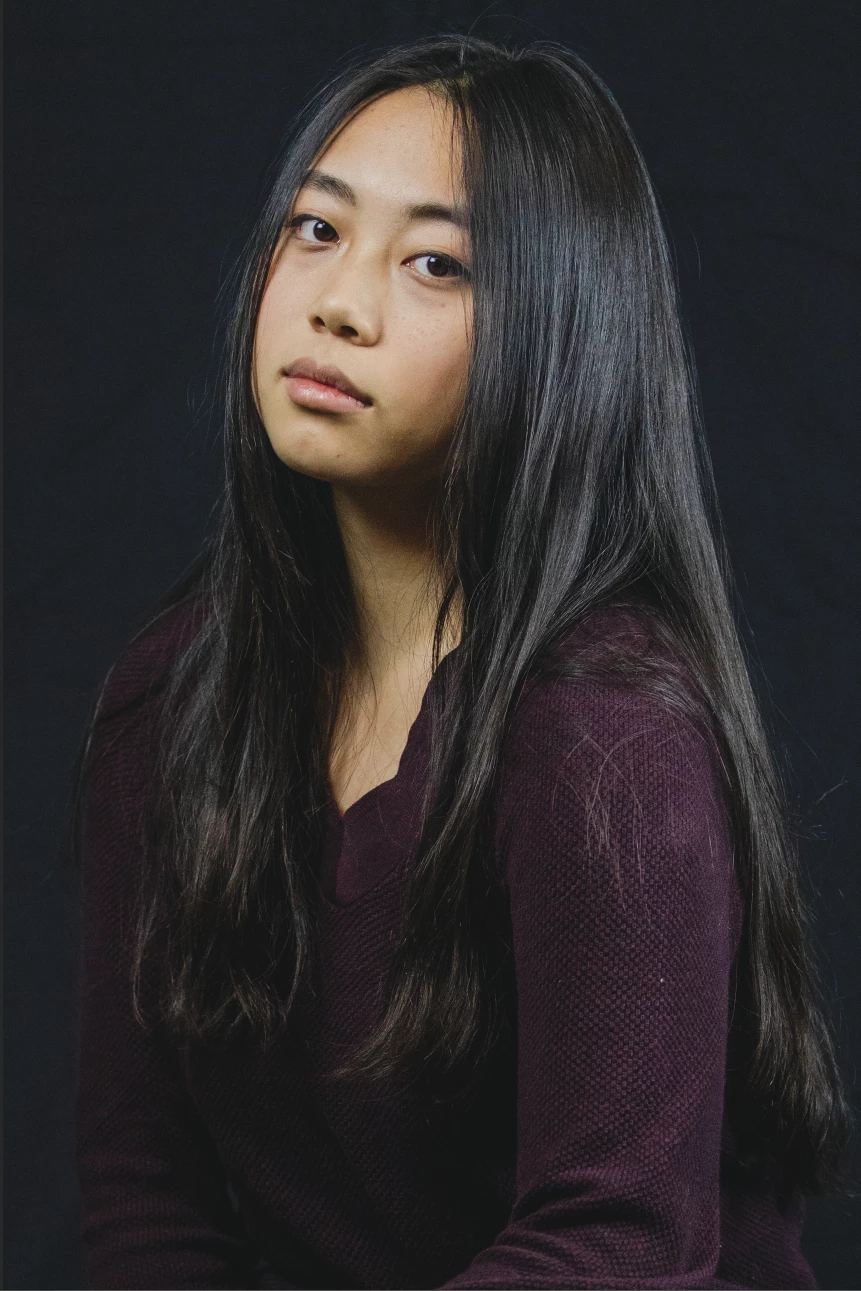
This is a picture a took a few months ago and it is perfectly fine. But my recent pictures have this color problem 

 - Lightroom 

 - Photoshop 


This topic has been closed for replies.
Correct answer johnrellis

[This post contains formatting and embedded images that don't appear in email. View the post in your Web browser.]


This issue is caused by running a version of LR that's newer than your installed version of PS and Camera Raw.  LR is sending a camera profile to PS/ACR that isn't in your PS/ACR installation, so PS/ACR silently uses a different camera profile, producing different colors.


The best fix for this is to stop running 2.5-year-old versions of LR and PS and update to the latest versions. 


Gory Details


The .tif saved by your Photoshop has noticeably different color from the .cr3 when viewed in my LR 10.2:
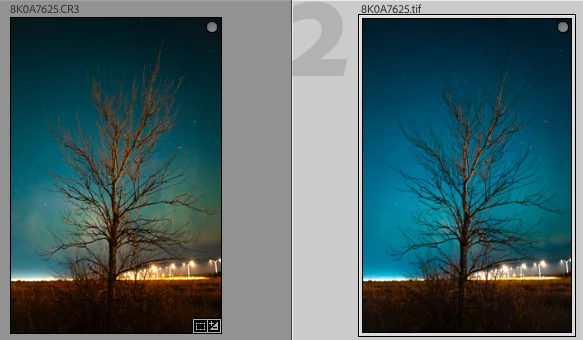
That rules out issues with your display profile and points at either LR or PS or both.


The .xmp sidecar for the .cr3 has this line:


[XMP]           Camera Profile                  : Adobe Standard v2


This indicates that LR is using the Adobe Standard v2 camera profile for the EOS R.


But the XMP metadata inside the .tif has these lines:

[XMP]           Camera Profile                  : Adobe Standard
[XMP]           Missing Camera Profile          : Adobe Standard v2

These indicate that when the Camera Raw inside PS tried to render the .cr3, it couldn't find Adobe Standard v2 and instead used Adobe Standard.


LR 8.1 and Camera Raw 11.1 were released in December 2018, and they included the Adobe Standard v2 profile to fix white-balance issues with the original version of the profiles for the EOS R. But your PS is 20.0, released in September 2018, and its version of Camera Raw doesn't include Adobe Standard v2, so Camera Raw used Adobe Standard instead, producing different colors.



5 replies

johnrellis
johnrellisCorrect answer
Legend
May 9, 2021

[This post contains formatting and embedded images that don't appear in email. View the post in your Web browser.]


This issue is caused by running a version of LR that's newer than your installed version of PS and Camera Raw.  LR is sending a camera profile to PS/ACR that isn't in your PS/ACR installation, so PS/ACR silently uses a different camera profile, producing different colors.


The best fix for this is to stop running 2.5-year-old versions of LR and PS and update to the latest versions. 


Gory Details


The .tif saved by your Photoshop has noticeably different color from the .cr3 when viewed in my LR 10.2:

That rules out issues with your display profile and points at either LR or PS or both.


The .xmp sidecar for the .cr3 has this line:


[XMP]           Camera Profile                  : Adobe Standard v2


This indicates that LR is using the Adobe Standard v2 camera profile for the EOS R.


But the XMP metadata inside the .tif has these lines:

[XMP]           Camera Profile                  : Adobe Standard
[XMP]           Missing Camera Profile          : Adobe Standard v2

These indicate that when the Camera Raw inside PS tried to render the .cr3, it couldn't find Adobe Standard v2 and instead used Adobe Standard.


LR 8.1 and Camera Raw 11.1 were released in December 2018, and they included the Adobe Standard v2 profile to fix white-balance issues with the original version of the profiles for the EOS R. But your PS is 20.0, released in September 2018, and its version of Camera Raw doesn't include Adobe Standard v2, so Camera Raw used Adobe Standard instead, producing different colors.


Trung5DA6Author
Known Participant
May 9, 2021

You were right I just updated my PS and the problem went away. I probably should have thought of that first. Thank you for your time and effort, much appreciated. 

KR Seals
Community Expert
Community Expert
May 8, 2021

I am seeing a small difference in the first two photos you posted of the young woman. However, I see a tremendous difference in the photos you say are fine, the tree shot. This is what I see on my calibrated NEC monitor.


This screen capture accurately show what I see in your original post. Did you mis-identify the images?

I frequently move images from LrC to Ps and back. I see no problems at all with color.

Ken Seals - Nikon Z 9, Z 8, 14mm-800mm. Computer Win 11 Pro, I7-14700K, 64GB, RTX3070TI. Travel machine: 2021 MacBook Pro M1 MAX 64GB. All Adobe apps.
Trung5DA6Author
Known Participant
May 8, 2021

Sorry, but I meant the woman picture is fine but the tree picture is not, and the color is fine when I export from LR and open in PS. The problem only happens when I use the "edit in photoshop" option while editing in LR

D Fosse
Community Expert
Community Expert
May 8, 2021

Here's what I see at 100% in Lightroom vs. Edit in Photoshop:


They are absolutely identical. I stacked the two screenshots and could see no difference when flipping back and forth.


100% is critical here. This is a very noisy image! Screen resampling can very easily influence the result.


If you still see a difference at 100%, it's a monitor profile issue. It's quite common that bad profiles can affect applications differently, and keep in mind that while they both end up in the same destination profile, the source profiles are very different (linear TRC ProPhoto vs. Adobe RGB). So that means the conversion, the actual math and tables involved, are very different. One can work and the other fail.


All of which pretty much boils down to the reply I originally gave in the Photoshop forum. It was also posted there.

TheDigitalDog
Inspiring
May 7, 2021

So you're comparing both images (LR and Photoshop) at 1:1 (100%) and doing so in Develop? That's the only module where you can view an accurate color preview. 

Author “Color Management for Photographers" & "Photoshop CC Color Management/pluralsight"
Trung5DA6Author
Known Participant
May 7, 2021

Yes, I've been using LR and PS for years and this has never happened before. Only happened with pictures on my Canon EOS R

johnrellis
Legend
May 6, 2021

An easier workaround is to do Metadata > Save Metadata To File before editing the photo in PS.  Or set the option Catalog Settings > Metadata > Automatically Write Changes Into XMP.

JohanElzenga
Community Expert
Community Expert
May 6, 2021

@johnrellis wrote:

An easier workaround is to do Metadata > Save Metadata To File before editing the photo in PS.  Or set the option Catalog Settings > Metadata > Automatically Write Changes Into XMP.


Does that work for this bug? I did not know that. I wonder how that works, because xmp sidecar files are normally not used when a raw image is sent from Lightroom to Photoshop.


-- Johan W. Elzenga
johnrellis
Legend
May 6, 2021

See here for the merged bug report, which details the workaround. 


When there isn't a sidecar, LR sends the photo's Develop settings to PS via their shared protocol, which omits the LUT used by the creative profile. But when there's an up-to-date sidecar, the sidecar contains the LUT, and PS does read the sidecar.  (I don't know why PS reads the sidecar when it's present.)

JohanElzenga
Community Expert
Community Expert
May 6, 2021

Are you using a special camera profile that contains a LUT? If so, then this is a a known bug. Adobe is working on a fix, but I don't think they have fixed it yet. See here, also for a fairly easy way to solve it: https://feedback.photoshop.com/conversations/photoshop/lutcolour-profile-applied-in-lightroom-not-present-when-exported-to-photoshop-2021-for-adjustment/5f9ea60cbd25505315506b74


-- Johan W. Elzenga
Trung5DA6Author
Known Participant
May 7, 2021

I'm not using any special camera profile that contains a LUT. I only use the default camera settings and I edit the picture in Lightroom and that happened. I noticed that when I edit the temperature and saturation that happen.