Participant
January 21, 2019
Answered

Lightroom "Edit in..." to Photoshop not coming back to Lightroom

  • January 21, 2019
  • 4 replies
  • 1047 views

Hello,

I have the monthly subscription and am using Adobe Lightroom Classic CC and Adobe Photoshop CC 2019.

After I “edit in…” Photoshop, save it (CMD+S), regardless of whether I close Photoshop or keep it open, the TIFF file does NOT show up in Lightroom (regardless if I’ve sorted by flagged photos or no flags). It is very frustrating. Any advice?
This topic has been closed for replies.
Correct answer GoldingD

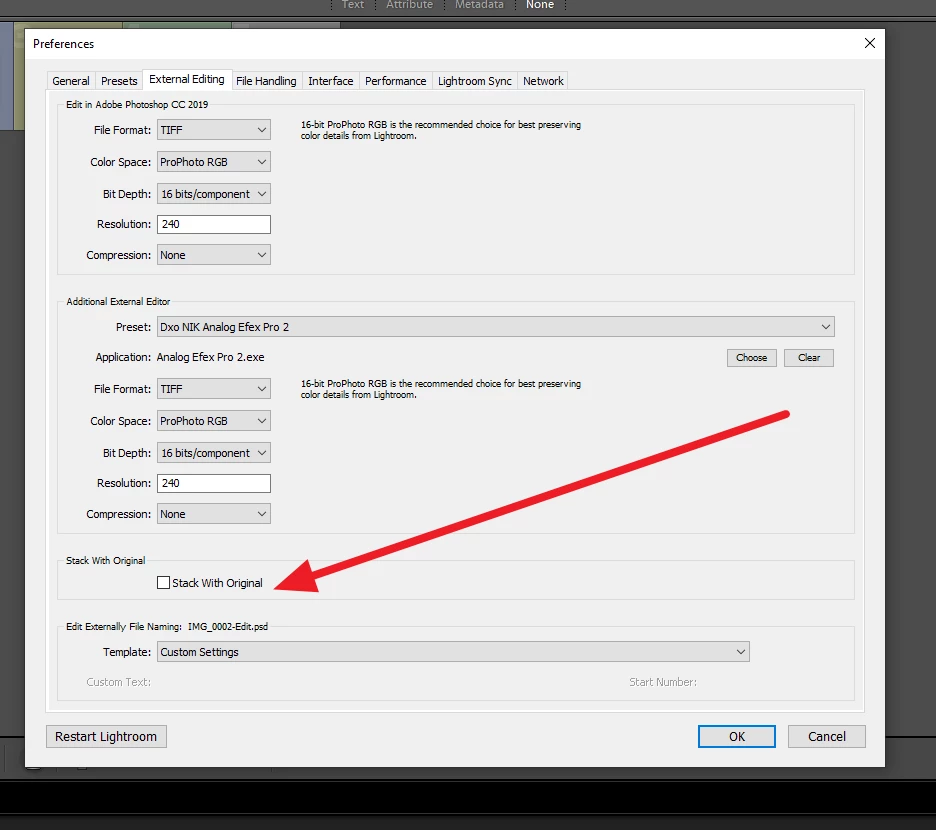
By the way, in LR preferences, for external editing, do you have that stack with original box checked? The image could be hidden in a stack.

And a extra link just on setting up external editors with PS in mind: Setting up Lightroom and Photoshop for smooth integration > Lightroom-Photoshop Roundtrip Workflow

4 replies

GoldingD
GoldingDCorrect answer
Legend
January 23, 2019

By the way, in LR preferences, for external editing, do you have that stack with original box checked? The image could be hidden in a stack.

And a extra link just on setting up external editors with PS in mind: Setting up Lightroom and Photoshop for smooth integration > Lightroom-Photoshop Roundtrip Workflow

Participant
January 23, 2019

That stacking box seemed to do the trick. Thank you!

Participant
January 22, 2019

So doing a sync again seemed to work, but I remember not having to do that in the past. I would be in the Develop module and *poof* the TIFF pulls up right next to the NEF.

Any way to get that back?

Just Shoot Me
Legend
January 23, 2019

Normally when you send a RAW files to PS from LR and then SAVE it it is auto returned to LR. At least that is what happens on my systems.

Abambo
Community Expert
Community Expert
January 23, 2019

https://forums.adobe.com/people/Just+Shoot+Me  wrote

Normally when you send a RAW files to PS from LR and then SAVE it it is auto returned to LR. At least that is what happens on my systems.

I only can confirm that. Only reason for a broken connection is when Ps crashes in between.

ABAMBO | Hard- and Software Engineer | Photographer
Just Shoot Me
Legend
January 21, 2019

You may have some other filter turned on or you are in a collection or smart collection and the newly created TIFF file is not part of that filter, collection or smart collection.

If you go to All Photographs in the Catalog area of the left hand panel of the Library module do you see the new TIFF image file? It should be right next to the original if you have the Sort: set to Capture Time.

Abambo
Community Expert
Community Expert
January 21, 2019

Discussion successfully moved from Adobe Creative Cloud to Lightroom Classic CC — The desktop-focused app

Try synching the directory. Does that show new files?

ABAMBO | Hard- and Software Engineer | Photographer