pauly36771282
Participant
October 11, 2018
Answered

Lightroom export issues - colour saturation

  • October 11, 2018
  • 3 replies
  • 7408 views

Hello everyone,

I am really hoping someone can help me, as I pulling out what remaining hair i have!  I am having issues for sometime now when exporting photos from Lightroom for sharing online.  Its become more of an issue now, as I have recently photographed a wedding for a friend, and can't get the images to process correctly.  I am not particularly in the know with this stuff, so apologies in advance if i dont provide enough information to help me.  Any help would be much appreciated.

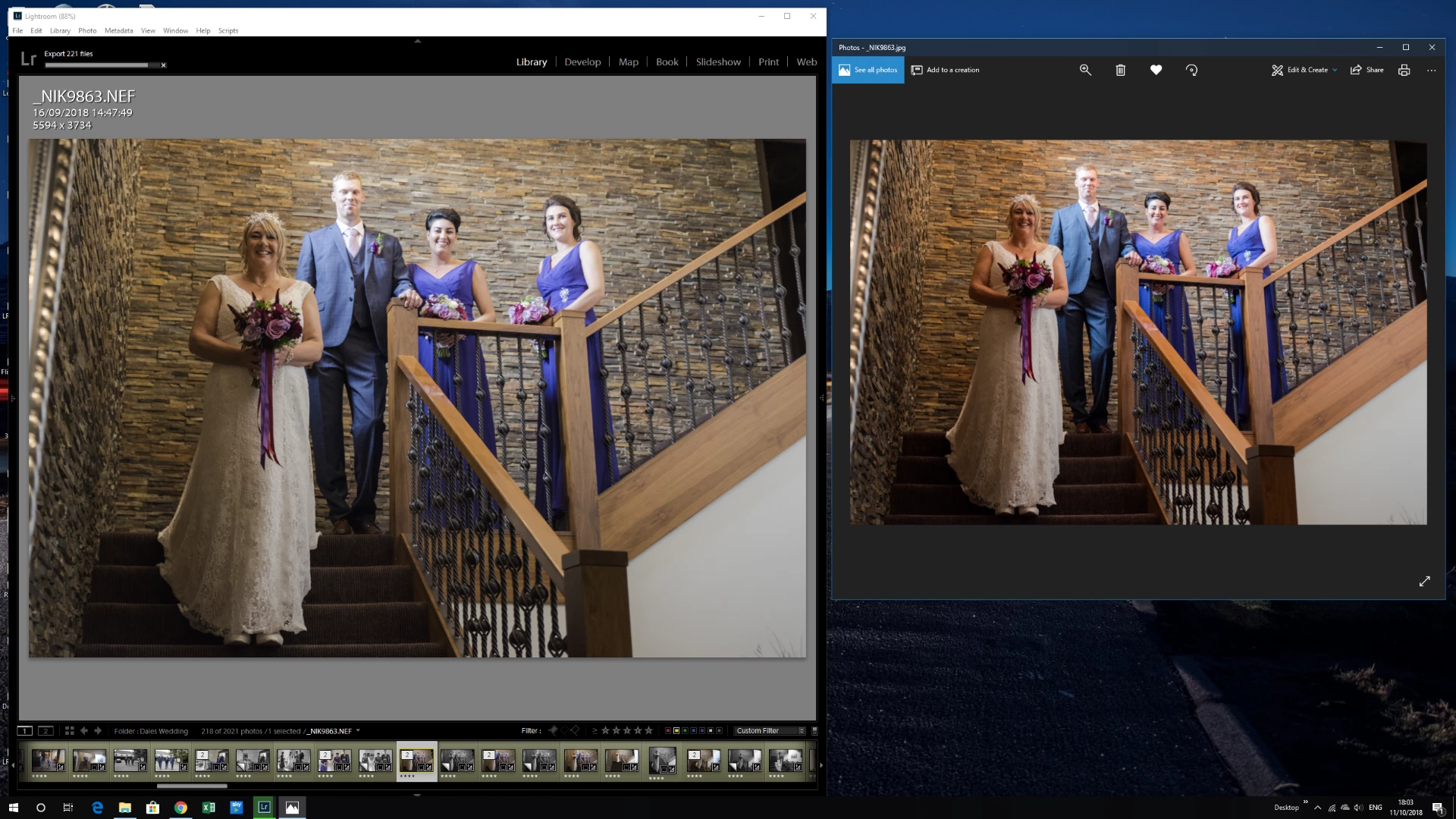
Screenshot from below is an example.  Left hand image is the amended raw file in lightroom, right hand image is an exported jpeg, opened on the windows 10 photo app.  Like this example a lot of photos come out darker, and more saturated.

Images taken in raw from a D810.

Lightroom version is 2015.12 camera raw 9:12. 

Export function is set at image format-jpeg, colour space -srgb, quality % varies.  Sharpening (yes) set at low

My monitor is a Dell U2713H.  This has never been calibrated, but dont know if thats the issue as both pictures are on the same monitor?

Monitor colour profile is set as default which is U2713H.icm

Not sure if this is related or just my personal taste, but in general when i use the auto function in lightroom develop mode, i almost always have to reduce the exposure by at least 0.5 stop after the auto adjustments, lightroom always seems to over-expose to start with?

I dont use camera raw at all.  Just export the raw files into lightroom and make adjustments from there.

Any help would be appreciated as I am at a complete loss and would love to get these photos ready!

Thanks

Paul
This topic has been closed for replies.
Correct answer Sahil.Chawla

Hi Paul,

I believe the issue is related to the color profile of the monitor, could you try changing it to sRGB IEC61966-2.1  in the color management and let us know how it goes?

Click start and open Control Panel.
In the upper right corner type in [Color Management] into the search bar and click on it.
Then click on [Add] and find the line titled sRGB IEC61966-2.1 and set it as default.

Then relaunch Lightroom and let us know if it helps.

Regards,
Sahil

3 replies

pauly36771282
Participant
October 11, 2018

Thank you very much Sahill, that seems to have done the trick, much appreciated

Sahil.Chawla
Adobe Employee
Adobe Employee
October 11, 2018

Glad we got it working! Feel free to reach out to us for any future queries.

dj_paige
Legend
October 11, 2018

The Windows 10 Photo App is not color managed, so it can indeed show photos with different colors than in Lightroom. You shouldn't use it for critical work.

Yes, you do need to calibrate your monitor properly if color fidelity is important to you.

But the bottom line is when someone else views the photos on some other computer, you have no control over the software they use (although you can suggest what software to use), and you have no control over whether or not their monitor is calibrated, and so basically there's little you can do to ensure that the colors will appear the same on someone else's computer.

pauly36771282
Participant
October 11, 2018

Thank you for your input, i will look into getting the monitor calibrated. 

Regards

Paul

Sahil.Chawla
Adobe Employee
Sahil.ChawlaCorrect answer
Adobe Employee
October 11, 2018

Hi Paul,

I believe the issue is related to the color profile of the monitor, could you try changing it to sRGB IEC61966-2.1  in the color management and let us know how it goes?

Click start and open Control Panel.
In the upper right corner type in [Color Management] into the search bar and click on it.
Then click on [Add] and find the line titled sRGB IEC61966-2.1 and set it as default.

Then relaunch Lightroom and let us know if it helps.

Regards,
Sahil