
Participant
December 20, 2017
Question

Lightroom Exports coming out washed out
  • December 20, 2017
  • 3 replies
  • 2140 views

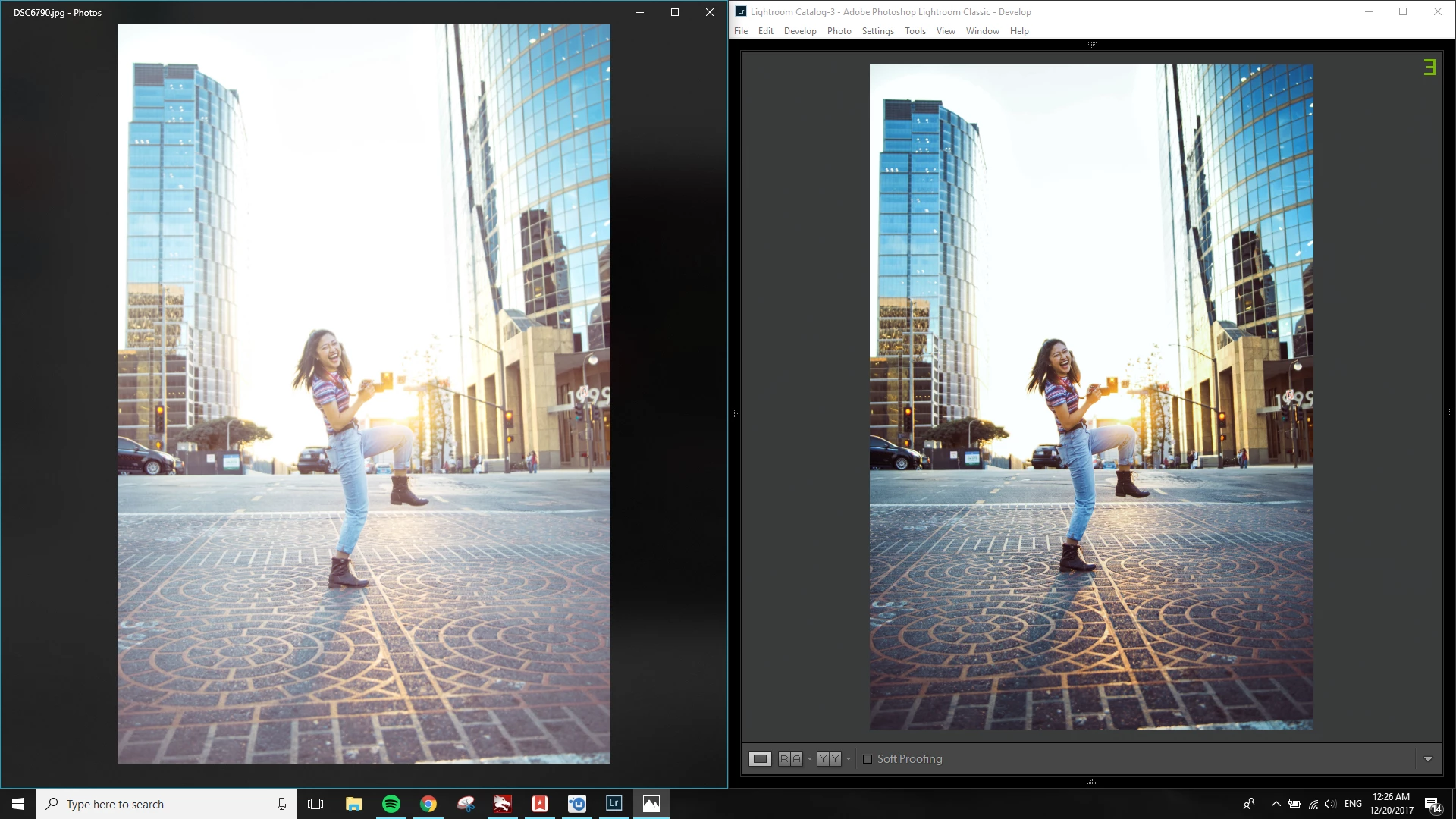
(LEFT-washed out, RIGHT- how it looks in lightroom)

Okay, I've been looking for answers everywhere and my last post got me nowhere. For some reason for the past month, this has been happening to all my Lightroom exports. It has never been a problem before, in the past my photos have come out looking exactly as they do in the editor.

Some notes:

1) yes my monitor is color calibrated but that has nothing to do with it

2) I'm exporting in sRGB and have played with all the quality settings

3) The files I'm editing are .ARW and I'm exporting them as JPEG

4) I've only had this problem for a month

5) I'm aware of what color managed photo viewers are, but in the past that did not matter, it looked the same on everything regardless of it being color managed

6) looking back at my old photos I edited in lightroom, they are very very dark in lightroom and are the way they are supposed to be in the photo viewer.

(LEFT- how i initially edited it/how it shows when i open the file elsewhere/how it originally looked in lightroom, RIGHT- what it looks like in lightroom now)

Please help, this has been super frustrating and it has completely prevented me from putting out my work

This topic has been closed for replies.

3 replies

Per Berntsen
Community Expert
Community Expert
January 4, 2020

This is most likely caused by a defective monitor profile.

Windows 10 is known to install low quality monitor profiles when doing updates.

The fix is to calibrate the monitor with a hardware calibrator, which will also create and install a custom monitor profile that accurately describes your monitor.


If you don't have a calibrator, you can set the monitor profile to sRGB (use Adobe RGB if you have a wide gamut monitor).

Depending on the characteristics of the monitor, and your requirements, this may be close enough, but for accurate colors, use a calibrator.


Close Lightroom.

Press the Windows key + R, type colorcpl in the box and press Enter.

Add the sRGB profile and set it as default.


Participant
January 4, 2020

I have the exact problem!  Did you find an answer?  I am super frustrated too. 

D Fosse
Community Expert
Community Expert
January 4, 2020

I don't know why this wasn't properly answered when it first came up, but in any case the answer is that Windows "Photos" is not color managed. It ignores the document profile and it ignores your monitor profile, and it most certainly does not convert from the first into the second. It just sends the original RGB numbers straight through, without any correction for your display.


For some reason a lot of people seem to believe that having both apps up on the same screen proves anything. But that has nothing to do with it. One uses the monitor profile, the other does not.


All that said, the original example posted here indicates a somewhat defective monitor profile. There shouldn't be this much difference in overall brightness. You can get a defective profile through Windows Update (from the manufacturer), or a calibrator might produce broken profiles.


To test that, replace the profile with sRGB IEC61966-2.1. For wide gamut displays use Adobe RGB. This isn't a fix, it won't be accurate, but it should indicate whether the profile is very much off:

Sahil.Chawla
Adobe Employee
Adobe Employee
December 20, 2017

Hi Antoined,

Is this happening with all the files?
Have you tried creating a new test catalog and then try importing a few images into it and test the export?

Could you please let us know which monitor profile is selected in the color management for your monitor?

Regards,

Sahil

Participant
December 21, 2017

My monitor is in standard mode and calibrated to 97% Adobe rgb but that is beside the fact because the difference shows on the same monitor..  the problem is the way Lightroom is displaying the files before exporting