TR Young
Known Participant
February 25, 2017
Answered

Lightroom folder contents disappeared, can't reimport

  • February 25, 2017
  • 3 replies
  • 1348 views

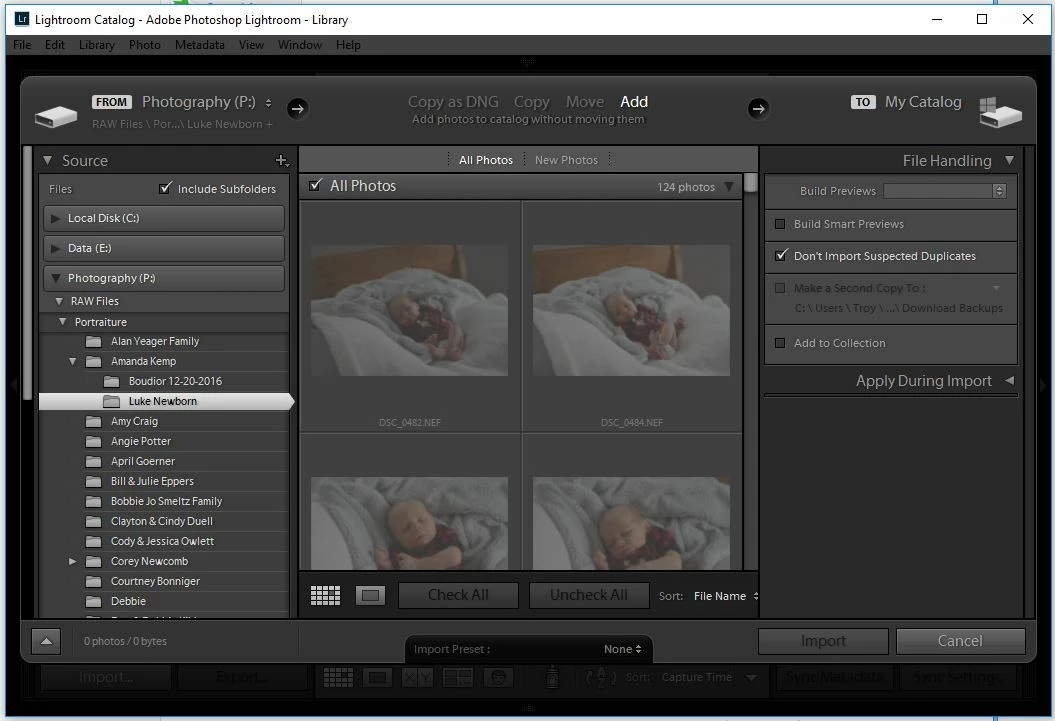
I have a folder that seems to have had its contents completely disappear from my Lightroom catalog. It is a subfolder of one of my repeat client's son's photos. I can't access it from within my Lightroom library. The original raw files are still in their proper location, so I tried to do a re-import, but the files won't show up in the 'Import' dialogue. I tried removing the offending folder from my Lightroom library, and it did remove. I then once again tried to re-import, but I still can't get it to work. I have also tried to sychronize the folder and its parent folder, to no avail.

Any help would be greatly appreciated.
    This topic has been closed for replies.
    Correct answer Jao vdL

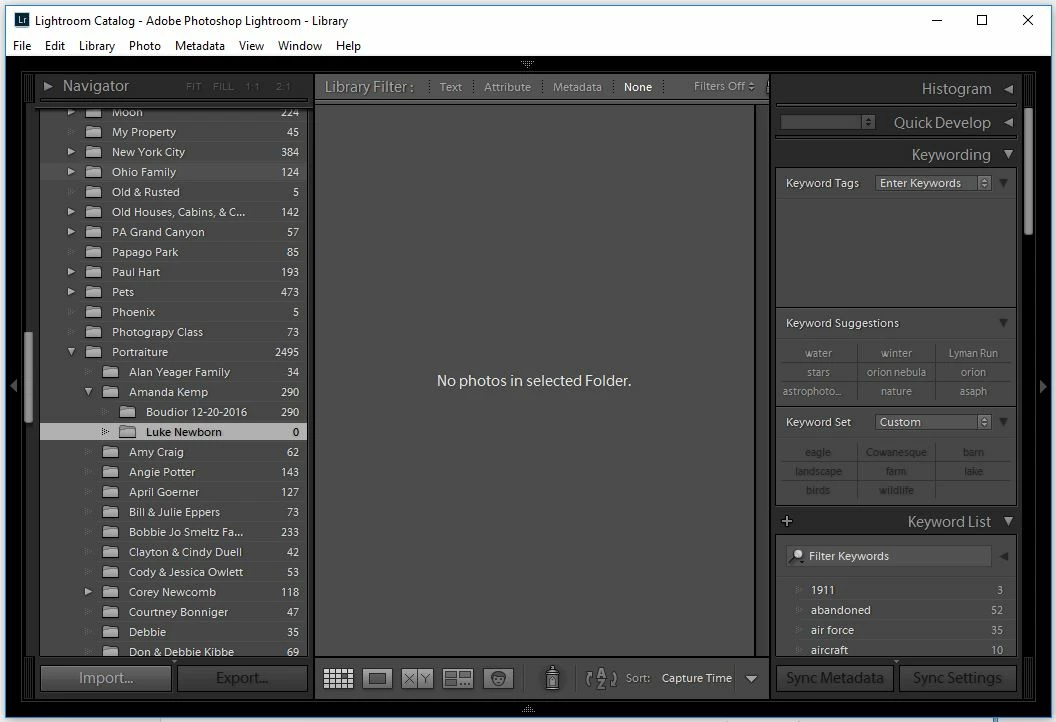
    This is what LR looks like in the Navigator. The highlighted folder is being shown as having 0 photos.

    When I try to do an import, all the photos are shown as if they're already imported.


    They are already in there just not in the location where you think. Go to all photographs, click on the filter bar on "text", type the file name of one of your images. The image should pop up. Right click on it and select "go to folder". Remove the filter (select filters off) from the pop up on the right above the images.

    3 replies

    TR Young
    TR YoungAuthor
    Known Participant
    February 25, 2017

    I appreciate all of the help. I finally just unchecked 'Don't Import Suspected Duplicates' and re-imported them.

    Community Expert
    February 25, 2017

    Sounds like you need to reconnect the folder in Lightroom to where it really is. Likely you moved the folder, changed the drive letter or some other mishap. Right click on the folder and do an update folder location pointing at where it really is, or right click on one of the files and do a find missing file on it pointing to the right file on your hard disk. It should automatically update the images around it too.

    TR Young
    TR YoungAuthor
    Known Participant
    February 25, 2017

    I have tried that, and it did not work.

    To clarify: The files do not show up in the folder, and I'm not getting the 'image not found' error message. I do know what you are telling me to do, as I have had to do that in the past as  well. This is a very odd happening; Lightroom is acting as if all the files are already imported, but none of them are showing up.

    JP Hess
    Inspiring
    February 25, 2017

    What do you mean, "acting as if they are already imported."?

    JP Hess
    Inspiring
    February 25, 2017

    What version of Lightroom are you using? What OS? What have you done to verify that the raw files are still in place?

    TR Young
    TR YoungAuthor
    Known Participant
    February 25, 2017

    Using Lightroom CC

    Windows 10 Pro

    I have used Windows Explorer to look at the folder where I keep my raw files and navigated to this particular sub folder and they are still there, hence my stating, "The original raw files are still in their proper location".

    JP Hess
    Inspiring
    February 25, 2017

    I'm understanding that if you open the import dialog and browse to the folder containing these raw images (iin the left-hand column of the import dialog) that those raw images do not show. Is that correct?