

ClandestineMan
Participating Frequently
March 21, 2018
Answered

Lightroom Freezes Whole Computer.

  • March 21, 2018
  • 3 replies
  • 15732 views

I just got a new computer.  I installed Lightroom Classic CC.  I try and import some files.  But Lightroom and Windows freeze and I have to power cycle to get back control of my computer.  Sometimes I can get to the import process and get one or two files imported before Lightroom freezes, other times, just opening the import window freezes the whole system.

This is my computer Specs:

Alienware Area-51 R5

Processor: Intel(R) Core(TM) i9-7980XE CPU @ 2.60GHz

RAM: 32.0GB (31.9GB usable)

Windows 10 Pro

Main Drive C: Toshiba SSD 512GB

Data Drive 😧 2TB

Display Card: NVIDIA GeForce GTX 1080 Ti

There are no log files in the Adobe Lightroom log folder.

I have tried turning on and off the graphics card settings.

I have tried saving into different drives.

I have done a system restore to factory settings.

I have checked for updates.

No luck in finding out why this is happening.  Do you have any suggestions?  Every other application I have had on here works.
This topic has been closed for replies.
Correct answer Viscott

@Viscott I think we have pretty much the same computer... except for the SSD drive.  Yours is bigger. lol

No, I was unable to resolve this issue.  I called up the Adobe Tech Support people and they helped for about 40 minutes and tried to get it working.  But I had to leave and they were running out of ideas.  They said they would call back or email me, but they did not.  I have not had a good time to call them back to see if they have any other ideas.  The tech guy that I got was a photoshop guy and so we were causing the issues with photoshop.  It is 100% freeze when a photo is loaded.  So its simple and easy to reproduce.  I have also tried using After Effects and that will cause the freeze as well.  I have not tried any other application from Adobe... except for Adobe Reader for PDF files.  That works. lol

I am going to try and carve out sometime... probably next Thursday and call Adobe up again and see if they can resolve the issue.


ClandestineMan  Adobe support did a remote on my computer and changed some file permissions on the Adobe Files and got LR Classic and Photoshop CC to run. They turned off under Performance on LR and PS use the Graphic Card, NO. The computer far exceeds Adobe's hardware requirements for their applications. This still did not fix the problem and the computer would just freeze.


But...

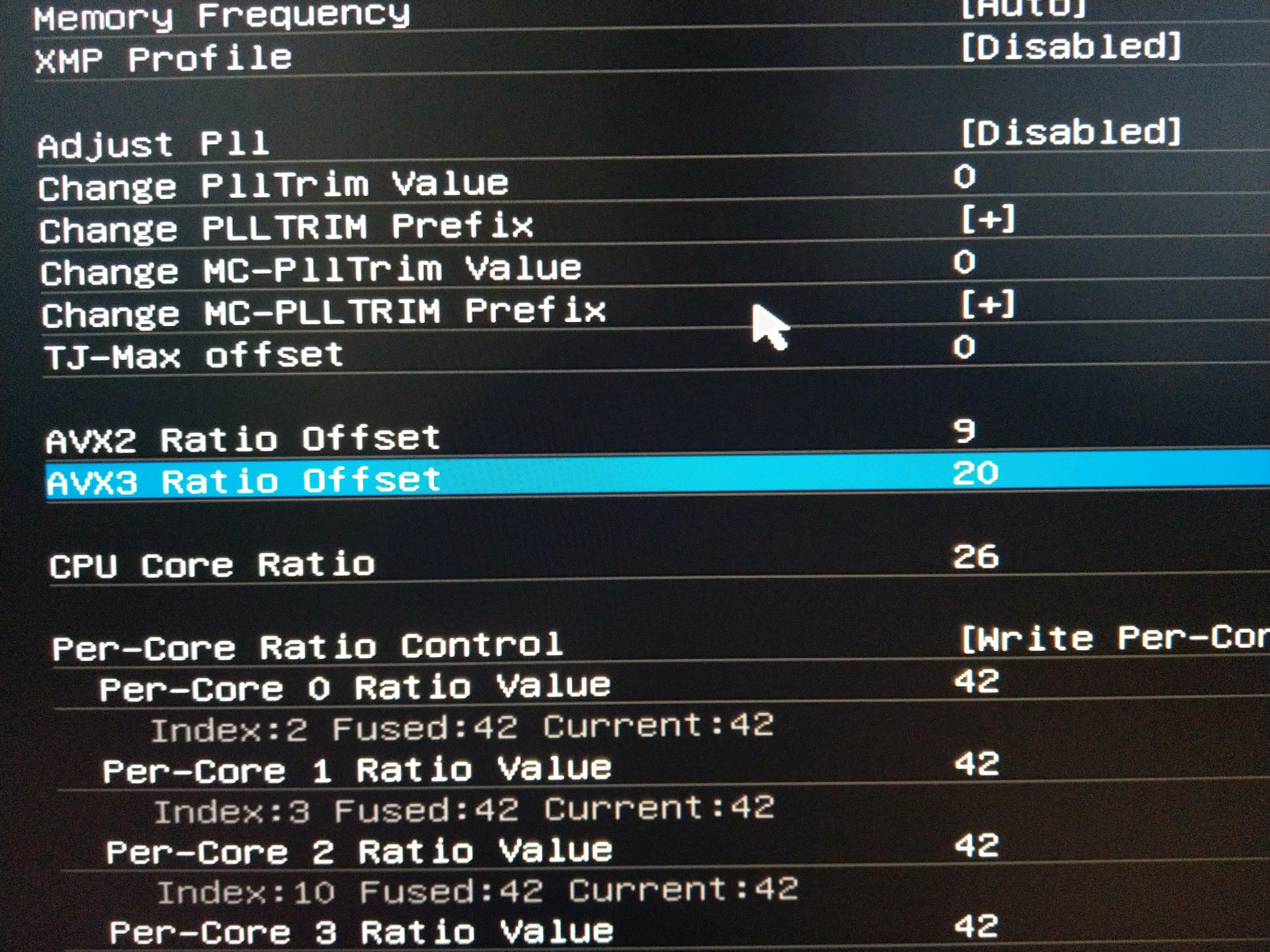
I found a helpful Dell AlienWare Support Tech that had me make changes to the over-clocking settings in the BIOS. This is stock Alienware Area 51 R5 setup and I am not using it for gaming, my use is as a high-end Graphics Computer. He told me they know about the problem with Adobe products. He had me change in the BIOS the Overclocking Default Settings AVX2 Ratio Offset from 0 to 9 and AVX3 Ratio Offset from 0 to 20.

I also updated the firmware to 1.1.10. Windows thinks its a virus so you have to turn off Windows Defender to download the file and run the BIOS upgrade. Be patient and just let the computer do its thing and wait for windows to restart.

I also am running Nvidia GeForce Experience with the current driver 391.35 3/27/2018

I am still setting up this computer, I have 850GB of LR catalogs to copy over to the 2TB M.2 Drive.

Alienware Area 51 R5 System BIOS
Version 1.1.10, 1.1.10 21 Mar 2018

Enhancements

- Optimized the Overclocking AVX2 & AVX3 Ratio Offset setting. http://www.dell.com/support/home/us/en/19/drivers/driversdetails?driverId=R8FWX

Alienware Area 51 R5 System BIOS Driver Details | Dell US

3 replies

Inspiring
April 1, 2018

May actually be a Windows problem.  My computer has been randomly freezing for the last month or so, and not just when using Lightroom.  Searching on the internet reveals it is happening to others too, but no consistent solution and hard to diagnose.  Probably some combination of drivers and circumstances.  Fortunately, in my case it doesn't happen often.

Community Expert
April 1, 2018

Try resetting lightroom’s Preferences. The trick is here: https://www.lightroomqueen.com/how-do-i-reset-lightrooms-preferences/

ClandestineMan
Participating Frequently
April 1, 2018

Thanks for the link.  I gave that a try and did not work.

So I reset the Lightroom settings based on the article.

I deleted the files that the link said to delete.

I reset the Lightroom settings again.

Computer Freezes still.  At one point the whole computer would freeze seconds after Lightroom started.  I didn't even get a chance to do anything with it.

Community Expert
April 1, 2018

Was worth a try. Never seen behavior like you describe. No idea what could

cause it but some hardware problem that somehow only Lightroom triggers.

On Sat, Mar 31, 2018 at 10:38 PM ClandestineMan <forums_noreply@adobe.com>

dj_paige
Legend
March 21, 2018

System freezing on Windows is almost always a bad video driver or a hardware malfunction somewhere. You need to install (or re-install) the current version of the video driver for your GPU, and run diagnostics checks on the rest of your computer.

ClandestineMan
Participating Frequently
March 22, 2018

It took me a while, but I was able to find the driver information.  I had an old driver installed.  I updated it.  Ran the program again.  Computer Freeze up.  I have tried diagnostic checks a couple of times and nothing is found to be wrong.

ClandestineMan
Participating Frequently
March 22, 2018

OK, so I installed the monitor drivers for the monitors that I have.  rebooted and still have the issue with Lightroom.  It only seems to happen when Lightroom is trying to display images.  So in the import window.  Even though windows is not responding, the lights on my computer are still shifting in color.  My monitors are G-Sync monitors.  Would that make a difference?