Participant
October 22, 2017
Answered

Lightroom Import ADD folder structure issue

  • October 22, 2017
  • 2 replies
  • 6440 views

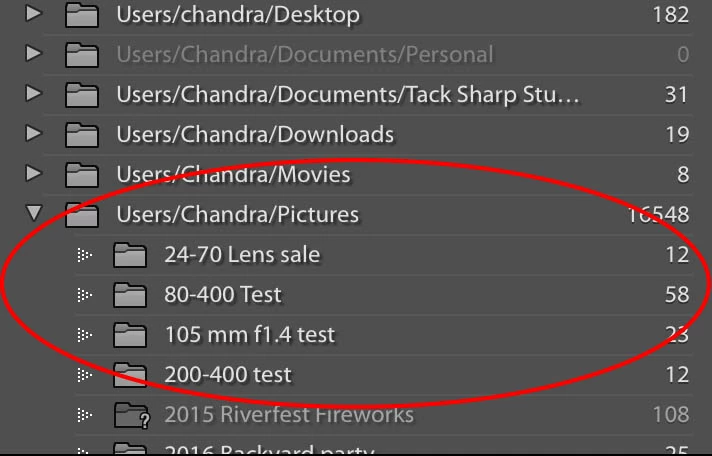
I have been using Lightroom CC (now, Lightroom classic) for quite some time now. I always copy my RAW files to my Mac. I create a folder under "Pictures" and copy the RAW files there. Then, I import into LR using the "ADD" option. This used to import all images and the folder used to stay under the "Pictures" folder as shown in the "Folder 2" image shown below.

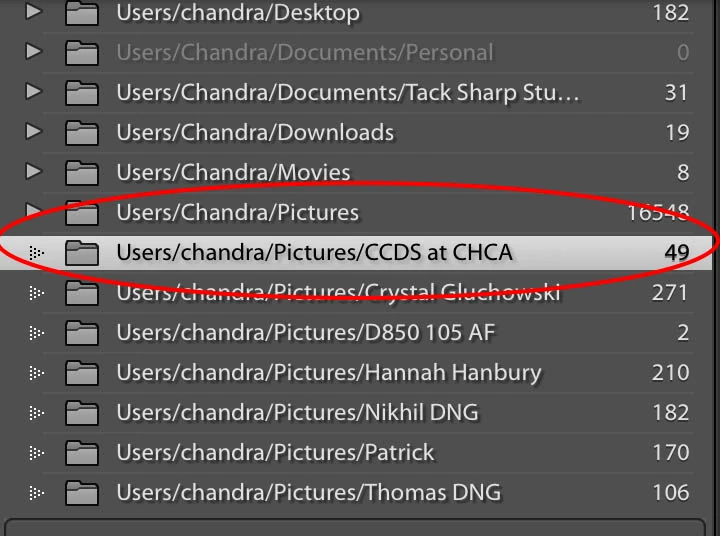
Recently, I have noticed that the images are actually showing on the left panel outside the "Pictures" folder. Physically, they are exactly where I put them on the hard drive (under the "Pictures" folder). But, on LR panel, it shows outside the "Pictures" directory. As you can see, the full folder path and name is correct. It is just not displaying correctly. This suddenly started happening recently. Any ideas?

Thanks

Chandra

This topic has been closed for replies.
Correct answer Jim Wilde

I think you are on the right track here. My machine had the home directory as "Chandra" with uppercase C. I had to reinstall the OS and bring everything back from a backup. I guess that when I reinstalled the OS, I named the user as "chandra" with lowercase. But, when I copied the catalog file from the backup, it had "Chandra" as the folders that were there in the old machine.

Here's the screenshot with "Folder name" only. For e.g, the folder name "Patrick" and "Hannah Hanbury" are all shoots that I did after the reimage of the machine and hence have "c" in the folder name.

Thanks

Chandra
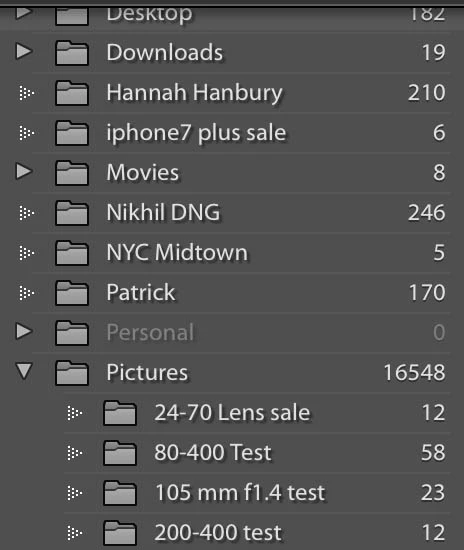

OK, just to be totally certain, hover the mouse over the "Pictures" folder and you should see a pop-up with the full path, which should include "Chandra"....is that correct?

Assuming it is, that's the folder that we have to "fix", and we do that by first of all fooling Lightroom into forgetting about "Chandra", and then telling it that everything's now under "chandra". To to that, the steps are:

1. Take a catalog backup, just in case something goes wrong (though it hasn't yet).

2. Using Finder, create a temporary folder, e.g. CapsFix, somewhere outside the existing Pictures folder, such as in the root of the Macintosh HD drive.

3. In Lightroom, right-click on that Pictures folder in the Folder Panel and select "Update Folder Location". In the resulting file browser, navigate to and select the "CapsFix" folder. That will cause the "Pictures" folder to disappear, and the "CapsFix" folder to appear. All the sub-folders of "CapsFix" will have the "?" mark to indicate they are "missing". Don't be alarmed, that is expected.

4. Now right-click on the "CapsFix" folder, again select "Update Folder Location", now navigate to and select the "Pictures" folder in your user library. You should receive a "Merge Warning Message", again this is expected and you should select "Merge". That should put the Pictures folder structure back in the Folders Panel, and all those "stray" folders that were under "chandra" will now be slotted back into the one "Pictures" folder.

If any of that fails to work as I've described, stop and report back here.

2 replies

Temple Dog
Participating Frequently
May 3, 2021

I recently had the same problem - a case of case insensitivity. I simply right-clicked on the duplicated folder in the Library module and chose "Update Folder Location". Because both folders pointed to the same location on my drive LR then asked me if I would like to 'Merge' the two. Simply ticked yes and one of the offending folders disappeared and everything went back into one folder again. Hope that helps.


Jim Wilde
Community Expert
Community Expert
July 6, 2021

That's interesting. In all the previous instances of this problem, "Update Folder Location" produced an error message and so it couldn't be done. I wonder if Adobe have made a fix in this area, it would be very helpful if they have.

Akash Sharma
Legend
November 6, 2017

Hi Chandra,

Have you tried synchronizing the folder in Lightroom? There might be a disconnect for this folder and re-linking it might help restoring the correct folder structure.

Thanks,

Akash

csekar15Author
Participant
November 6, 2017

Yes. I have tried that and it still keeps the folder outside the "Pictures" folder in the tree.

Jim Wilde
Community Expert
Community Expert
November 6, 2017

It's the old "capitalisation" problem, caused by Lightroom being case-sensitive, and the OS generally being case-insensitive. Note the two different spellings of the username "Chandra" and "chandra"....your OS "sees" them as the same, but Lightroom thinks they are different and so thinks there are two different file paths. It's relatively easy to fix, but can you first do two things:

1. Advise is which is the current "correct" spelling of the username.

2. In the Folders Panel, click on the "+" at the right-hand side of the "Folders" header, and change the Root Folder Display to "Folder Name Only", then repeat the screenshot of the Folders Panel.