

Lightroom Mobile Not Signing In on Desktop
Hi.
I am having a problem that I cannot seem to fix.
Lightroom simply doesn't log in to Lr Mobile on the Desktop App. I am presented with the following in the Lr tab in preferences.
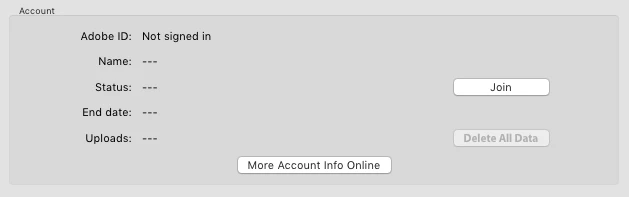
I am signed into the creative cloud app and I have tried everything. Uninstalled Photoshop, Lightroom and CC. Used the Adobe CC Cleaner Tool. Signed out and in. Cleaned hosts. Deleted preferences.
I have just recently purchased the subscription and haven't even used it so will be cancelling should I not be able to get this resolved. (Support has been trash up to now, unhelpful and under qualified.)
Here is my Lr Diagnostic log for mobile.
Lightroom Sync Diagnostic Log
Generated: 2017-06-12T16:21:02+0200
App has been running for 820 seconds (13 minutes, 40 seconds).
This information will be used by Adobe engineers to help diagnose the problem you are reporting.
Table of Contents
- Platform Description
- HTTP Client : ( unknown )
- HTTP Client : LmModelsThread.lua
- HTTP Client Imp: WFHttpClientImp.lua
- Messaging Processors
- Activity Center UI
- Lightroom mobile Login
Platform Description
- getAppDeviceClass: mac
- getAppIdentifier: Lightroom
- getAppName: Adobe Lightroom
- getAppVersion: 6.0
- getBranchName: master
- getBuildTarget: Release
- getDeviceManufacturer: Apple
- getDeviceModel: Mac
- getOS: MacOSX
- getOSVersion: 10.12.
- isAndroid: false
- isCocoa: true
- isConstrainedMemoryDevice: false
- isDebug: false
- isDesktop: true
- isHighDPIDevice: true
- isMac: true
- isPhone: false
- isProduction: false
- isProfile: false
- isRelease: true
- isTablet: false
- isTornado: false
- isiOS: false
- isiPad: false
- isiPhone: false
HTTP Client : ( unknown )
- connections:
- 1: uploadsRequested
- 2: uploadsDispatched
- 3: downloadsRequested
- 4: downloadsDispatched
- timings:
- 1: GET
- 2: PUT
- totalHttpTime: 0
HTTP Client : LmModelsThread.lua
- connections:
- 1: uploadsRequested0.002.00
- 2: uploadsDispatched0.002.00
- 3: downloadsRequested0.003.00
- 4: downloadsDispatched0.003.00
- timings:
- 1: GET0.000.610
- 2: PUT0.001.42
- totalHttpTime: 3.7282672400015
HTTP Client Imp: WFHttpClientImp.lua
- counts:
- 1: GET0.002.00
- 2: PUT0.002.00
- timings:
- 1: GET0.000.609
- 2: PUT0.001.42
Messaging Processors
- LmModelsThread.lua: GC size = 2511K (after GC = 2280K), peak size = 2511K
- WFHttpClientImp.lua: GC size = 1368K (after GC = 1320K), peak size = 1368K
- WFDiagnosticLogImp.lua: GC size = 1289K (after GC = 1272K), peak size = 1289K
- AgKSSystemNotificationsImp.lua: GC size = 1230K (after GC = 1195K), peak size = 1230K
- KSKeychainServiceImp.lua: GC size = 1194K (after GC = 1193K), peak size = 1194K
Activity Center UI
- loginDialog:
- navigateSteps: (empty table)
- ozTokens:
- deviceTokenForCatalogCalls: (empty table)
- storeTokenCalls: (empty table)
- serverStatus: (empty table)
- userInfo:
- daysRemainingInTrial: false
- hasValidConnectionToOz: false
- hideSyncPrompt: false
- isLoggedIn: false
- isSyncingUserInfo: false
- shouldSyncUserInfo: true
- syncCollectionsByDefault: false
Lightroom mobile Login
- loginEvents:
- 1:
- timeAtStart: 2017-06-12T16:07:42.914
- event: signInWithAccessAndRefreshTokenP
- login:
- status: error
- timeResolved: 2017-06-12T16:07:44.736
- < while (1) {} {"code":4999,"description":"Upgrade required","links":{"/rels/client_app":{"href":"http://www.adobe.com/go/lr_upgrade_required_sync"}}} >: while (1) {} {"code":4999,"description":"Upgrade required","links":{"/rels/client_app":{"href":"http://www.adobe.com/go/lr_upgrade_required_sync"}}}
- ozLogin:
- status: error
- timeResolved: 2017-06-12T16:07:44.736
- < while (1) {} {"code":4999,"description":"Upgrade required","links":{"/rels/client_app":{"href":"http://www.adobe.com/go/lr_upgrade_required_sync"}}} >: while (1) {} {"code":4999,"description":"Upgrade required","links":{"/rels/client_app":{"href":"http://www.adobe.com/go/lr_upgrade_required_sync"}}}
- 2:
- timeAtStart: 2017-06-12T16:07:43.779
- event: signInWithAccessAndRefreshTokenP
- 1:
- modelData:
- clientId: Lightroom2
- deviceId: e83c74c333fe1a3a3f44a39527df8981a4265b569577c7ddbc10637e8ee626ac
- languageCode: en-ZA
- locale: en-ZA_en
- machineName: Macbook
- regionCode: en
- scope: openid,AdobeID
 AdChoices